> ## Documentation Index
> Fetch the complete documentation index at: https://docs.replit.com/llms.txt
> Use this file to discover all available pages before exploring further.
# Advanced settings
> Review account seats, use the Enterprise Admin API, and configure access requests alongside your organization's other administrative settings.
Beyond publishing, model policies, and customization, Replit offers other administrative controls for your organization. This page groups account seats, the Admin API, and access requests. They are available in different sections of **Settings**, as described below.
Available settings depend on your role. Review [account and Workspace admin permissions](/teams/identity-and-access-management/account-and-workspace-admins) before changing policies.
## Account seats
Open **Settings → Account seats** to review subscription seats across all your Workspaces. The page separates **Collaborators** and **Viewers**, showing used seats against the available allocation.
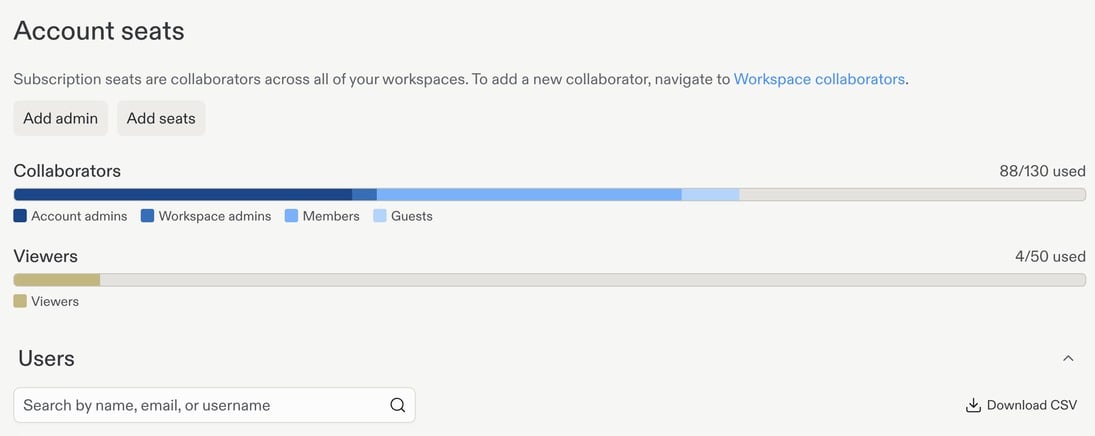 Use **Add seats** when your account needs more capacity, or **Add admin** to manage administrator access. The user directory below the totals lets you search by name, email, or username, review roles and last-active information, and **Download CSV**.
To invite a new collaborator, go to **Workspace collaborators** rather than the account-seat directory. See [Add collaborators](/teams/add-collaborators) and [account and Workspace admin roles](/teams/identity-and-access-management/account-and-workspace-admins).
## Admin API
The **Admin API** gives Enterprise account admins programmatic access to account information and supported administrative actions. Use it for internal reporting, usage dashboards, or operational integrations.
Open **Settings → Developer → API keys** and select **Create API key** to get started.
Use **Add seats** when your account needs more capacity, or **Add admin** to manage administrator access. The user directory below the totals lets you search by name, email, or username, review roles and last-active information, and **Download CSV**.
To invite a new collaborator, go to **Workspace collaborators** rather than the account-seat directory. See [Add collaborators](/teams/add-collaborators) and [account and Workspace admin roles](/teams/identity-and-access-management/account-and-workspace-admins).
## Admin API
The **Admin API** gives Enterprise account admins programmatic access to account information and supported administrative actions. Use it for internal reporting, usage dashboards, or operational integrations.
Open **Settings → Developer → API keys** and select **Create API key** to get started.
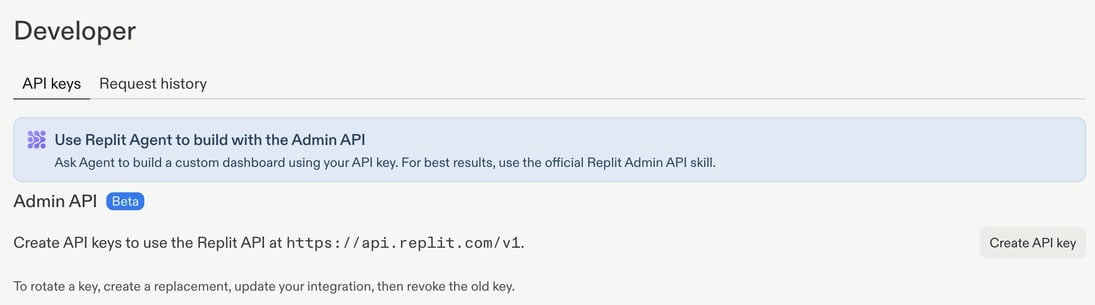 For example, use the API to build a dashboard that compares usage across Workspaces. See the [Admin API guide](/teams/admin-api) for access requirements, scopes, and setup.
The Admin API is in beta and is available only to Enterprise account admins. Grant each key only the access it needs and store it in a secure secret manager. Never put API keys in documentation, screenshots, or chat.
## Access requests
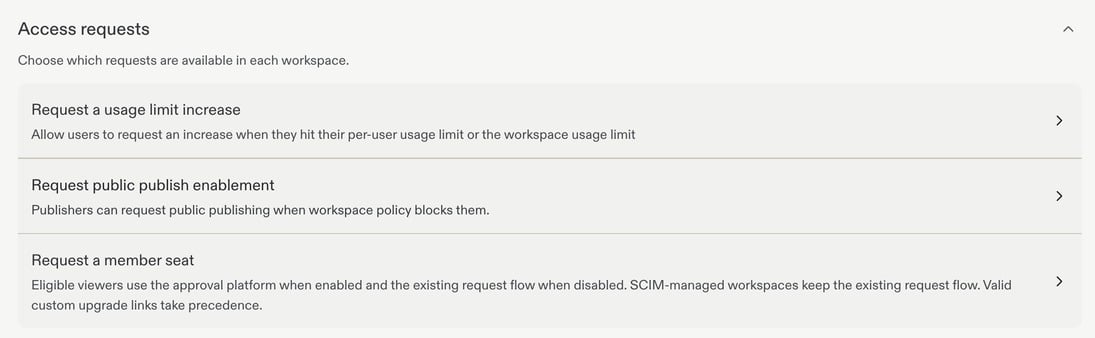
Open **Settings → Advanced → Access requests** to choose which requests are available in each Workspace. These controls let people ask for additional access when they reach a limit or encounter a policy restriction; making a request available does not automatically grant it.
For example, use the API to build a dashboard that compares usage across Workspaces. See the [Admin API guide](/teams/admin-api) for access requirements, scopes, and setup.
The Admin API is in beta and is available only to Enterprise account admins. Grant each key only the access it needs and store it in a secure secret manager. Never put API keys in documentation, screenshots, or chat.
## Access requests
Open **Settings → Advanced → Access requests** to choose which requests are available in each Workspace. These controls let people ask for additional access when they reach a limit or encounter a policy restriction; making a request available does not automatically grant it.
 | Request | Purpose |
| --------------------------------- | ----------------------------------------------------------------------------------------- |
| Request a usage limit increase | Let builders request an increase when they reach their per-user or Workspace usage limit. |
| Request public publish enablement | Let publishers request public publishing when Workspace policy blocks it. |
| Request a member seat | Provide an approval route for eligible viewers who need a member seat. |
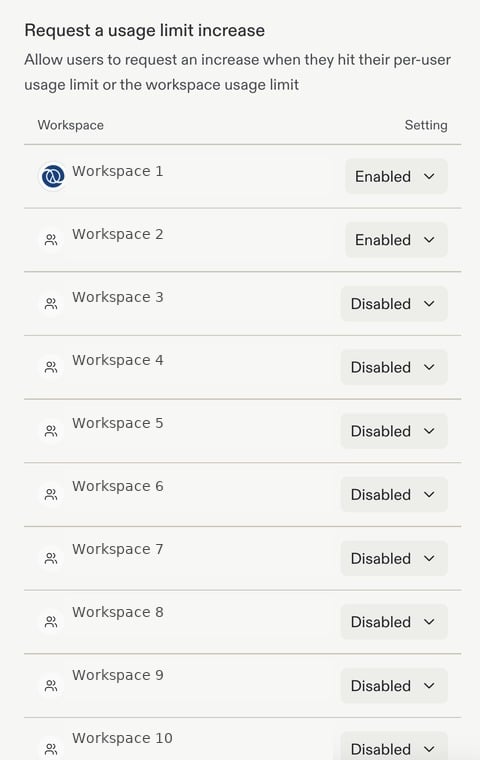
Select a request type to review its Workspace settings. For example, **Request a usage limit increase** offers an **Enabled** or **Disabled** setting for each Workspace.
| Request | Purpose |
| --------------------------------- | ----------------------------------------------------------------------------------------- |
| Request a usage limit increase | Let builders request an increase when they reach their per-user or Workspace usage limit. |
| Request public publish enablement | Let publishers request public publishing when Workspace policy blocks it. |
| Request a member seat | Provide an approval route for eligible viewers who need a member seat. |
Select a request type to review its Workspace settings. For example, **Request a usage limit increase** offers an **Enabled** or **Disabled** setting for each Workspace.
 Member-seat requests have additional routing rules: SCIM-managed Workspaces keep their existing request flow, and valid custom upgrade links take precedence.
## Other administrative controls
* [Privacy and deployment settings](/teams/privacy-and-deployment-settings): Control publishing privacy and deployment geography.
* [Model controls](/teams/modes-and-model-providers): Choose approved models and effort options.
* [Observability](/teams/observability): Review consumption and audit logs.
* [Standardization](/teams/standardization): Share reusable workflows and design guidance.
Member-seat requests have additional routing rules: SCIM-managed Workspaces keep their existing request flow, and valid custom upgrade links take precedence.
## Other administrative controls
* [Privacy and deployment settings](/teams/privacy-and-deployment-settings): Control publishing privacy and deployment geography.
* [Model controls](/teams/modes-and-model-providers): Choose approved models and effort options.
* [Observability](/teams/observability): Review consumption and audit logs.
* [Standardization](/teams/standardization): Share reusable workflows and design guidance.