> ## Documentation Index
> Fetch the complete documentation index at: https://docs.replit.com/llms.txt
> Use this file to discover all available pages before exploring further.
# Configure single sign-on (SAML SSO)
> Configure SAML single sign-on for Replit Enterprise: enable setup in Advanced settings, choose your identity provider, and complete your organization's configuration.
With SAML single sign-on (SSO), your team signs in to Replit using your company's identity provider, such as Microsoft Entra ID, Google Workspace, or Okta.
You'll need an Enterprise plan and admin access to both your Replit organization and your identity provider. This configures sign-in for your Replit organization, not authentication for an app you build.
Once SSO is active, people whose email addresses match your claimed domains must use SSO, including those with existing accounts. Coordinate with your identity administrator before activating it.
Select your Enterprise Workspace, then select the **Settings** cogwheel in the bottom-left corner. Under **Account**, select **Advanced**.
Expand **Authentication** and select **Enable SSO** on the **SAML single sign-on** card. This starts setup; SSO is not active yet.
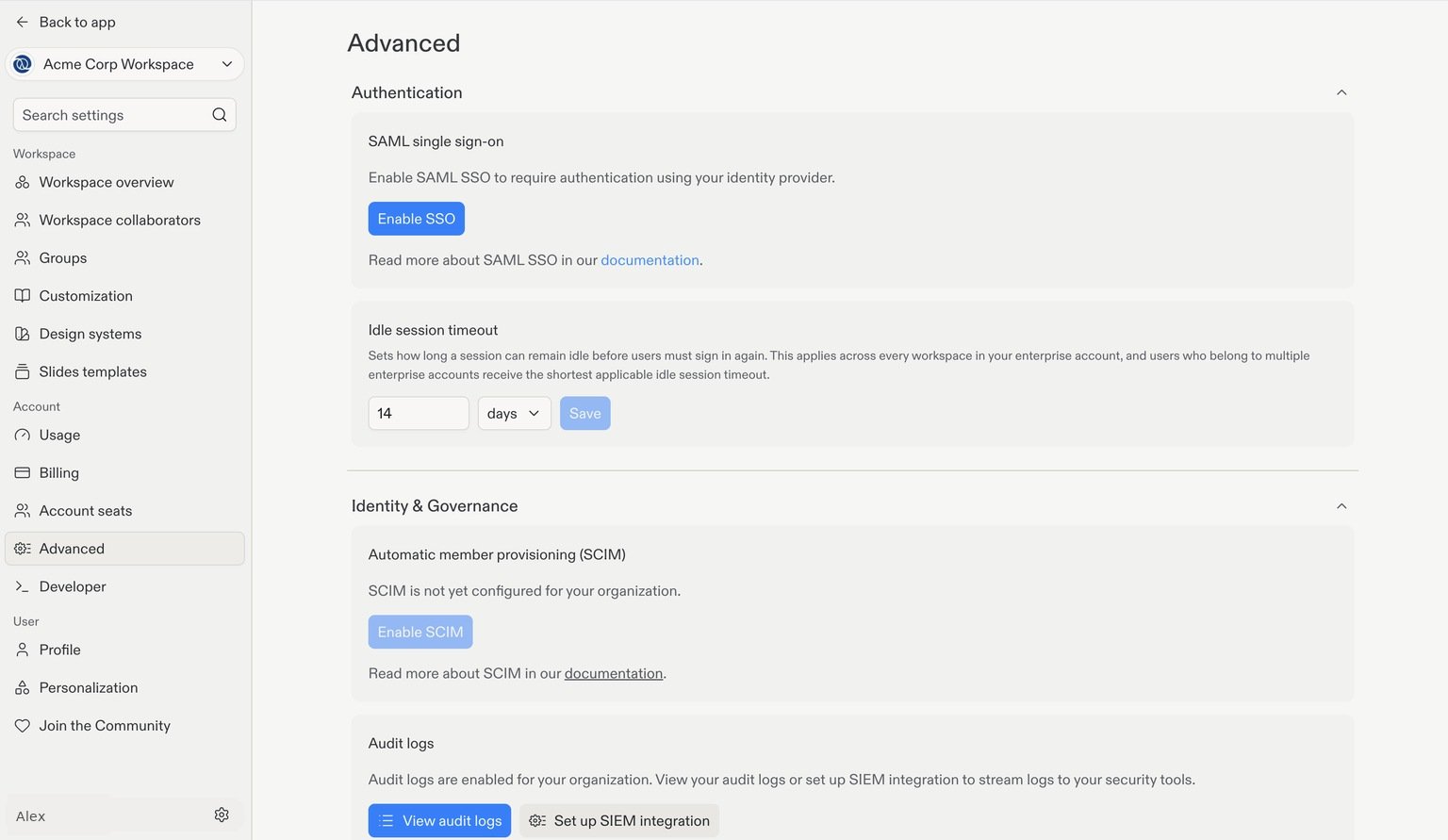 Under **Configure your identity provider**, select **Microsoft Entra ID**, **Google Workspace**, **Okta**, or **Other provider**.
Replit displays the SAML values your provider needs. Copy the values from your own settings, not from the screenshot.
Under **Configure your identity provider**, select **Microsoft Entra ID**, **Google Workspace**, **Okta**, or **Other provider**.
Replit displays the SAML values your provider needs. Copy the values from your own settings, not from the screenshot.
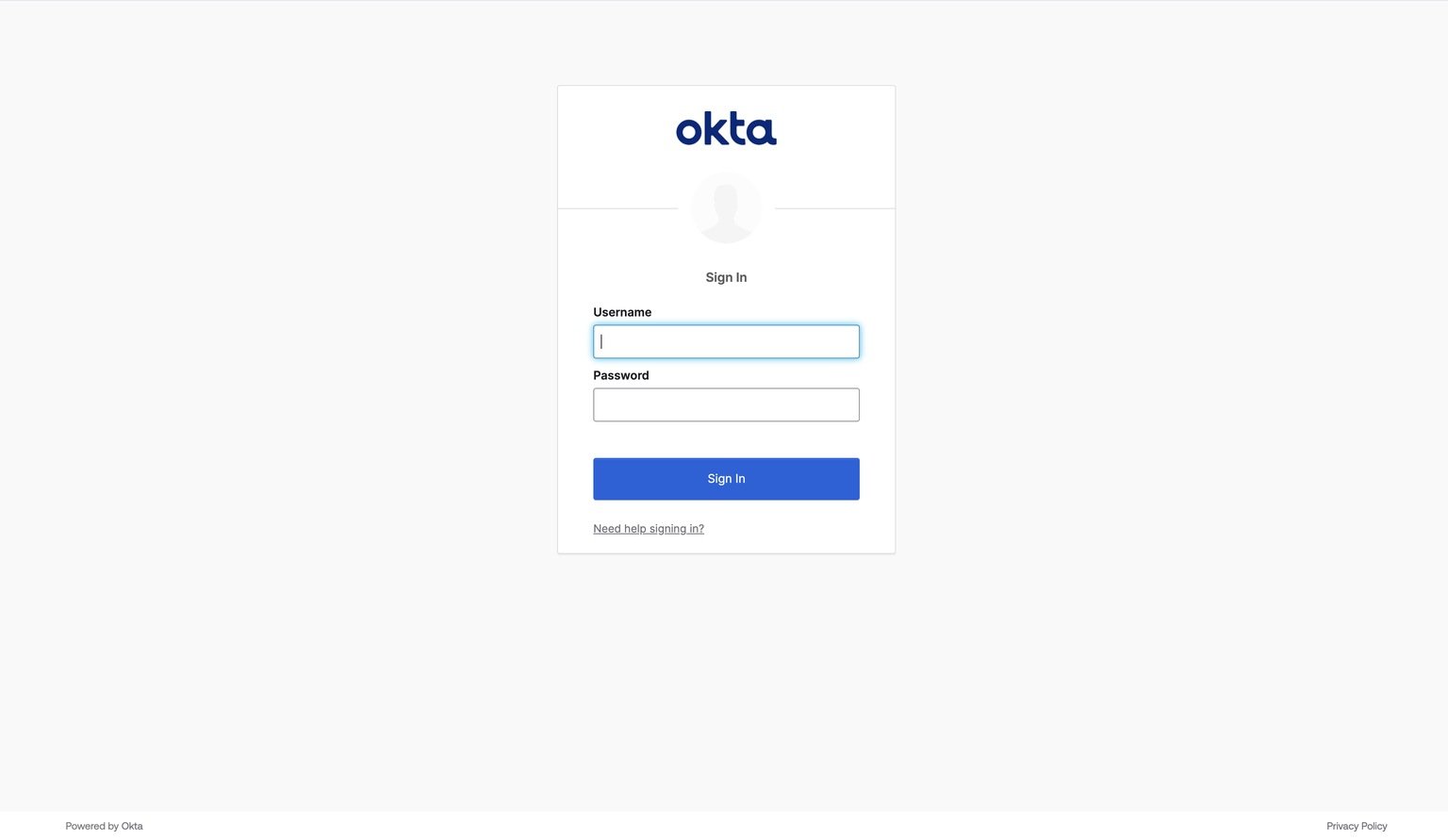
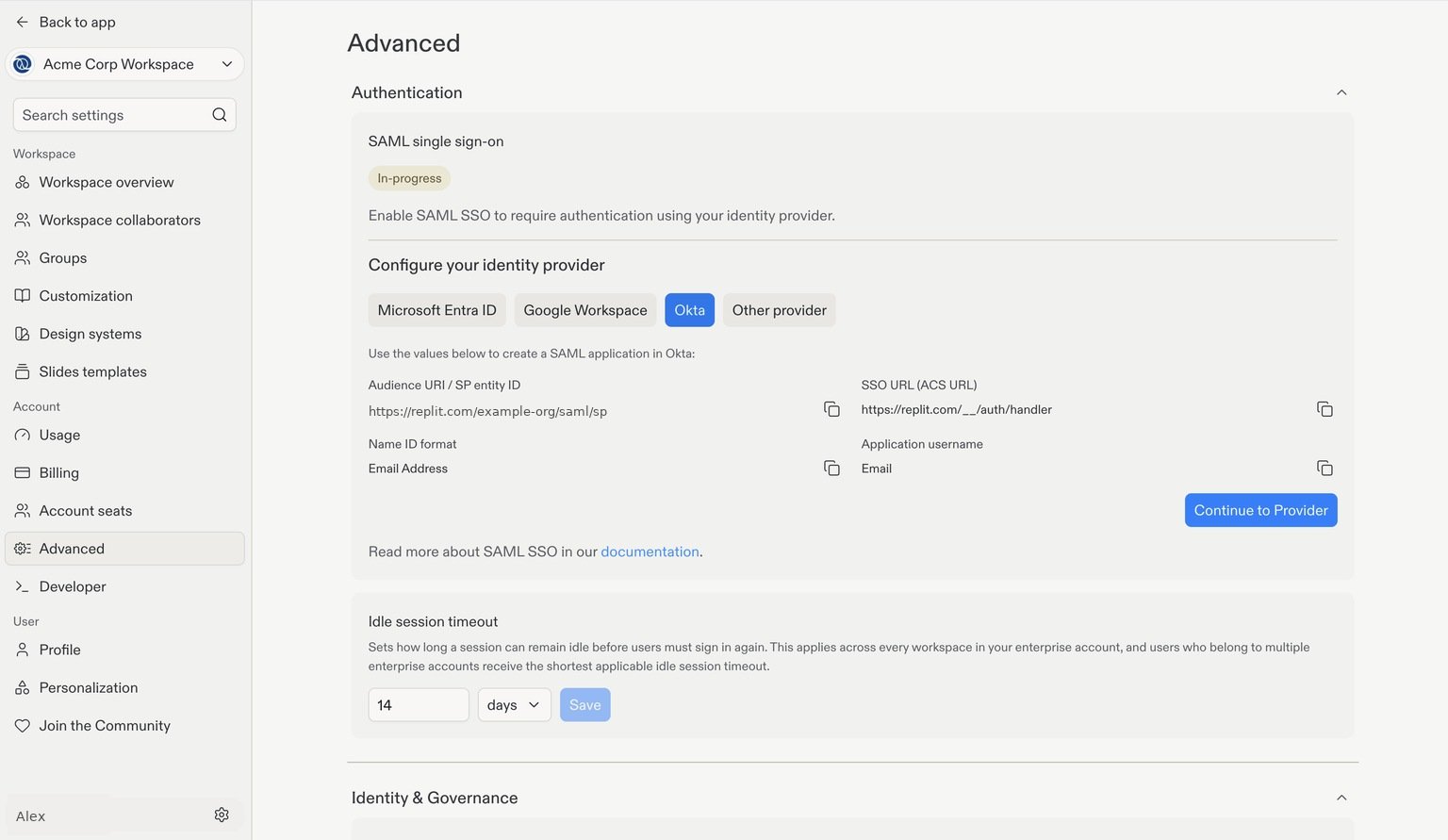 Select **Continue to Provider** and sign in to your identity provider's admin console. The example below shows Okta; your provider's sign-in screen may look different.
 Create a SAML application in your provider using the **Audience URI / SP entity ID**, **SSO URL (ACS URL)**, **Name ID format**, and **Application username** values shown in Replit.
Return to Replit and enter your provider's **IdP SSO URL**, **IdP entity ID**, **X.509 certificate**, and the **Email domains** your organization uses.
Follow the [SAML configuration guide](/teams/identity-and-access-management/saml#set-up-saml-sso) for the required values, domain validation rules, and activation steps. Submit the configuration and confirm the status becomes **Active** before directing teammates to use SSO.
SSO handles sign-in; it does not automatically invite people to your organization. Use invitations or [SCIM provisioning](/teams/identity-and-access-management/scim) to manage membership.
## Optional: automate member management with SCIM
**SCIM** (System for Cross-domain Identity Management) automatically provisions and deprovisions members in Replit from your identity provider. SSO controls how people sign in; SCIM helps keep membership in sync as people join or leave your company.
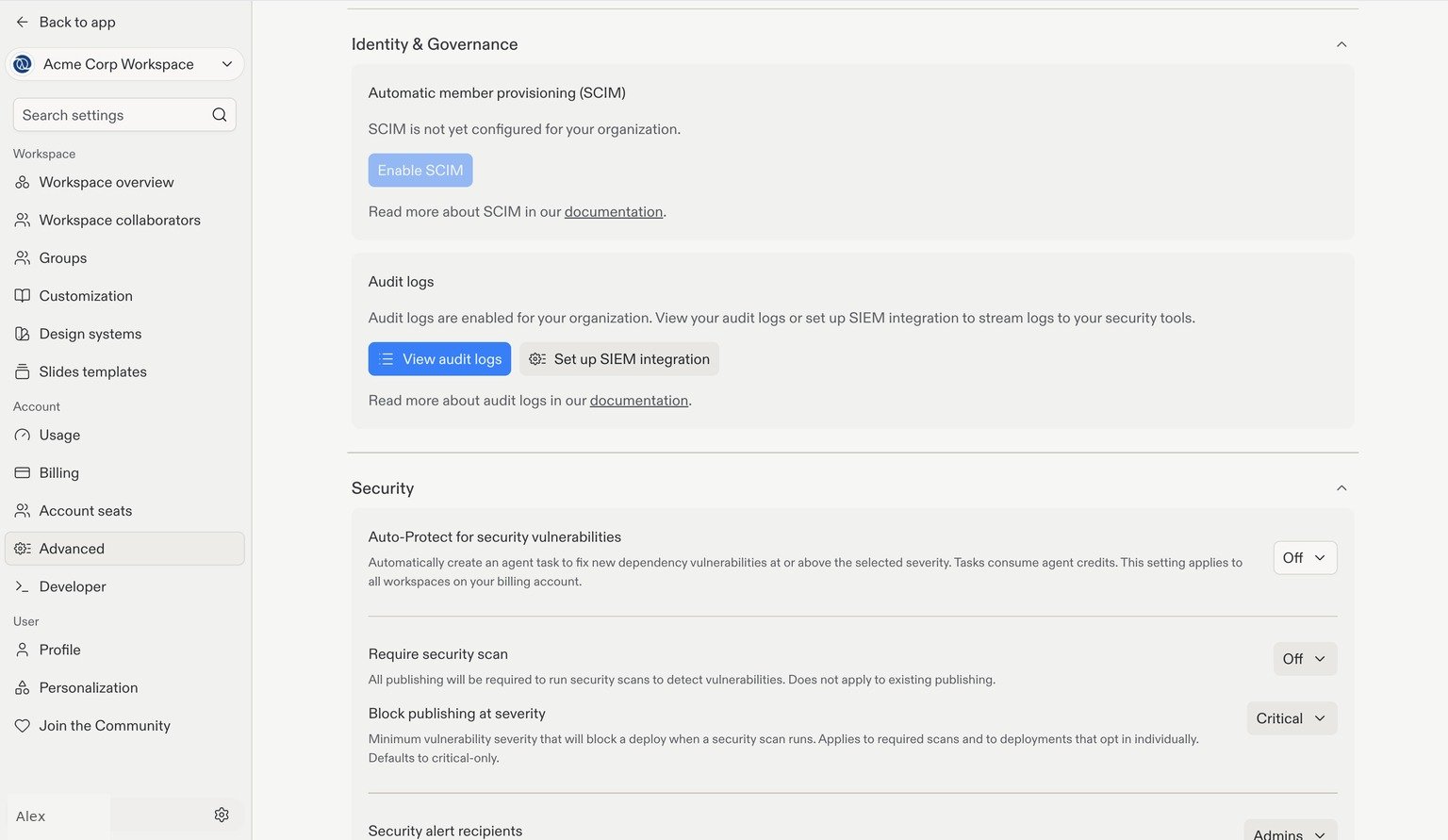
To start setup, open **Settings → Advanced → Identity & Governance** and select **Enable SCIM** under **Automatic member provisioning (SCIM)**. Follow the provider-specific setup instructions in the [SCIM guide](/teams/identity-and-access-management/scim#getting-started).
Create a SAML application in your provider using the **Audience URI / SP entity ID**, **SSO URL (ACS URL)**, **Name ID format**, and **Application username** values shown in Replit.
Return to Replit and enter your provider's **IdP SSO URL**, **IdP entity ID**, **X.509 certificate**, and the **Email domains** your organization uses.
Follow the [SAML configuration guide](/teams/identity-and-access-management/saml#set-up-saml-sso) for the required values, domain validation rules, and activation steps. Submit the configuration and confirm the status becomes **Active** before directing teammates to use SSO.
SSO handles sign-in; it does not automatically invite people to your organization. Use invitations or [SCIM provisioning](/teams/identity-and-access-management/scim) to manage membership.
## Optional: automate member management with SCIM
**SCIM** (System for Cross-domain Identity Management) automatically provisions and deprovisions members in Replit from your identity provider. SSO controls how people sign in; SCIM helps keep membership in sync as people join or leave your company.
To start setup, open **Settings → Advanced → Identity & Governance** and select **Enable SCIM** under **Automatic member provisioning (SCIM)**. Follow the provider-specific setup instructions in the [SCIM guide](/teams/identity-and-access-management/scim#getting-started).
 ## Next step
Invite collaborators and choose the access they need.
## Next step
Invite collaborators and choose the access they need.