> ## Documentation Index
> Fetch the complete documentation index at: https://docs.replit.com/llms.txt
> Use this file to discover all available pages before exploring further.
# Managing Members
> You can manage members on your Replit team to control access, collaboration, and permissions across your organization's apps and projects.
Managing members is one of the most important functions of a Replit organization, allowing you to add collaborators to your organization and control who has access to your team's resources.
## Features
The **Members** tab displays a list of current organization members, showing their default group and recent activity. From this view, you can manage your team through several key capabilities:
* **Add Members**: Invite new collaborators to join your organization and assign them appropriate permissions
* **Remove Members**: Remove people from your organization when they no longer need access
* **Assign Roles**: Set member permissions with Admin, Member, Guest, or Viewer roles
* **Manage Invitations**: Send email invitations to non-Replit users and track invitation status
* **Seat Management**: Control billing capacity and monitor available seats
Add team members so you can share apps and ideas.
Remove members or change who's on your team.
## Usage
### Adding members
For automated user management and bulk operations, see [SCIM](/teams/identity-and-access-management/scim) instead.
*Note: SCIM is available for enterprise customers only.*
Selecting the **Add** button in the corner of the Members page opens a modal with a search input. The **Add** button may become disabled if there are not enough seats available or if you don't have permissions to add new organization members.
You can find existing Replit members via username or email, while you can add non-Replit members by email. After selecting someone or entering an email address, you can set the member's group with the following options:
* **Admin**: Admins have full administrative access to organization settings and all resources.
* **Member**: Members can see all other members, and can create Apps and Projects.
* **Guest**: Guests can only edit and access apps shared with them.
* **Viewer**: Viewers have read-only access to apps and deployments in your organization.
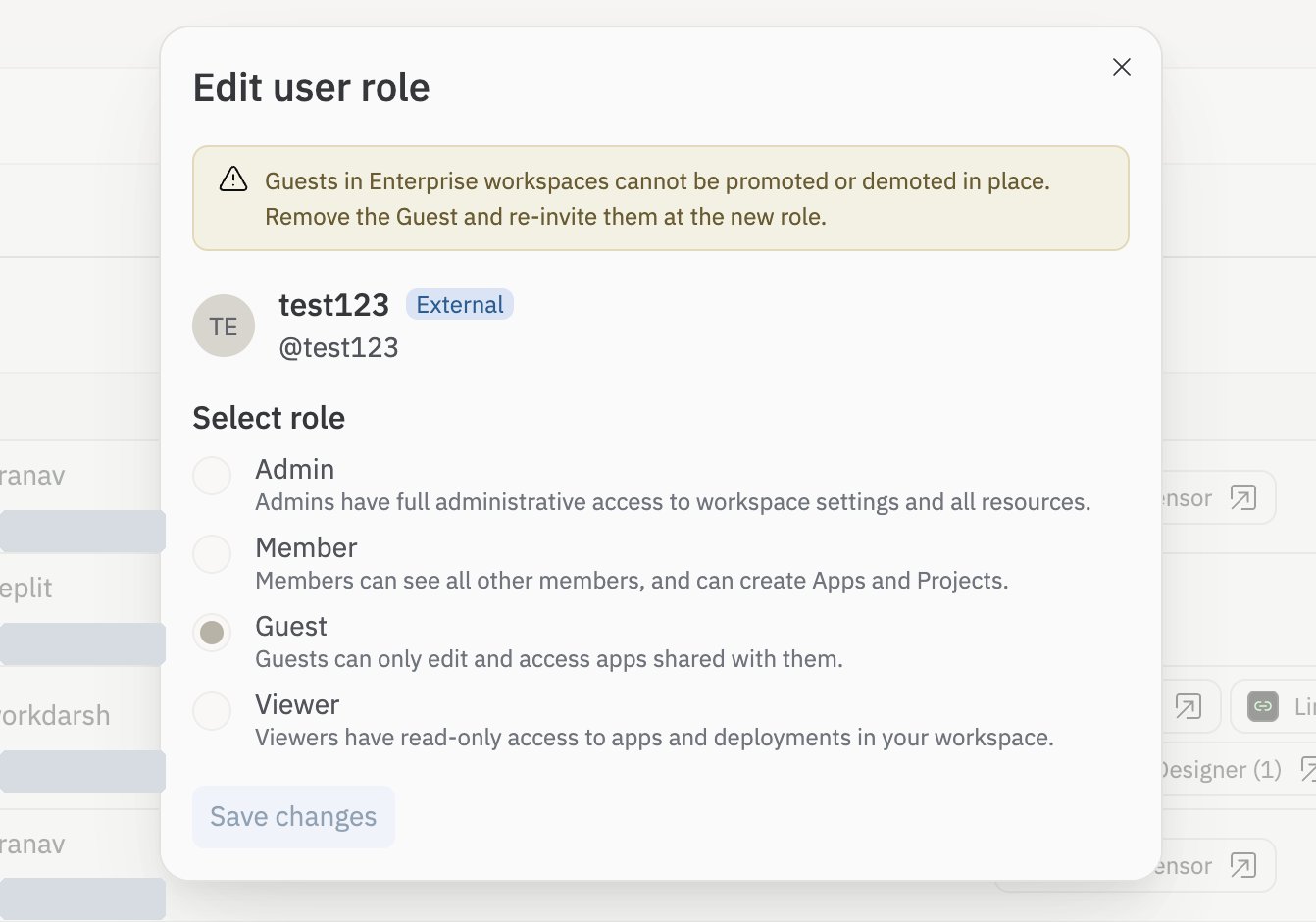
**Enterprise Guests:** A Guest's role is fixed. You can't promote a Guest to Member or Admin, or change them to Viewer, in place. To give a Guest a different role, remove them and re-invite them at the new role. In SCIM-managed workspaces, manage Guest roles through your identity provider.
**Enterprise only:** On the Enterprise plan, the Admin role is split into **account admin** and **workspace admin**. See [Account and Workspace Admins](/teams/identity-and-access-management/account-and-workspace-admins) for what each role can do and how to assign them. On Core and Pro, there is a single Admin.
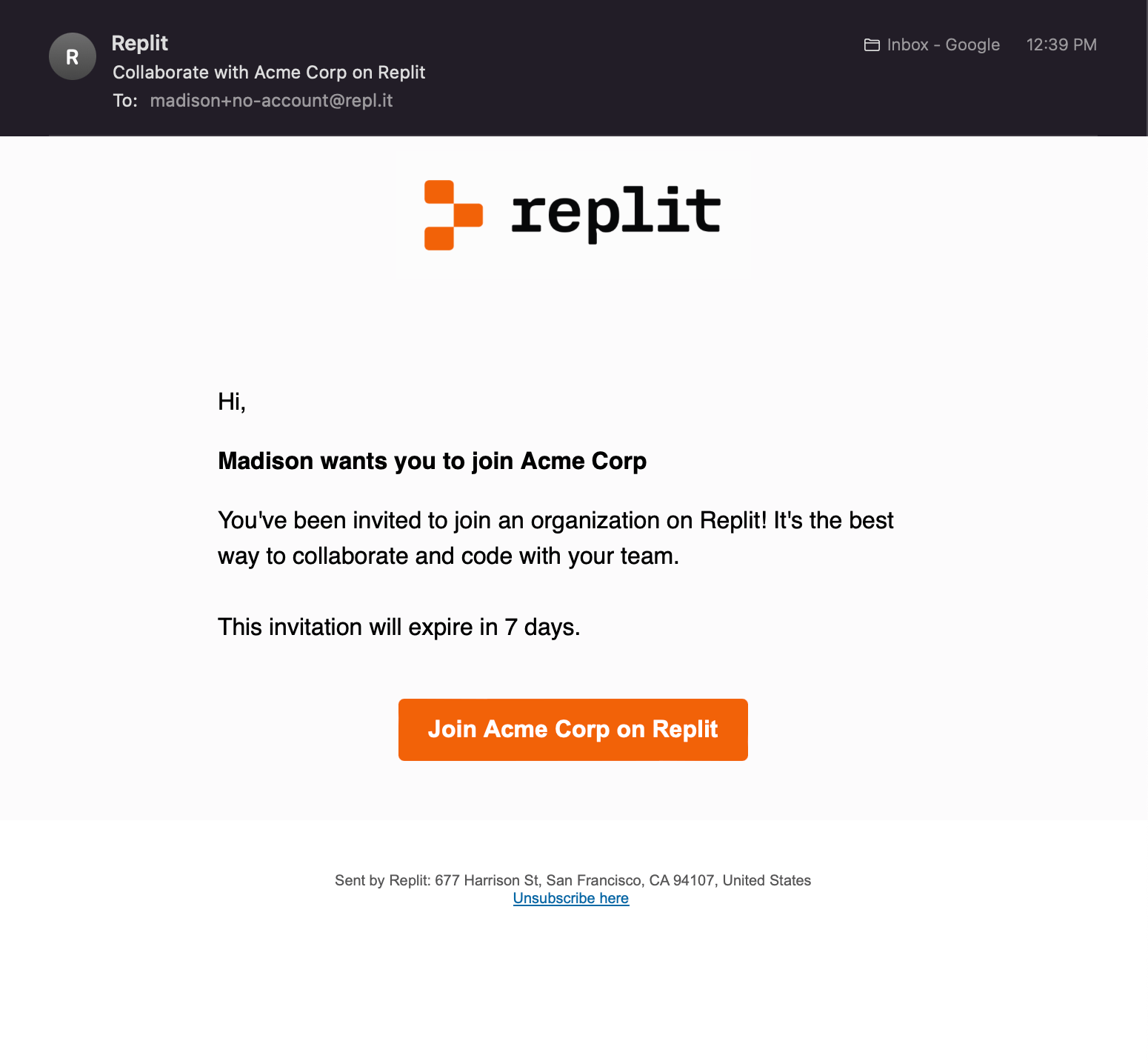
Existing members join immediately, and the seat becomes active immediately. Non-Replit members join the organization after creating an account. The seat won't become active until this happens. The invitation sent via email expires after seven days.
**Enterprise Guests must be external.** If your organization uses SSO, you can only invite Guests whose email is outside your SSO email domains. Someone whose email matches your SSO domain is treated as an internal user and can be added as a member or admin through your identity provider instead.
 Additional documentation:
* [SCIM](/teams/identity-and-access-management/scim)
* [SAML](/teams/identity-and-access-management/saml)
* [Viewer Seats](/teams/identity-and-access-management/viewer-seats)
### Inviting external guests
On the Enterprise plan, you can invite an outside collaborator, such as a contractor, agency, partner, or candidate, into your workspace as a Guest. The guest gets access to only the apps you share with them, and nothing else in your workspace.
This is the one supported way to add someone without going through your identity provider. Everyone else still joins through your identity provider, so your provider stays the source of truth for your own team.
Guests must be **external**. A guest's email has to be outside your SSO email domains. If you enter someone whose email matches your domain, Replit asks you to add them as a member through your identity provider instead.
You can invite a guest from two places:
Open the app you want to share and select **Share**. Enter the external person's email and send the invite. They join as a Guest with access to only that app.
Open the **Members** page and select **Add**. Enter the external email and choose the **Guest** role.
Guests join after they create a Replit account, and the email invitation expires after seven days.
#### Manage and remove guests
Guests are easy to spot and manage:
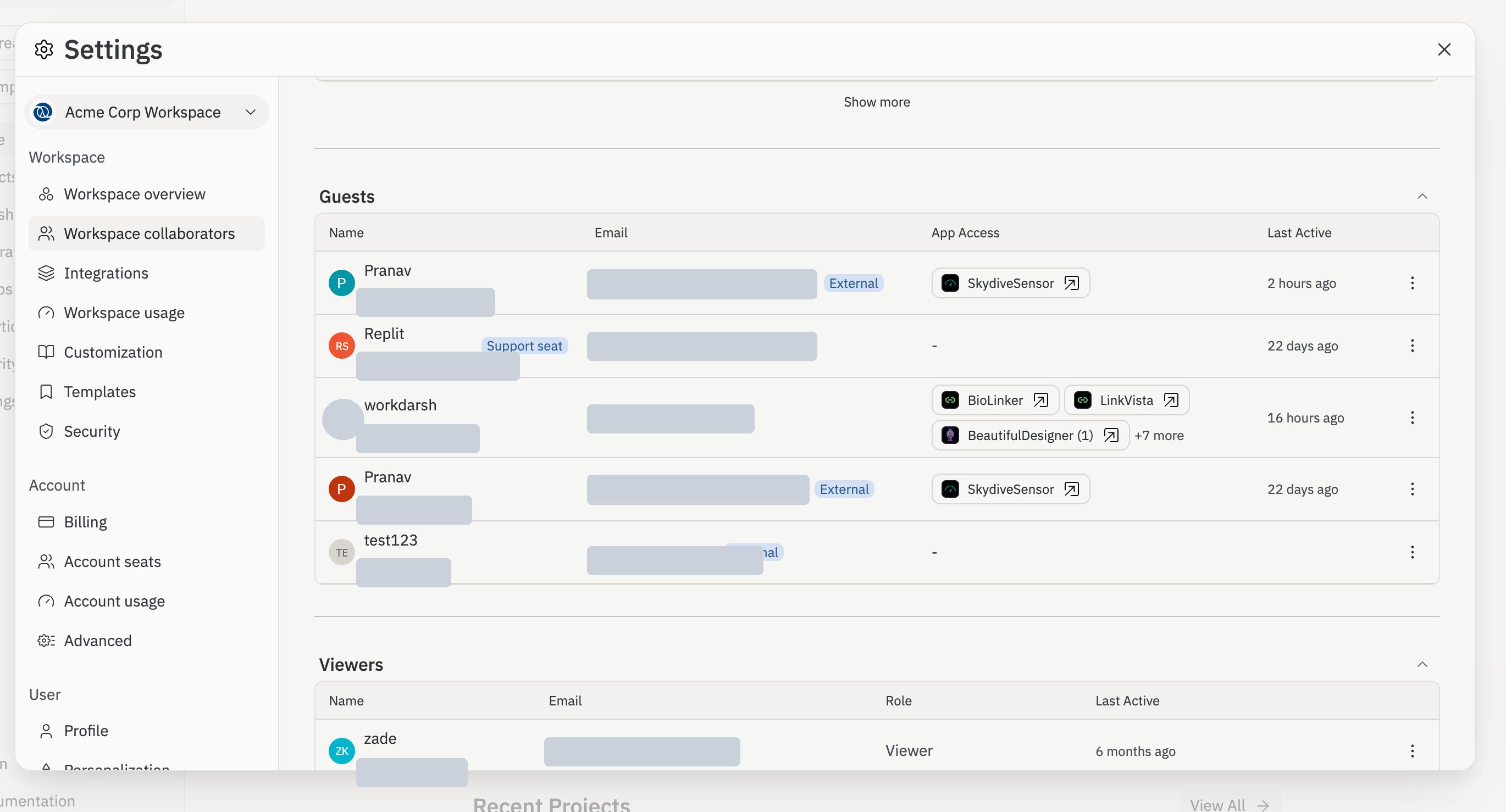
* Guests show an **External** badge wherever members are listed, so you can tell them apart from your team.
* A dedicated **Guests** table lists each guest's email and the apps they can reach.
* To remove a guest's access, select **Revoke** next to their entry in the Guests table.
Additional documentation:
* [SCIM](/teams/identity-and-access-management/scim)
* [SAML](/teams/identity-and-access-management/saml)
* [Viewer Seats](/teams/identity-and-access-management/viewer-seats)
### Inviting external guests
On the Enterprise plan, you can invite an outside collaborator, such as a contractor, agency, partner, or candidate, into your workspace as a Guest. The guest gets access to only the apps you share with them, and nothing else in your workspace.
This is the one supported way to add someone without going through your identity provider. Everyone else still joins through your identity provider, so your provider stays the source of truth for your own team.
Guests must be **external**. A guest's email has to be outside your SSO email domains. If you enter someone whose email matches your domain, Replit asks you to add them as a member through your identity provider instead.
You can invite a guest from two places:
Open the app you want to share and select **Share**. Enter the external person's email and send the invite. They join as a Guest with access to only that app.
Open the **Members** page and select **Add**. Enter the external email and choose the **Guest** role.
Guests join after they create a Replit account, and the email invitation expires after seven days.
#### Manage and remove guests
Guests are easy to spot and manage:
* Guests show an **External** badge wherever members are listed, so you can tell them apart from your team.
* A dedicated **Guests** table lists each guest's email and the apps they can reach.
* To remove a guest's access, select **Revoke** next to their entry in the Guests table.
 A guest's role is fixed at Guest. To give a guest a different level of access, remove them and re-invite them.
 ### Removing members
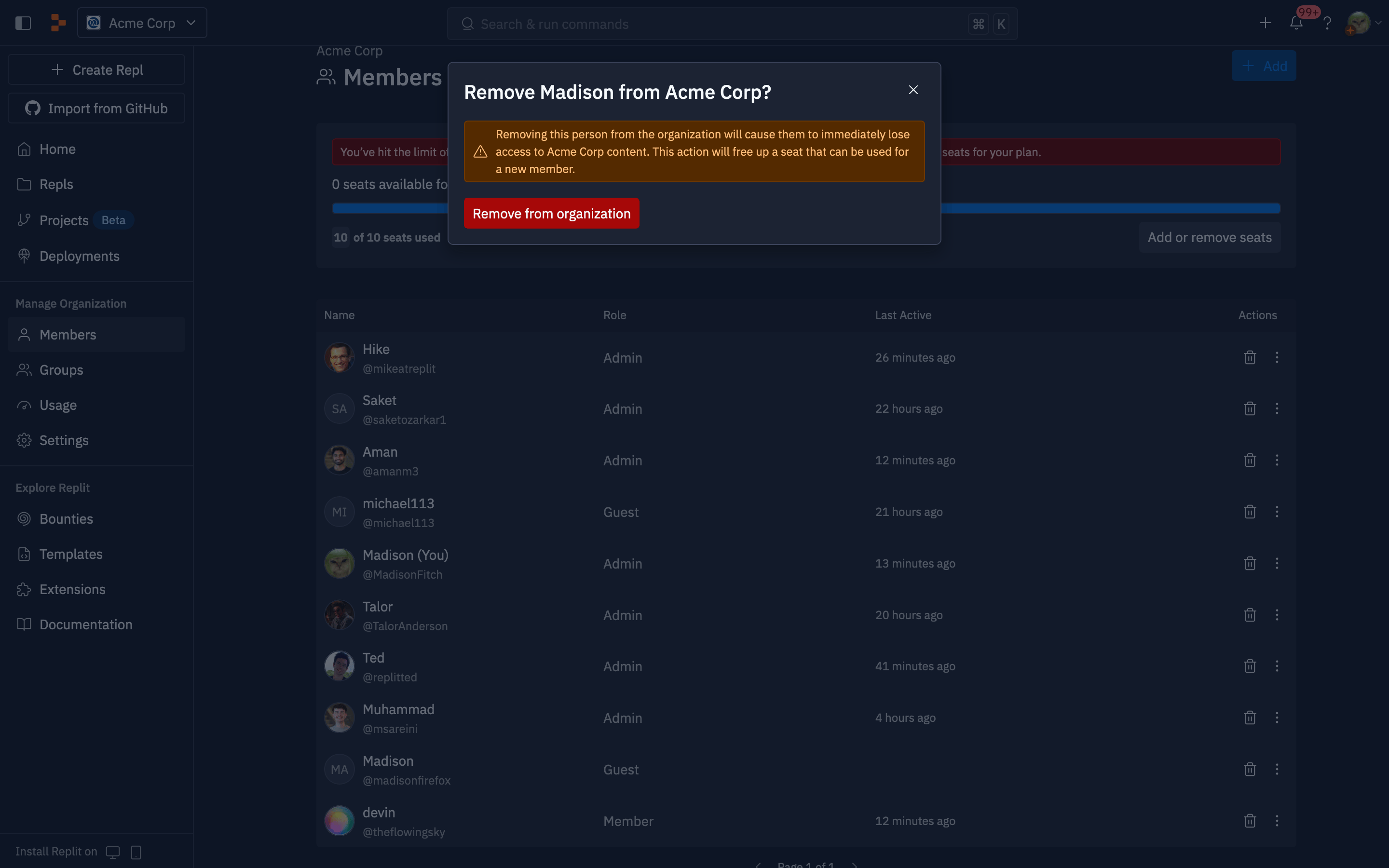
Eligible members can remove people from the organization using the trash can icon. You can also use the context menu opened from the triple dot to the right of each member row.
Removing someone from the organization requires a confirmation step. After you remove them, a seat becomes available immediately and you can use it to invite a new organization member.
### Removing members
Eligible members can remove people from the organization using the trash can icon. You can also use the context menu opened from the triple dot to the right of each member row.
Removing someone from the organization requires a confirmation step. After you remove them, a seat becomes available immediately and you can use it to invite a new organization member.
 ### Managing seats
Managing seats is different from managing members. While member management involves adding or removing people from your team, seat management controls your billing capacity—how many seats you're paying for.
For detailed information on adding seats and removing seats, see [Managing Seats](/billing/teams-billing/managing-seats).
### Managing seats
Managing seats is different from managing members. While member management involves adding or removing people from your team, seat management controls your billing capacity—how many seats you're paying for.
For detailed information on adding seats and removing seats, see [Managing Seats](/billing/teams-billing/managing-seats).