> ## Documentation Index
> Fetch the complete documentation index at: https://docs.replit.com/llms.txt
> Use this file to discover all available pages before exploring further.
# Agent modes and models
> Choose approved models for your Enterprise Workspaces and control access to fast model variants and higher reasoning effort levels.
If your company has an approved set of AI models, configure which providers and models your builders can use in Replit. These controls help align model access with your organization's requirements and spending priorities.
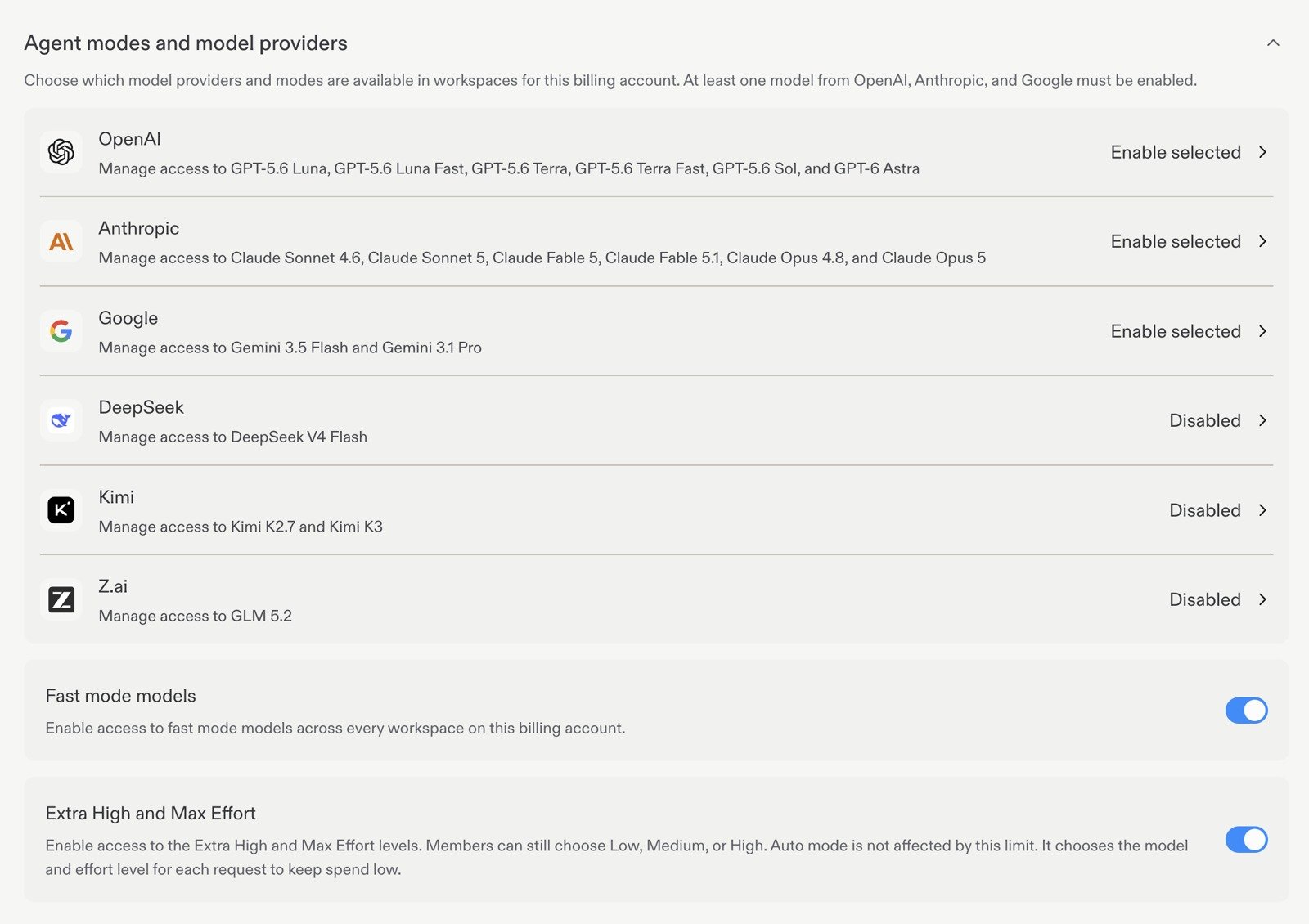
Account admins manage these settings in **Settings → Advanced → Agent modes and model providers**.
## Choose approved providers and models
Open a provider to configure its policy. The settings shown include **OpenAI**, **Anthropic**, **Google**, **DeepSeek**, **Kimi**, and **Z.ai**. The available model catalog can change; use the models listed in your settings as the source of truth.
 | Account policy | Effect |
| --------------- | ----------------------------------------------------------------- |
| Enable all | Makes all models from that provider available in every Workspace. |
| Enable selected | Lets you choose the available models for each Workspace. |
| Disabled | Prevents every Workspace from using that provider's models. |
To enable only approved models:
1. Select a provider and choose **Enable selected** under **Account policy**.
2. In the Workspace list, open a Workspace's **Setting** dropdown and turn individual models on or off.
3. Select **Update** to apply the policy. Use **Copy to all** before updating if every Workspace should use the same selection.
| Account policy | Effect |
| --------------- | ----------------------------------------------------------------- |
| Enable all | Makes all models from that provider available in every Workspace. |
| Enable selected | Lets you choose the available models for each Workspace. |
| Disabled | Prevents every Workspace from using that provider's models. |
To enable only approved models:
1. Select a provider and choose **Enable selected** under **Account policy**.
2. In the Workspace list, open a Workspace's **Setting** dropdown and turn individual models on or off.
3. Select **Update** to apply the policy. Use **Copy to all** before updating if every Workspace should use the same selection.
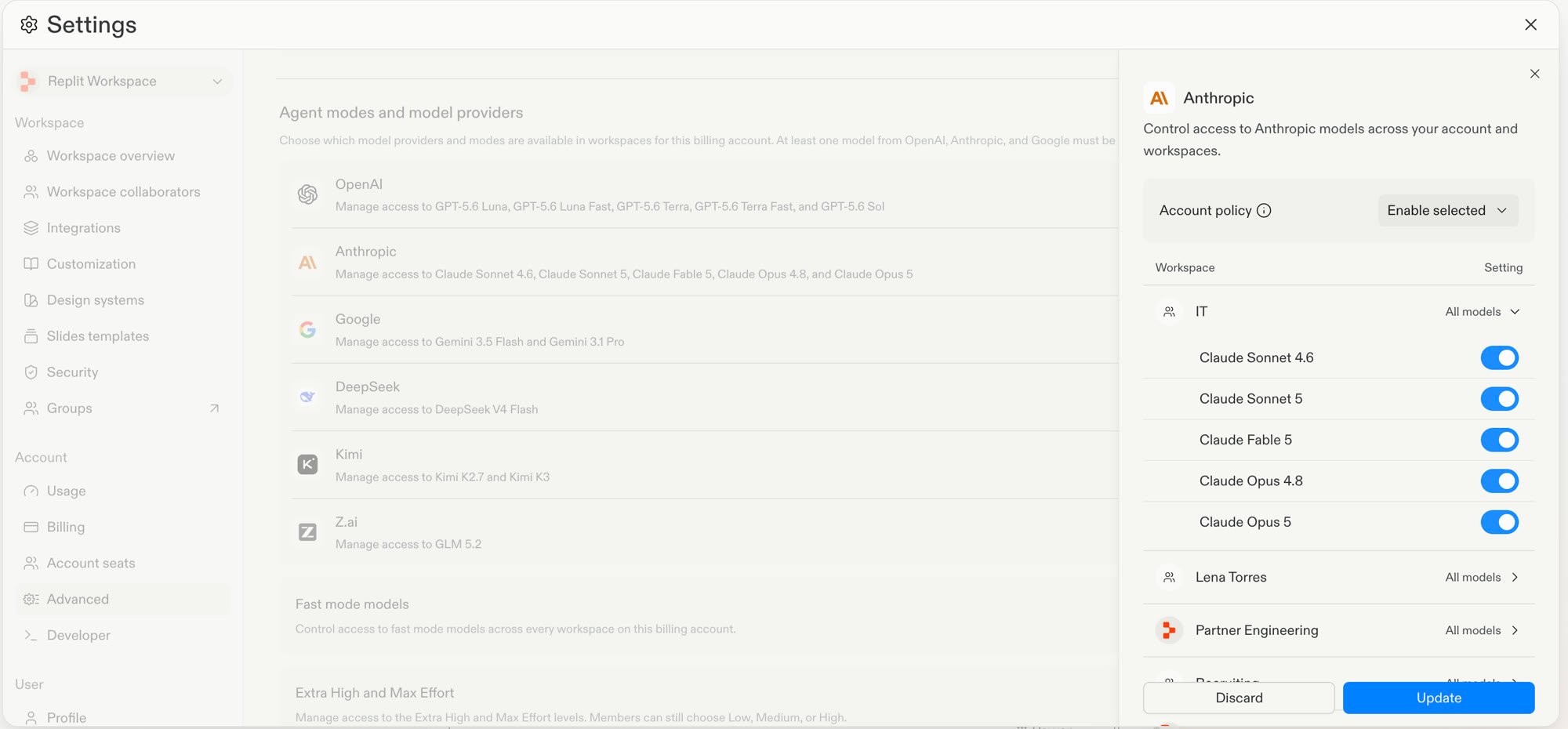 At least one model from each of OpenAI, Anthropic, and Google must remain enabled. Policies apply to Workspaces, not individual groups within a Workspace.
See [Enterprise model controls](/features/collaboration/enterprise-model-controls) for the full setup and permission details.
## Understand modes, models, and effort
A **mode** determines how Replit approaches the work and balances capability and cost. The **model** is the AI model used for a task. **Effort** controls how much reasoning the selected model spends on a response.
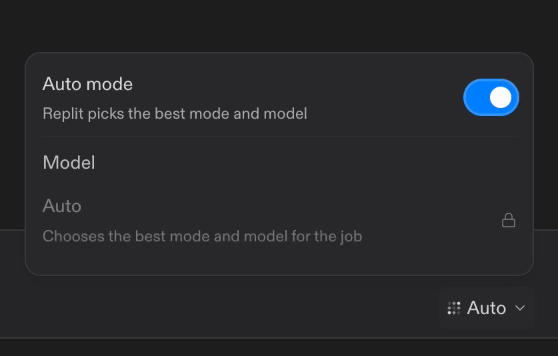
On Enterprise, **Auto mode** can choose both a mode and an authorized model for each task. It cannot select a provider or model disabled by your account or Workspace policy.
At least one model from each of OpenAI, Anthropic, and Google must remain enabled. Policies apply to Workspaces, not individual groups within a Workspace.
See [Enterprise model controls](/features/collaboration/enterprise-model-controls) for the full setup and permission details.
## Understand modes, models, and effort
A **mode** determines how Replit approaches the work and balances capability and cost. The **model** is the AI model used for a task. **Effort** controls how much reasoning the selected model spends on a response.
On Enterprise, **Auto mode** can choose both a mode and an authorized model for each task. It cannot select a provider or model disabled by your account or Workspace policy.
 For more detail, see [Replit modes](/features/agent/agent-modes), [Model selector](/features/agent/model-selector), and [Auto mode](/chat/auto-mode).
### Fast mode models
The **Fast mode models** toggle controls access to fast model variants across every Workspace on the billing account. Enable it when you want builders to have these variants available; disable it to restrict that choice.
This is a separate control from individual provider policies. Allowing a provider does not replace the Fast mode models setting.
### Extra High and Max Effort
The **Extra High and Max Effort** toggle allows builders to select these higher reasoning levels. **Extra High** and **Max** are effort levels, not separate modes.
When disabled, members can still choose **Low**, **Medium**, or **High** effort. As the settings explain, **Auto mode is not affected by this limit**: it chooses the model and effort for each request.
Use higher effort selectively for tasks that need more reasoning. See [Effort settings](/features/agent/model-selector#effort) for guidance.
## Understand the billing impact
Turning a model or effort option on makes it available; the toggle itself does not incur a usage charge. Spending depends on what your team actually uses. Model selection and reasoning effort can change the cost of a task, so access to more expensive options can affect overall consumption.
These controls are not spending caps. Review consumption and configure usage limits separately rather than relying on model availability alone to control your budget.
## Next step
Scan for vulnerabilities and review fixes with Replit.
For more detail, see [Replit modes](/features/agent/agent-modes), [Model selector](/features/agent/model-selector), and [Auto mode](/chat/auto-mode).
### Fast mode models
The **Fast mode models** toggle controls access to fast model variants across every Workspace on the billing account. Enable it when you want builders to have these variants available; disable it to restrict that choice.
This is a separate control from individual provider policies. Allowing a provider does not replace the Fast mode models setting.
### Extra High and Max Effort
The **Extra High and Max Effort** toggle allows builders to select these higher reasoning levels. **Extra High** and **Max** are effort levels, not separate modes.
When disabled, members can still choose **Low**, **Medium**, or **High** effort. As the settings explain, **Auto mode is not affected by this limit**: it chooses the model and effort for each request.
Use higher effort selectively for tasks that need more reasoning. See [Effort settings](/features/agent/model-selector#effort) for guidance.
## Understand the billing impact
Turning a model or effort option on makes it available; the toggle itself does not incur a usage charge. Spending depends on what your team actually uses. Model selection and reasoning effort can change the cost of a task, so access to more expensive options can affect overall consumption.
These controls are not spending caps. Review consumption and configure usage limits separately rather than relying on model availability alone to control your budget.
## Next step
Scan for vulnerabilities and review fixes with Replit.