> ## Documentation Index
> Fetch the complete documentation index at: https://docs.replit.com/llms.txt
> Use this file to discover all available pages before exploring further.
# Observability
> Monitor Replit Enterprise usage across Workspaces, explore consumption by user, project, or resource, and review audit logs for security-relevant activity.
Use **Usage** to understand consumption and spending, and **audit logs** to investigate security-relevant activity. Together, they help you see where resources go and who made changes in your organization.
## Open Usage
Select the **Settings** cogwheel in the bottom-left corner of Replit, then select **Usage** under **Account**.
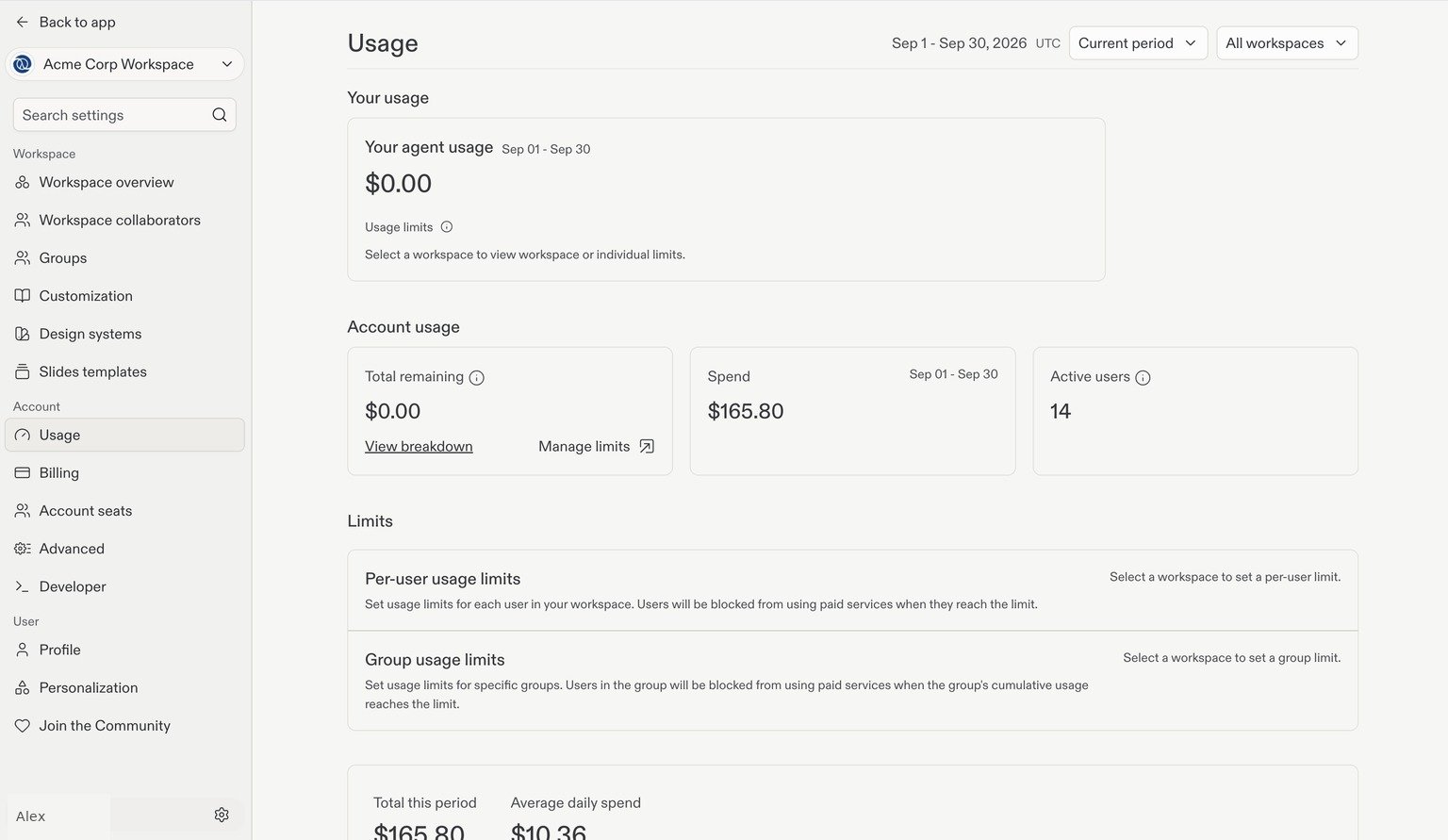
The overview shows your Replit AI usage, remaining balance, spend, and active users. Use the period selector at the top to choose the time range you want to review.
 ## View one Workspace or all Workspaces
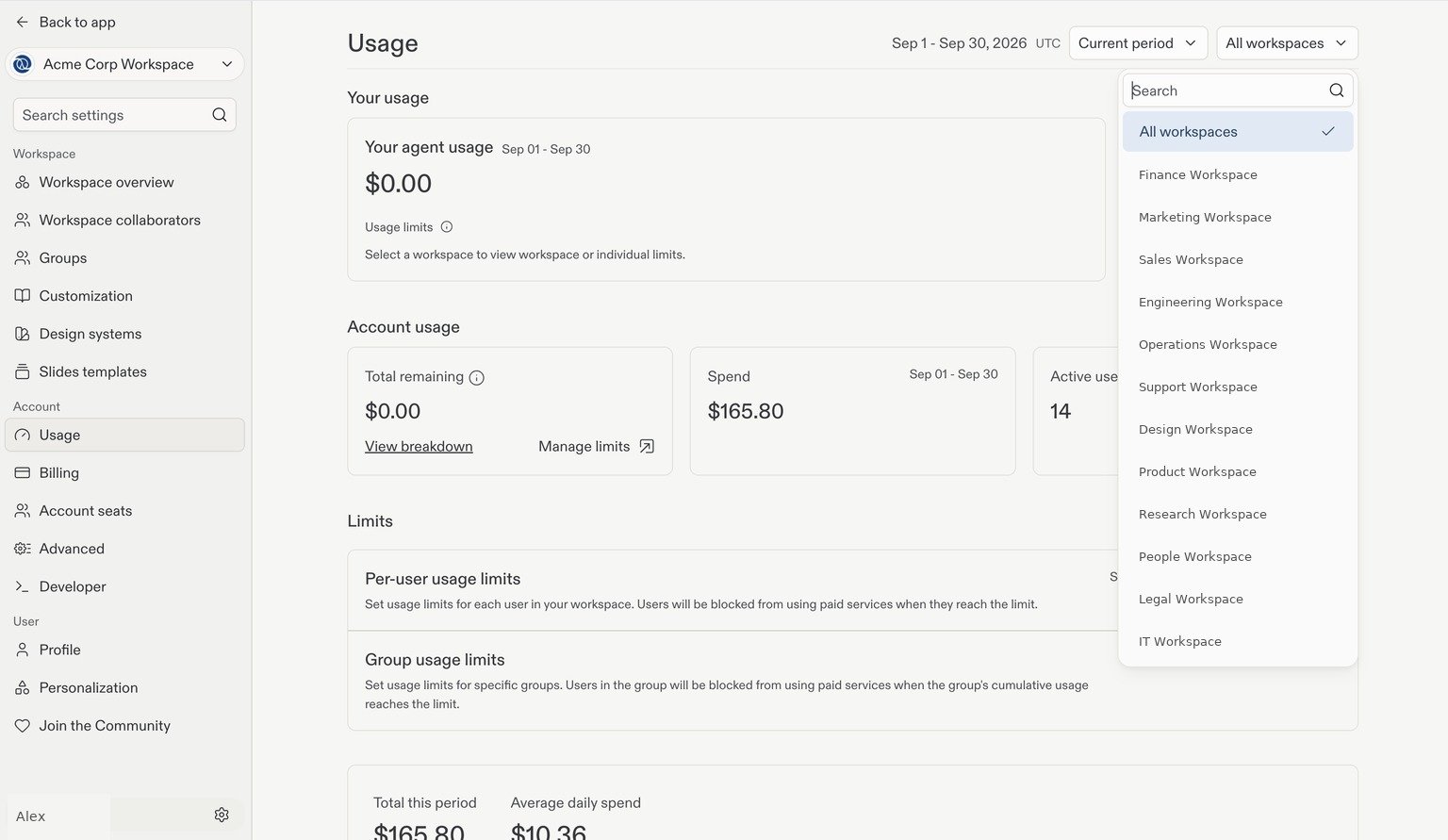
Use the Workspace dropdown beside the period selector to choose **All workspaces** or a specific Workspace. This lets you review consumption across your account or focus on one team's usage.
## View one Workspace or all Workspaces
Use the Workspace dropdown beside the period selector to choose **All workspaces** or a specific Workspace. This lets you review consumption across your account or focus on one team's usage.
 ## Track consumption over time
Scroll to the spending chart to see your **Total this period**, **Average daily spend**, and daily consumption. The chart separates categories such as AI, project hosting, project traffic and data, and storage.
## Track consumption over time
Scroll to the spending chart to see your **Total this period**, **Average daily spend**, and daily consumption. The chart separates categories such as AI, project hosting, project traffic and data, and storage.
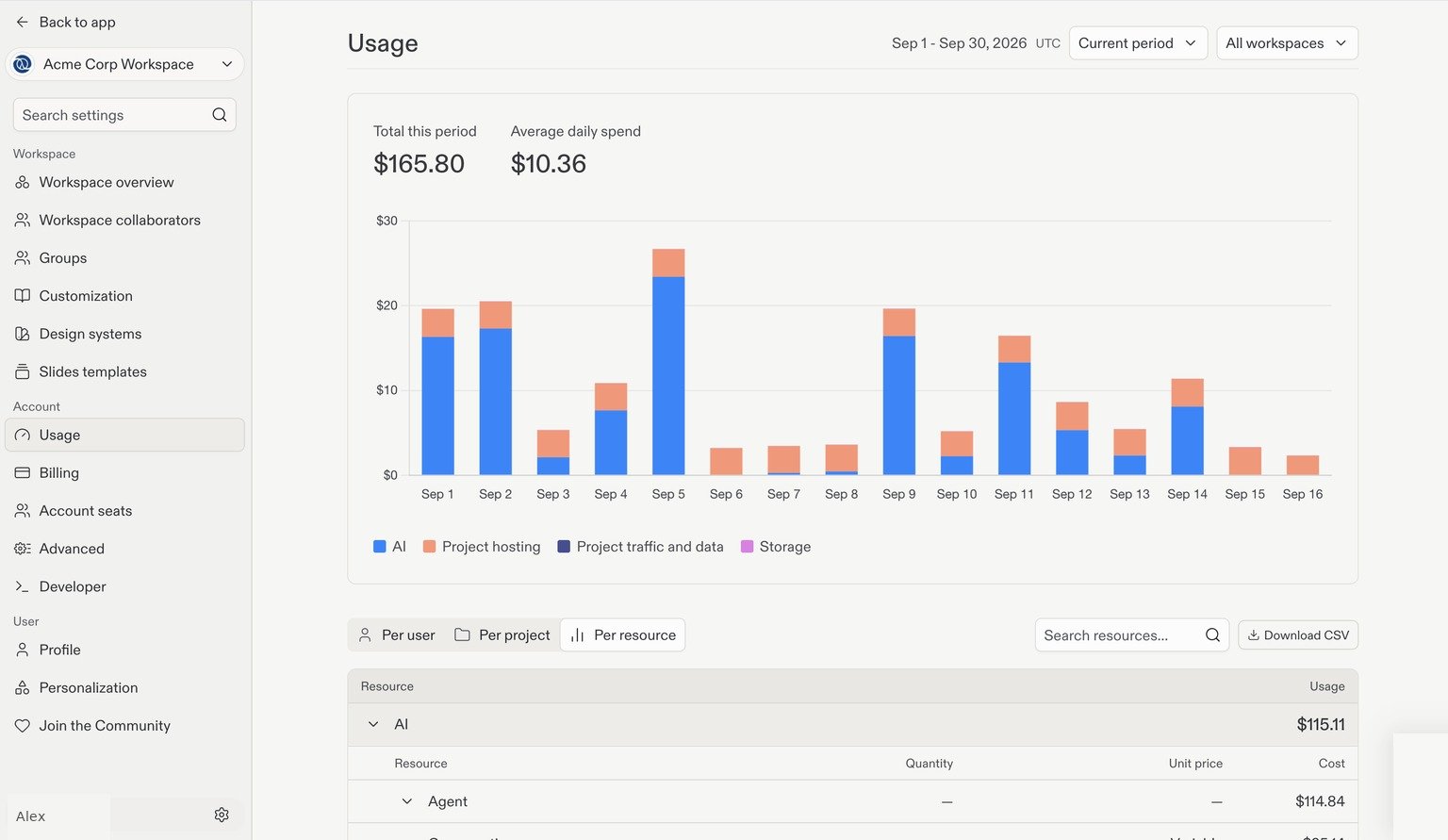 Use this view to spot changes in spending, then explore the breakdown below to understand what contributed to them.
## Break down usage
Below the chart, switch between **Per user**, **Per project**, and **Per resource**:
| View | What to review |
| ------------ | ------------------------------------------------------------------------------------------------ |
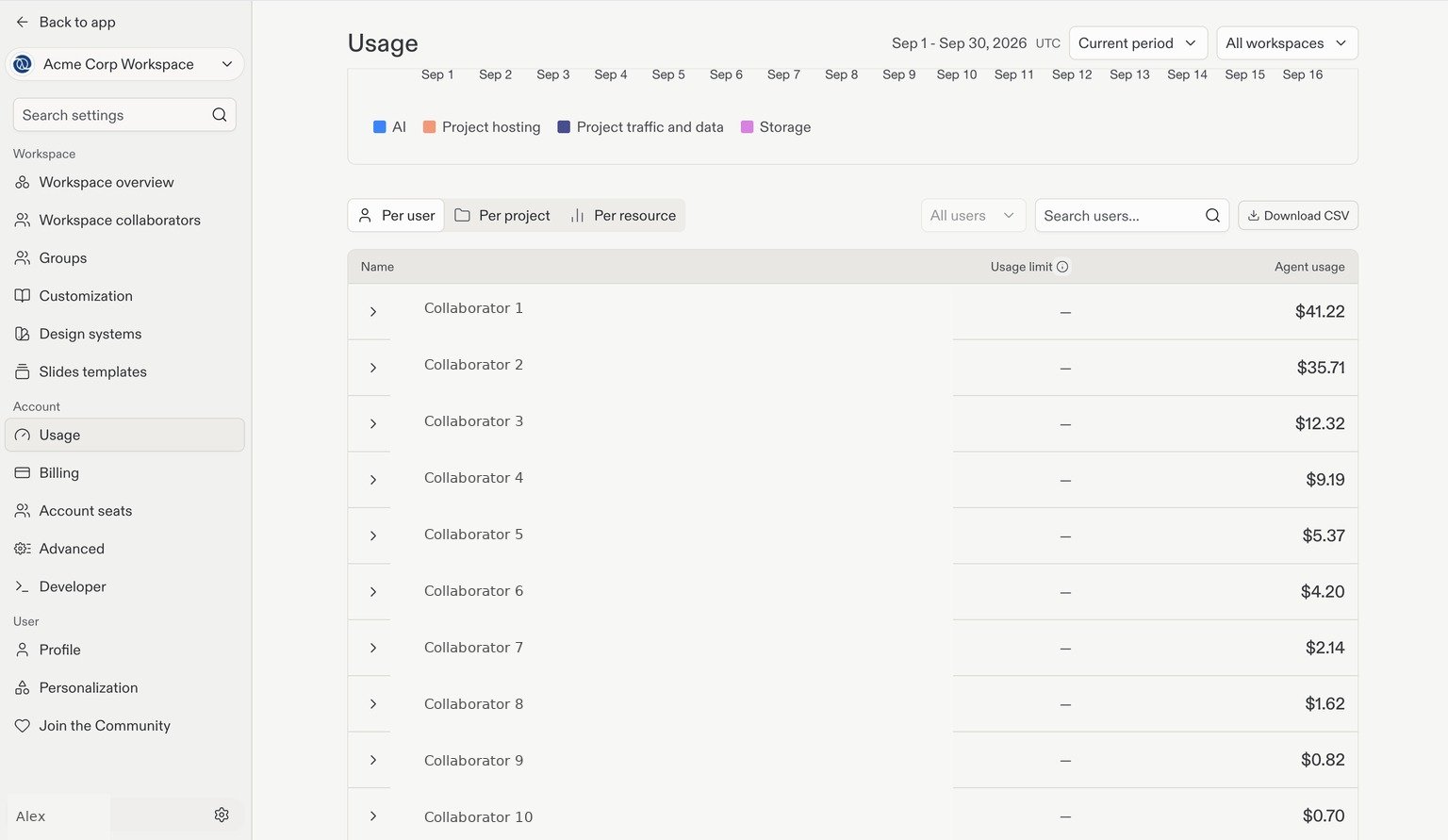
| Per user | Compare collaborators' Replit AI usage and review the usage limits shown for each person. |
| Per project | Review consumption by project to identify which projects contribute to usage. |
| Per resource | Inspect consumption by service or resource, with quantity, unit price, and cost where available. |
### Per user
Select **Per user** to view the collaborator breakdown. Use search to find a person and the row's expand control to inspect available details.
Use this view to spot changes in spending, then explore the breakdown below to understand what contributed to them.
## Break down usage
Below the chart, switch between **Per user**, **Per project**, and **Per resource**:
| View | What to review |
| ------------ | ------------------------------------------------------------------------------------------------ |
| Per user | Compare collaborators' Replit AI usage and review the usage limits shown for each person. |
| Per project | Review consumption by project to identify which projects contribute to usage. |
| Per resource | Inspect consumption by service or resource, with quantity, unit price, and cost where available. |
### Per user
Select **Per user** to view the collaborator breakdown. Use search to find a person and the row's expand control to inspect available details.
 ### Per project and per resource
Select **Per project** to review project-level consumption. Select **Per resource** to inspect categories such as Replit AI and project hosting. Expand a resource category to see its available cost breakdown.
### Per project and per resource
Select **Per project** to review project-level consumption. Select **Per resource** to inspect categories such as Replit AI and project hosting. Expand a resource category to see its available cost breakdown.
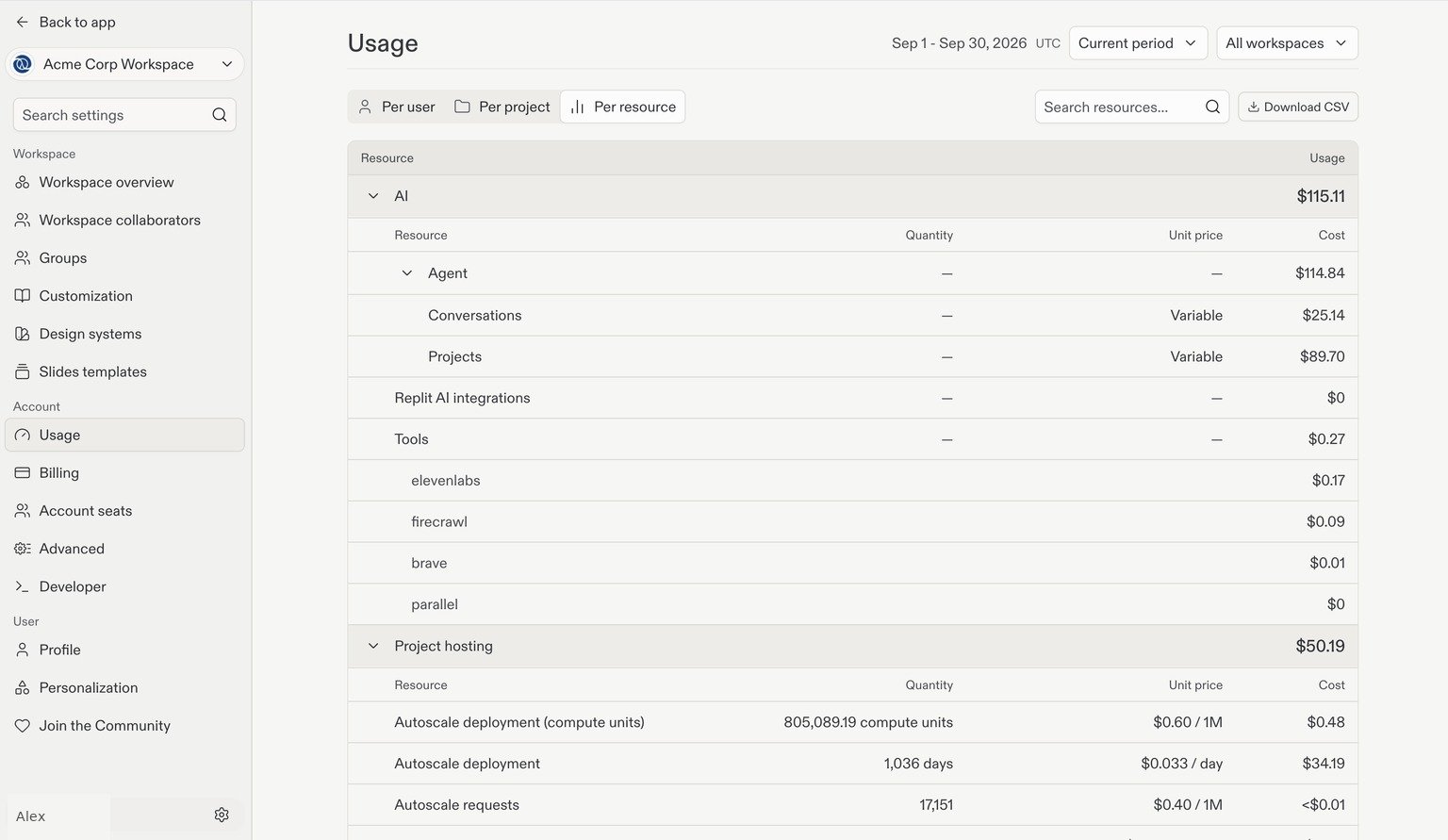 Use **Download CSV** to export usage data for further analysis. Treat exports as sensitive because they can include information about your team's activity and spending.
## Review audit logs
Audit logs record security-relevant actions in your Enterprise organization, helping you investigate who did what and when. Only [account admins](/teams/identity-and-access-management/account-and-workspace-admins) can view audit logs and configure streaming.
Open **Settings → Advanced → Identity & Governance** and locate **Audit logs**. If audit logs are not enabled, select **Enable audit logs** first. Once enabled, select **View audit logs** to open the audit log portal, where you can view, filter, and export events.
Use **Download CSV** to export usage data for further analysis. Treat exports as sensitive because they can include information about your team's activity and spending.
## Review audit logs
Audit logs record security-relevant actions in your Enterprise organization, helping you investigate who did what and when. Only [account admins](/teams/identity-and-access-management/account-and-workspace-admins) can view audit logs and configure streaming.
Open **Settings → Advanced → Identity & Governance** and locate **Audit logs**. If audit logs are not enabled, select **Enable audit logs** first. Once enabled, select **View audit logs** to open the audit log portal, where you can view, filter, and export events.
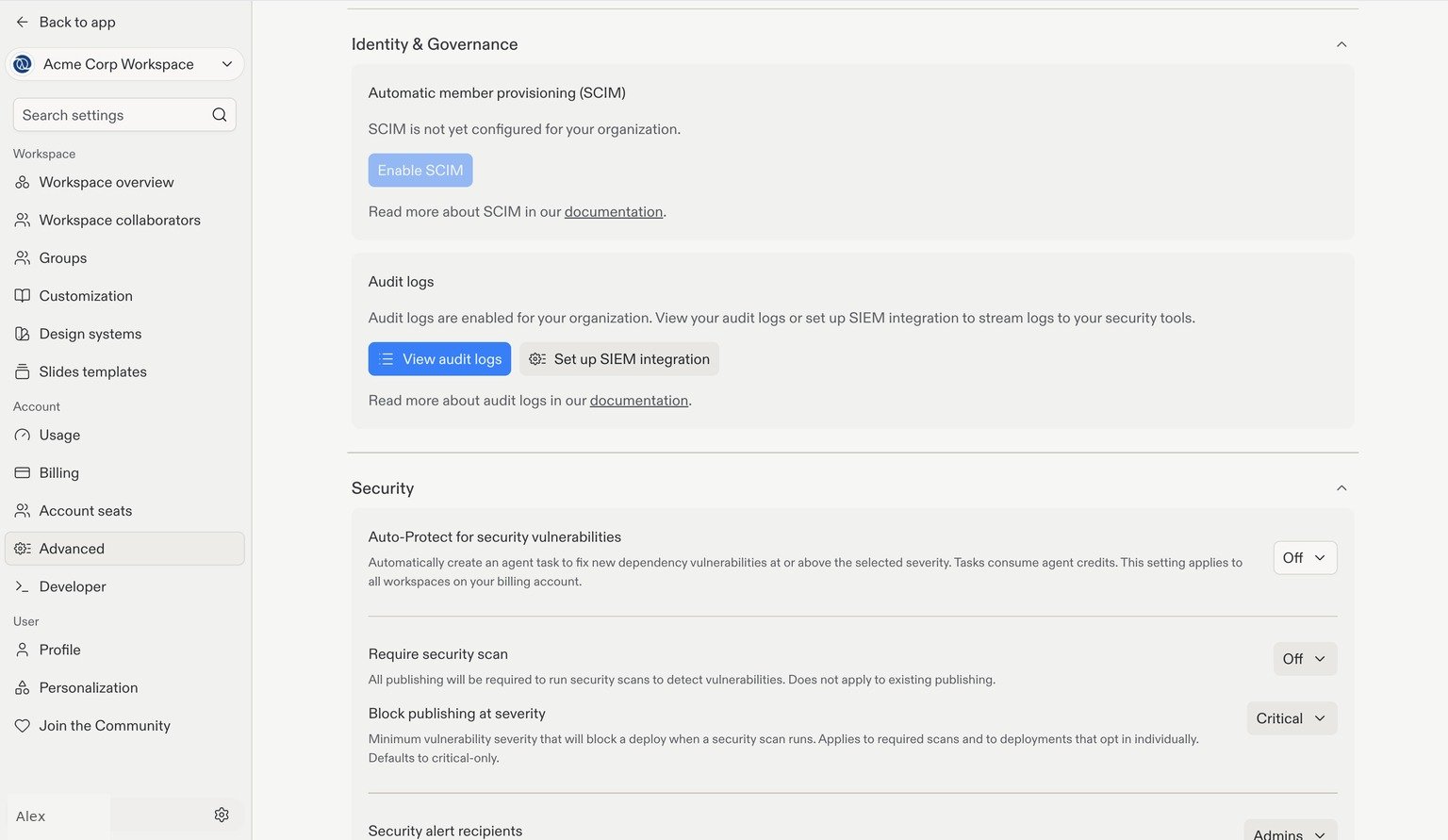 Select **Set up SIEM integration** to stream events to your security tools or storage, such as Datadog, Splunk, Amazon S3, or an HTTP endpoint. See [Audit Logs](/teams/identity-and-access-management/audit-logs) for setup instructions, retention details, and supported integrations.
## Next step
Share reusable workflows, working conventions, and design guidance.
Select **Set up SIEM integration** to stream events to your security tools or storage, such as Datadog, Splunk, Amazon S3, or an HTTP endpoint. See [Audit Logs](/teams/identity-and-access-management/audit-logs) for setup instructions, retention details, and supported integrations.
## Next step
Share reusable workflows, working conventions, and design guidance.