> ## Documentation Index
> Fetch the complete documentation index at: https://docs.replit.com/llms.txt
> Use this file to discover all available pages before exploring further.
# Security
> Monitor Workspace vulnerabilities, prepare fixes with Replit, and configure account-wide security scans, Auto-Protect, and publishing severity policies.
As your team builds in the Workspace, use security scans throughout development, not only before publishing. Replit helps identify vulnerabilities, review their impact, and prepare fixes for your team to verify.
Use the **Workspace Security Center** to monitor dependency vulnerabilities across projects and **Advanced settings** to configure your organization's security policies.
## Scan your Workspace
From your Workspace home, select **Security** to open the Security Center. Select **Run security scan** to check project dependencies against known public vulnerability records.
Dependency scans also run automatically. A **CVE** (Common Vulnerabilities and Exposures) identifier names a publicly recorded vulnerability, such as an issue in a third-party package your app uses.
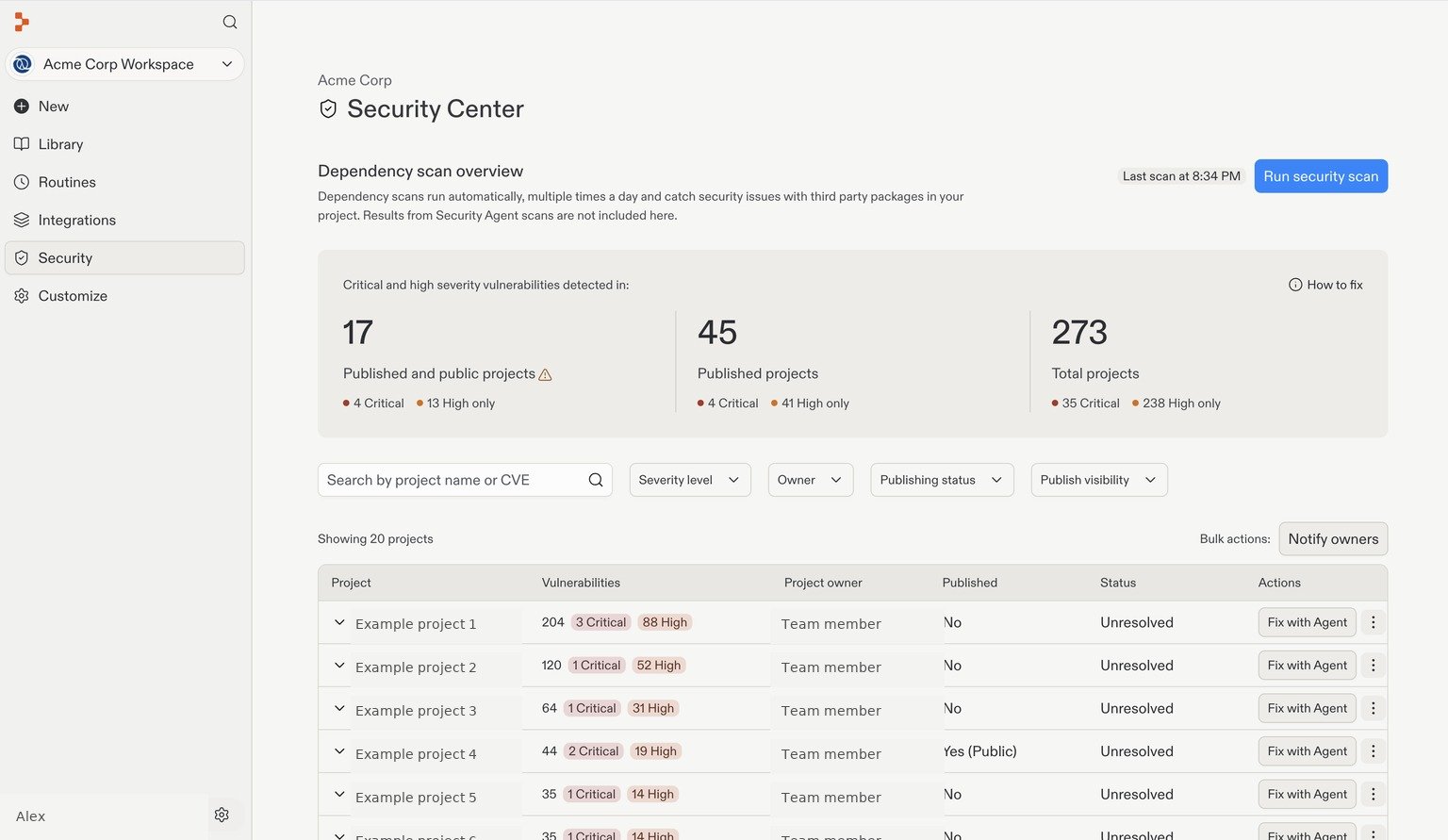 This dependency overview covers known package vulnerabilities. It does not include findings from deeper source-code security scans.
## Prioritize findings
The overview groups affected projects by exposure: **Published and public projects**, **Published projects**, and **Total projects**. Use this context alongside severity to decide what to investigate first.
* Search by project name or CVE.
* Filter by severity, owner, publishing status, and visibility.
* Expand a project to inspect affected packages, versions, severity, and CVE details.
* Use **Notify owners** to alert the people responsible for affected projects.
Start with critical and high-severity issues in publicly published apps, then work through the remaining findings based on their impact. For detailed controls and Software Bill of Materials (SBOM) exports, see [Workspace Security Center](/features/security/workspace-security-center).
## Fix an issue
Select **Fix with Agent** beside an affected project to have Replit prepare a fix for you.
A clean scan does not guarantee that an application is secure. Use scans alongside code review, tests, access-control checks, and assessments of the running app.
## Configure security policies
Open **Account settings → Advanced → Security** to configure automatic protection and publishing requirements.
This dependency overview covers known package vulnerabilities. It does not include findings from deeper source-code security scans.
## Prioritize findings
The overview groups affected projects by exposure: **Published and public projects**, **Published projects**, and **Total projects**. Use this context alongside severity to decide what to investigate first.
* Search by project name or CVE.
* Filter by severity, owner, publishing status, and visibility.
* Expand a project to inspect affected packages, versions, severity, and CVE details.
* Use **Notify owners** to alert the people responsible for affected projects.
Start with critical and high-severity issues in publicly published apps, then work through the remaining findings based on their impact. For detailed controls and Software Bill of Materials (SBOM) exports, see [Workspace Security Center](/features/security/workspace-security-center).
## Fix an issue
Select **Fix with Agent** beside an affected project to have Replit prepare a fix for you.
A clean scan does not guarantee that an application is secure. Use scans alongside code review, tests, access-control checks, and assessments of the running app.
## Configure security policies
Open **Account settings → Advanced → Security** to configure automatic protection and publishing requirements.
 ### Enable Auto-Protect
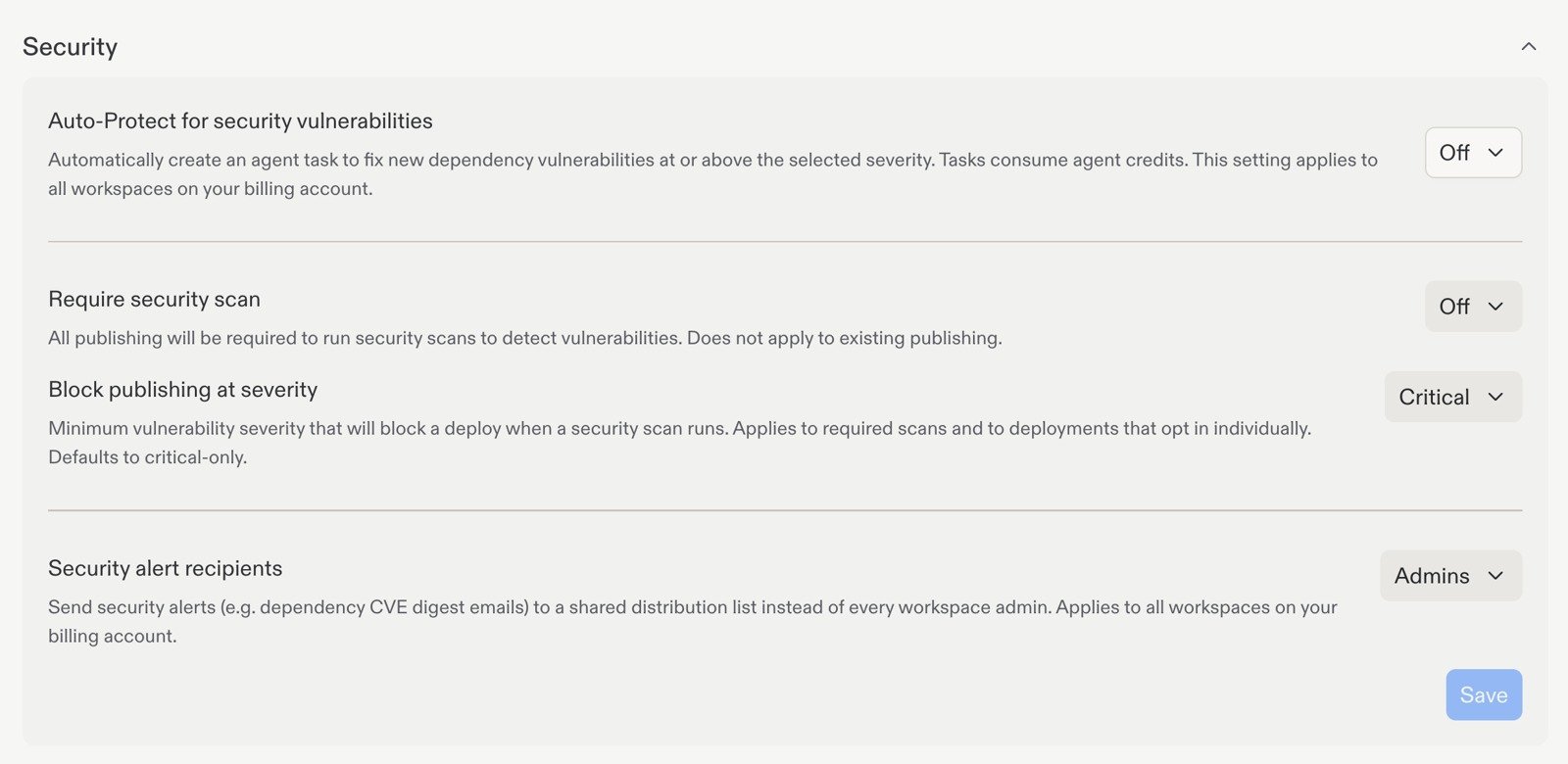
Admins can enable **Auto-Protect** to have Replit prepare patches when newly disclosed dependency vulnerabilities affect projects. Use the **Auto-Protect for security vulnerabilities** dropdown to choose the minimum severity that triggers a task, then review the proposed changes before applying and republishing them.
This setting applies across all Workspaces on your billing account.
Automatic dependency scans are free. Replit-prepared remediation work is billed like other development work, including patches prepared proactively by Auto-Protect. See [Auto-Protect](/features/security/project-security-center#auto-protect) for setup and notification settings.
### Require security scans before publishing
Use **Require security scan** to require scans during publishing, rather than relying on builders to start them manually. This setting does not apply to existing publishing.
You can still select **Run security scan** in the Workspace Security Center whenever you want to check dependencies across your Workspace.
### Block publishing by severity
Use **Block publishing at severity** to choose the minimum vulnerability severity that blocks a deployment when a security scan runs. For example, **Critical** blocks publishing for critical findings.
The threshold applies to required scans and deployments that opt in individually. It defaults to critical-only. Set this alongside **Require security scan** when you want scans to be a publishing requirement.
### Choose security alert recipients
Use **Security alert recipients** to direct alerts, such as dependency CVE digest emails, to a shared distribution list instead of every Workspace admin. This setting applies across all Workspaces on the billing account.
Select **Save** after configuring the security settings.
## Next step
Review consumption and audit logs across your organization.
### Enable Auto-Protect
Admins can enable **Auto-Protect** to have Replit prepare patches when newly disclosed dependency vulnerabilities affect projects. Use the **Auto-Protect for security vulnerabilities** dropdown to choose the minimum severity that triggers a task, then review the proposed changes before applying and republishing them.
This setting applies across all Workspaces on your billing account.
Automatic dependency scans are free. Replit-prepared remediation work is billed like other development work, including patches prepared proactively by Auto-Protect. See [Auto-Protect](/features/security/project-security-center#auto-protect) for setup and notification settings.
### Require security scans before publishing
Use **Require security scan** to require scans during publishing, rather than relying on builders to start them manually. This setting does not apply to existing publishing.
You can still select **Run security scan** in the Workspace Security Center whenever you want to check dependencies across your Workspace.
### Block publishing by severity
Use **Block publishing at severity** to choose the minimum vulnerability severity that blocks a deployment when a security scan runs. For example, **Critical** blocks publishing for critical findings.
The threshold applies to required scans and deployments that opt in individually. It defaults to critical-only. Set this alongside **Require security scan** when you want scans to be a publishing requirement.
### Choose security alert recipients
Use **Security alert recipients** to direct alerts, such as dependency CVE digest emails, to a shared distribution list instead of every Workspace admin. This setting applies across all Workspaces on the billing account.
Select **Save** after configuring the security settings.
## Next step
Review consumption and audit logs across your organization.