

Build with teammates
Replit lets multiple people work in the same project at the same time. Each person can start new planning threads with Agent, and everyone’s tasks appear on the shared board — so your team builds together instead of taking turns.Start building with teammates
Inviting teammates
- Open your project
- Click Invite or share the project link
- Teammates join and start new threads with Agent
Working in parallel
Each person can create new threads, so you can work independently without interrupting each other. Everyone’s tasks show up on the shared Kanban board, making it easy to see who’s working on what and avoid stepping on each other’s work.On Core, only 1 background task can run at a time across the project. On Pro, up to 10 tasks can run in parallel — so multiple people can have Agent building different parts of the project simultaneously.
The shared task board
When your team works together, everyone’s tasks appear on the same board. You can see at a glance who’s working on what, what’s in progress, and what’s ready to apply.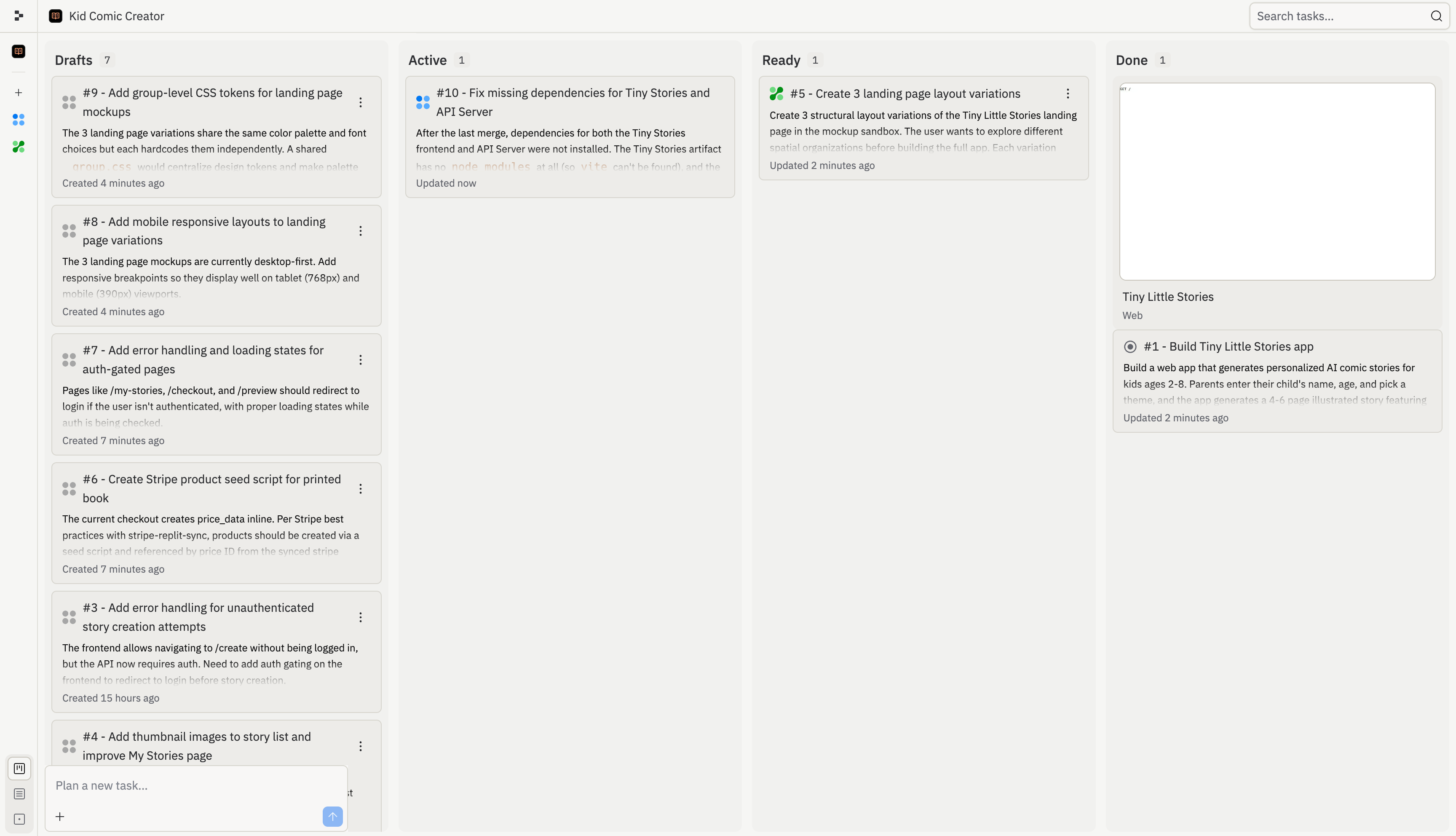
Draft — Agent has proposed this task. It has a plan ready for review.
Active — Agent is building this task right now in its own isolated copy of the project.
Ready — The task is complete. Review the changes and apply them to the main version.
Done — This task is finished and its changes are part of the main version.
How teams use the board
When multiple people are building at the same time, each person’s tasks appear on the shared board. Here’s what that looks like — one teammate is working on sequels and story regeneration while another tackles the gift flow, and the rest of the team’s completed work sits in Ready and Done. When a task moves to Ready, anyone on the team can review and apply the changes. Agent handles conflicts automatically when multiple tasks are applied.What you can build together
- Split a feature across the team: One person builds the frontend while another handles the backend, each through their own chat with Agent. The Kanban board keeps everyone aligned.
- Onboard a new teammate: They can explore the project through their own Agent chat, ask questions about how things work, and start contributing — all without blocking anyone else.
- Ship faster on Pro: With parallel execution, two or three people can each dispatch tasks that run at the same time. A project that would take one person a full session can be done in a fraction of the time.
Frequently asked questions
Can I message my teammate through Agent?
Can I message my teammate through Agent?
No. Agent isn’t a messaging tool — it’s always listening and will try to act on anything you type. Use Slack, Discord, or another tool for team communication.
Will we overwrite each other's work?
Will we overwrite each other's work?
The task system helps prevent this by giving each task its own isolated copy, but is aware of what other tasks exist. When tasks complete, you apply them back to the main version and resolve any conflicts at that step.
How do I see what my teammates are doing?
How do I see what my teammates are doing?
Check the Kanban board to see active tasks. You can also see cursor presence and which files teammates are viewing.
Can I remove someone from my project?
Can I remove someone from my project?
Yes. Project owners can manage team members and revoke access at any time.
Availability
| Capability | Core | Pro |
|---|---|---|
| Collaboration seats | 5 | 15 |
| Simultaneous chats | ✅ | ✅ |
| Shared Kanban | ✅ | ✅ |
| Active background tasks | 1 | 10 |