

This is a new integration. Send to Replit appears in Claude’s Send to… menu only when Claude offers Replit as a destination for your design. Availability is controlled by Claude, so the option may not show for every account yet. When you accept the handoff, Claude requests the Access apps, Create and manage apps, and Stay signed in to this application scopes on the Replit consent screen.
How it works
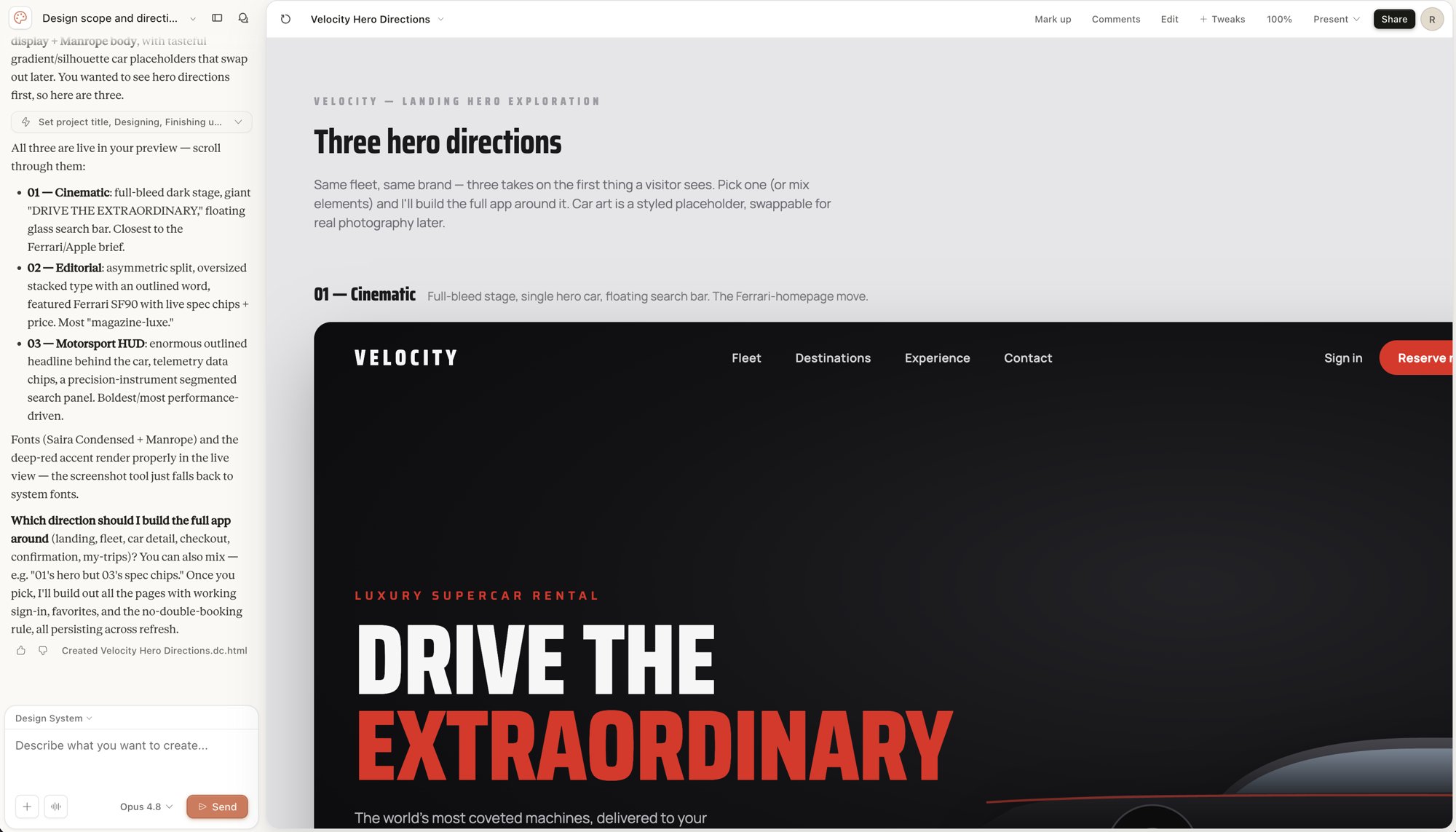
The handoff starts in Claude and finishes in Replit:- You build a self-contained design in Claude’s design canvas.
- You send the design to Replit from Claude’s Share → Send to… menu.
- You authorize Claude to access your Replit account and choose a workspace.
- Replit creates a project with your design as a static
index.htmlfile. - Agent picks up a Turn this Claude design into a real app task and makes it interactive.
Before you start
You need:- A Replit account.
- A Claude account with a design in Claude’s design canvas.
- A target Replit workspace for the new project.
Send a design from Claude to Replit
Start in Claude with the design you want to build on.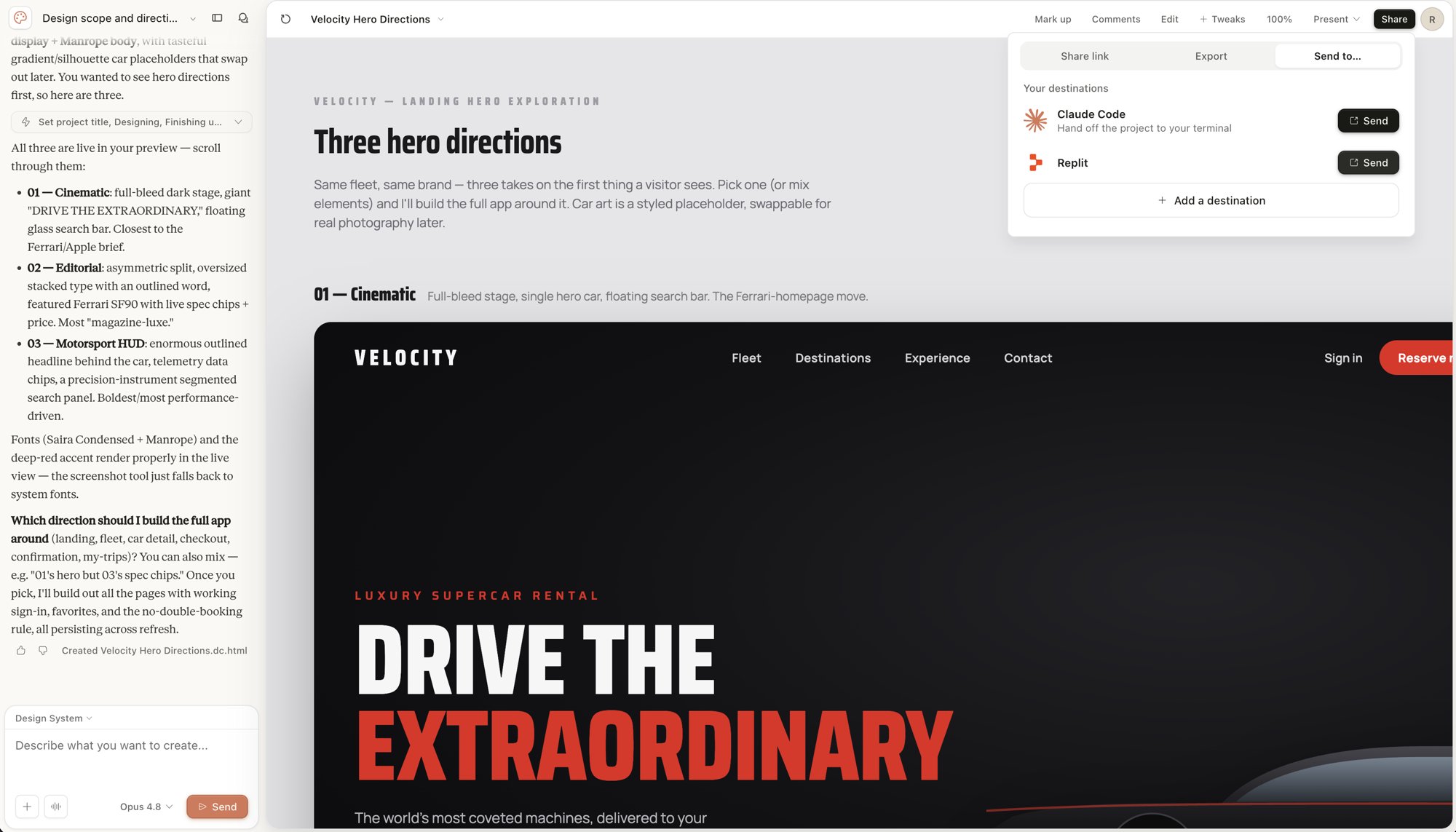
Authorize Replit access
On the Replit consent screen titled Claude would like to access your Replit account, review the access Claude requests — Access apps, Create and manage apps, and Stay signed in to this application — then authorize the connection.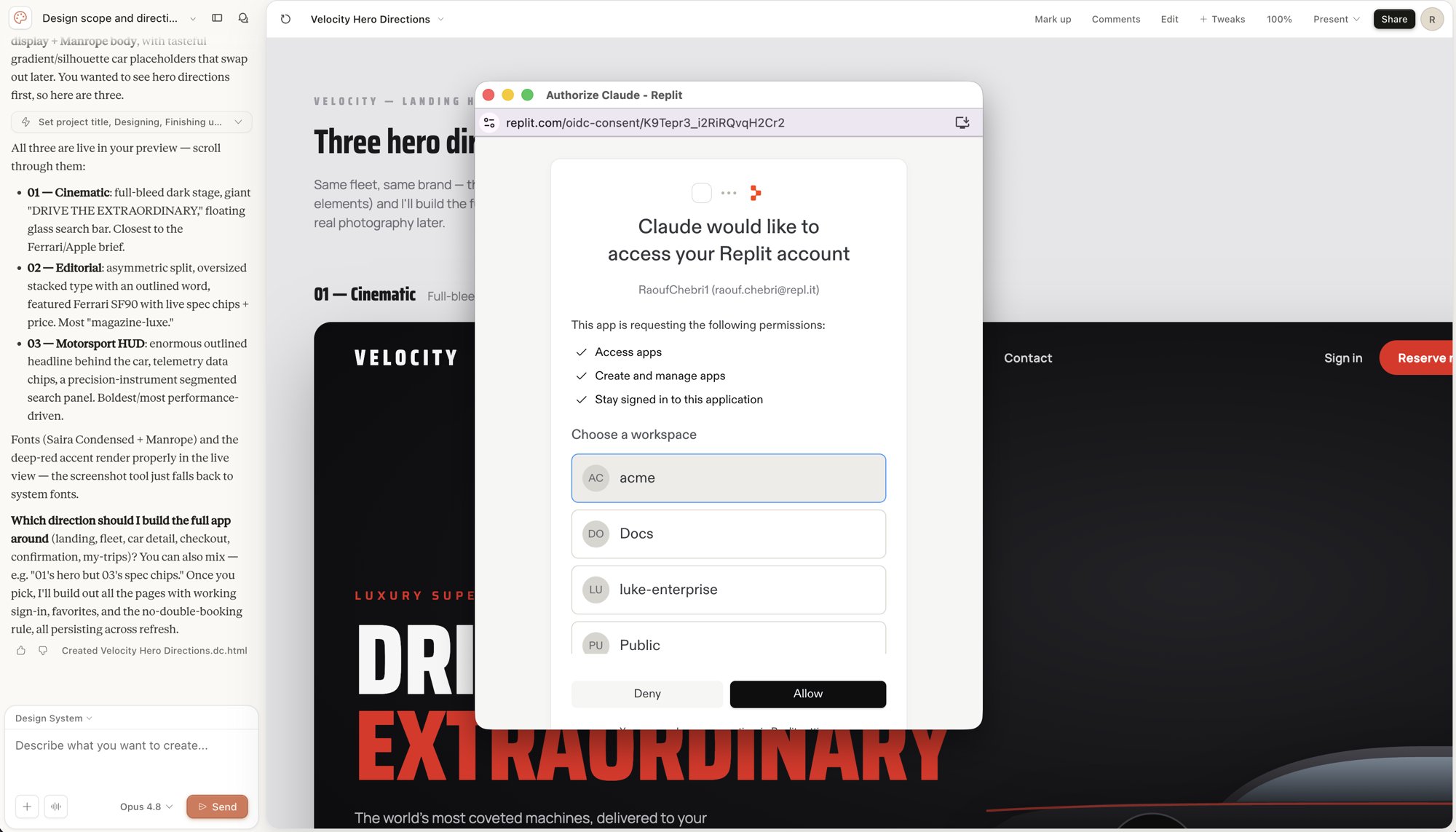
What gets imported
Replit imports the design as a single, self-containedindex.html file. The import preserves the visual layout, styling, and assets that Claude included in the design.
The import gives you a working starting point. Because the design arrives as static HTML, you still add behavior, data, and interactivity after import.
What is not imported
The handoff carries the design, not a full application. The following are not part of the import:- Backend logic and server-side functionality.
- A database or stored data.
- Interactivity such as working forms, state, and navigation.
Let Agent make the design interactive
After import, Agent starts a Turn this Claude design into a real app task in the workspace. Agent works from your static design and builds the interactive behavior the design implies.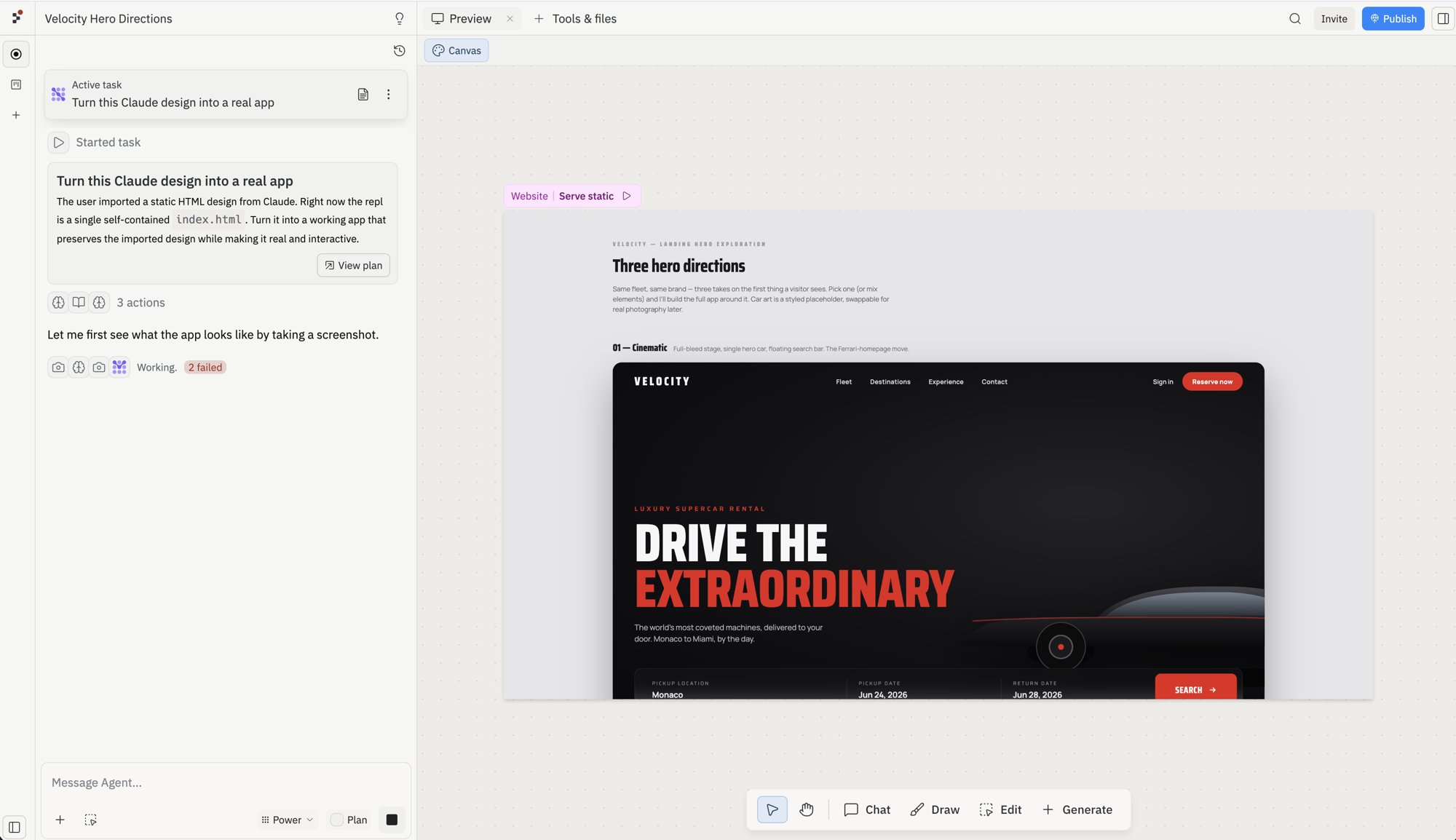
- The layout and styling match the design closely enough.
- Buttons, forms, and navigation work as expected.
- The app still works after a refresh.
Configure and run your app
During import, . If your app needs changes, use these Project Editor tools:- Agent: Refine features, debug issues, and make code changes
- Secrets: Add API keys and environment variables
- Workflows: Set the Run command for your app
Continue your journey
Now that you’ve imported your , explore these next steps:- Replit Agent: Get help with feature work, debugging, and refactoring
- Replit Deployments: Publish your app
- Collaborate: Build with teammates