

- Sharing your code with others through a public Replit project or copy-paste
- Checking your code into version control in a public repository
- Live streaming or screen sharing your code
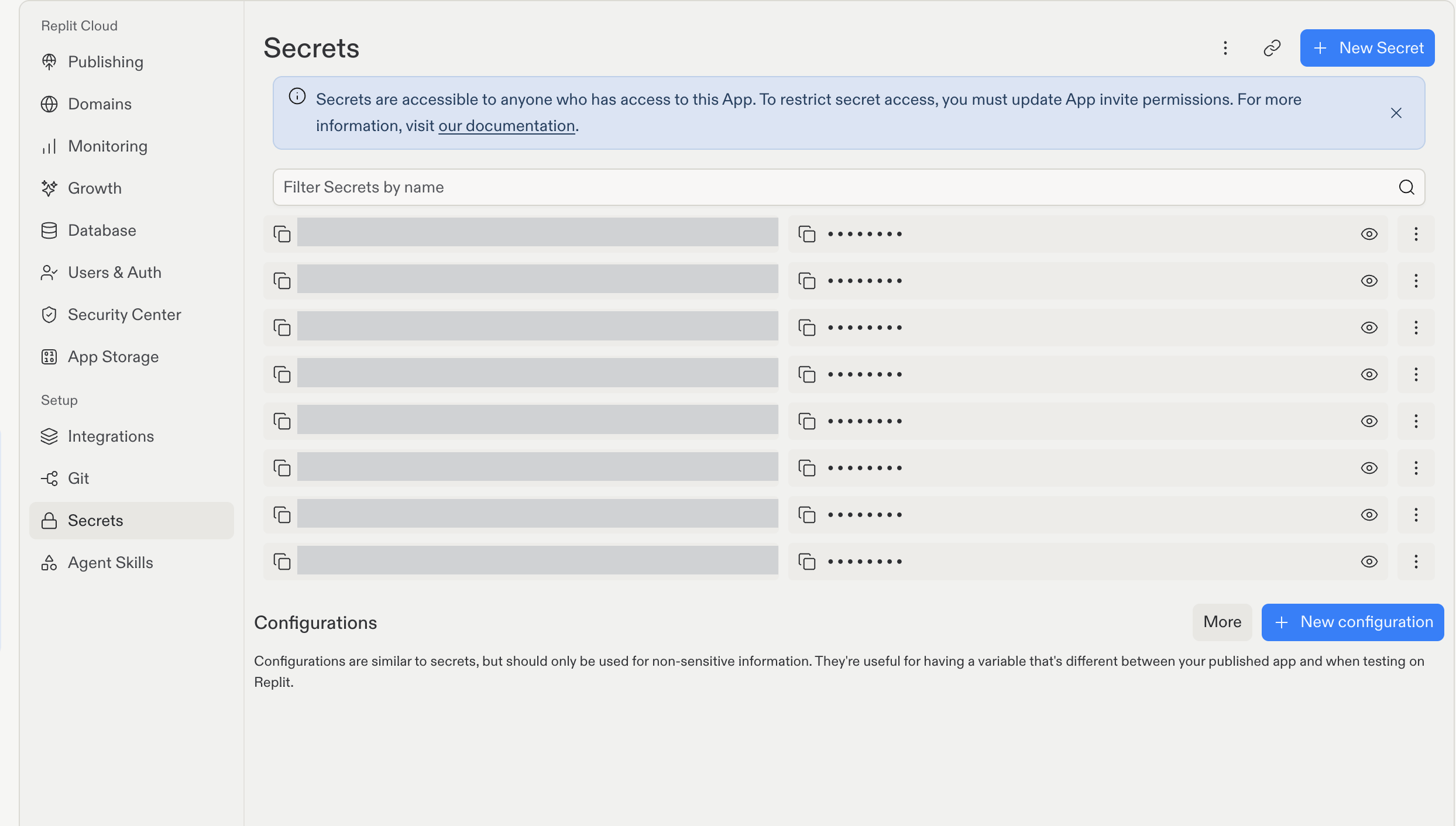
Secrets and Configurations in the Secrets tool. Project-specific secret names are redacted.
Secrets versus configurations
The Secrets tool has separate sections for secrets and configurations. Both let your project’s code read values as environment variables without hard-coding them.
Configurations are useful when a setting differs between testing on Replit and running your published project.
Use a secret whenever a value contains credentials or other sensitive data.
Features
Secrets include the following features:- Encryption: Protect your secrets using AES-256 encryption at rest and TLS encryption in transit
- Project-level secrets: Store and manage secrets that are specific to a Replit project
- Configurations: Manage non-sensitive environment variables alongside your secrets
- Environment variable access: Access your secrets from your code using environment variables
- Collaborative access: Share secrets with collaborators and team members
Usage
Secrets are available for all deployment types except Static Deployments.
How to find Secrets
Open the Secrets tool from your project’s tools pane:- Open your project in the Project Editor.
- Select Tools at the top to open the tools pane.
- Find the Setup section and select Secrets.
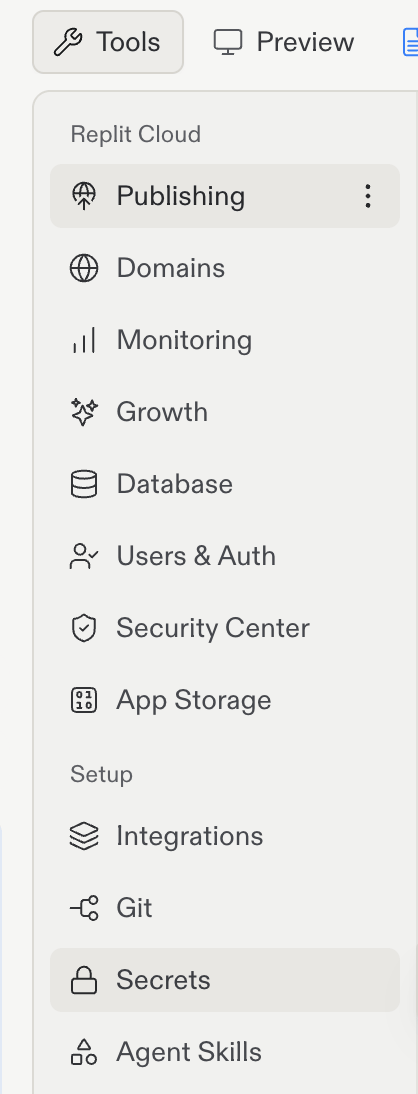
Select Tools, then Secrets under Setup.
Manage project secrets
Manage your project’s secrets directly in the Secrets tool. Use Filter Secrets by name to find a secret. Add a secret- Select New Secret.
- Enter a Key, the name of the secret, and a Value, the secret itself.
- Select Add Secret to save the entry.
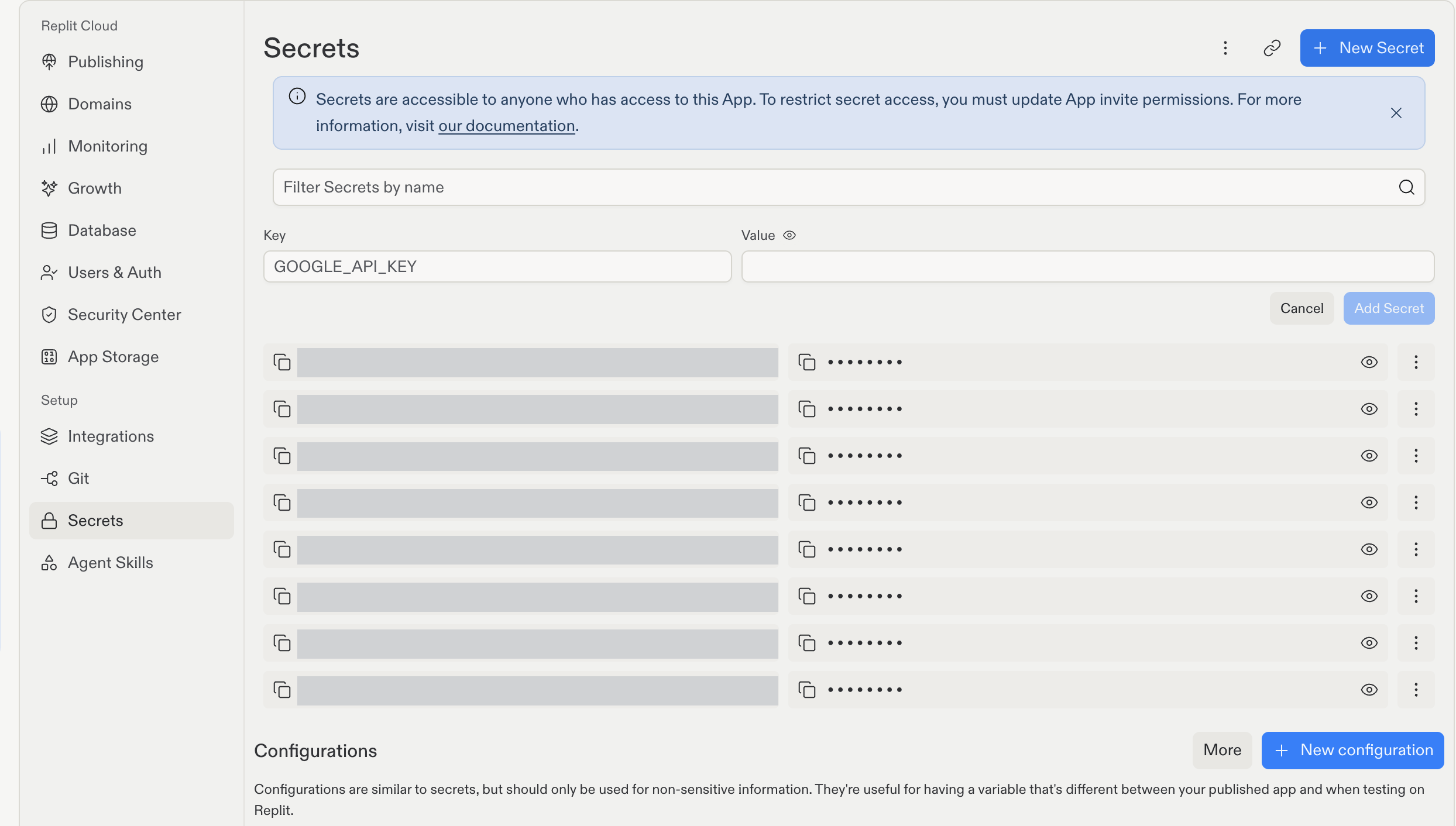
Add a secret with a key and value. Existing secret names are redacted.
- Select the
 vertical dots menu next to the secret.
 - Select Edit from the contextual menu.
- Update the text in the Key or Value field and select Update Secret to save changes or Cancel to discard changes.
 eye icon next to the secret.
To hide the secret, select the
eye icon next to the secret.
To hide the secret, select the  eye with slash icon.
Delete a secret
To delete a secret, select the vertical dots menu next to the secret and select Delete.
Edit secrets in bulk
Open the vertical dots menu in the Secrets header and select Edit as JSON or Edit as .env.
Review the full list before saving: bulk editing replaces the project’s existing secrets.
eye with slash icon.
Delete a secret
To delete a secret, select the vertical dots menu next to the secret and select Delete.
Edit secrets in bulk
Open the vertical dots menu in the Secrets header and select Edit as JSON or Edit as .env.
Review the full list before saving: bulk editing replaces the project’s existing secrets.
Manage account secrets
Account secrets let you reuse credentials across your projects. Manage them in Account Settings > Account Secrets. To link account secrets to a project you own:- Open the project’s Secrets tool.
- Select the chain-link icon labeled Link Account Secrets in the header.
- Select the checkboxes beside the secrets you want to use.
- Select Link to this App.
Manage configurations
Use the Configurations section in the Secrets tool for non-sensitive values. To add a configuration:- Select New configuration.
- Enter a Key, such as
LOG_LEVEL, and a Value, such asdebug. - Select Add configuration.
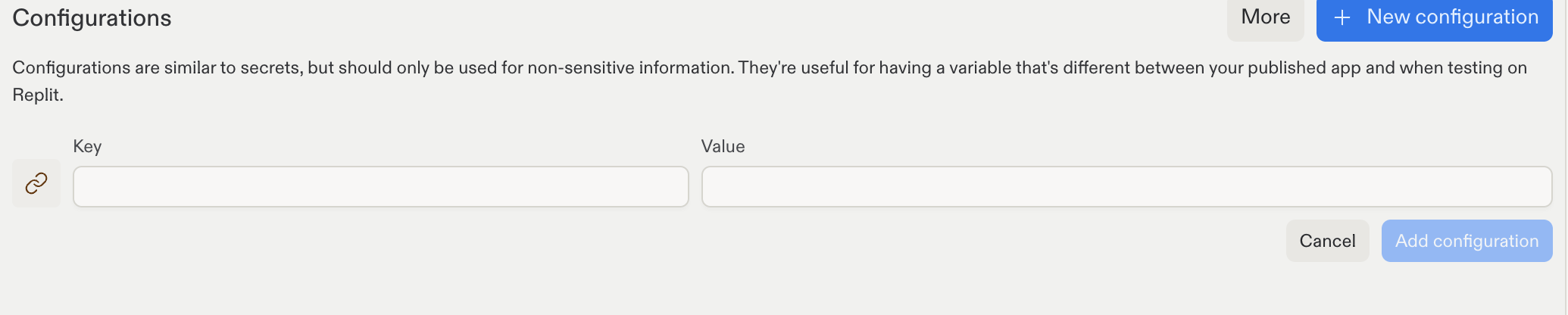
Add a non-sensitive setting in the Configurations section.
Manage production secrets
To find secrets for your published project, open Publishing, select Adjust settings, and locate Production app secrets. Review the values your published project needs, especially if you use different credentials for testing and production.Managing secrets visibility
Secrets visibility depends on your access to a Replit project and whether you authored it. You can use one of the options to share your Replit project:- Multiplayer: Invite Replit users to collaborate in real-time
- Cover page: Show a preview of your Replit project with the option to remix it
- Remix: Make your individual or organization’s Replit project public so others can create their version
Database related secrets
When you add Replit’s Database, the Project Editor automatically creates the following secret:Legacy Neon development databases may also include
PGHOST, PGUSER, PGPASSWORD, PGDATABASE, and PGPORT. Current Replit development databases use DATABASE_URL instead.printenv in the Shell Project Editor tool or print them from your code.
Predefined environment variables
Replit automatically sets the following environment variables that you can access from your project’s code:
These are not listed in the Secrets tool, but your project’s code can read them like any other environment variable.