

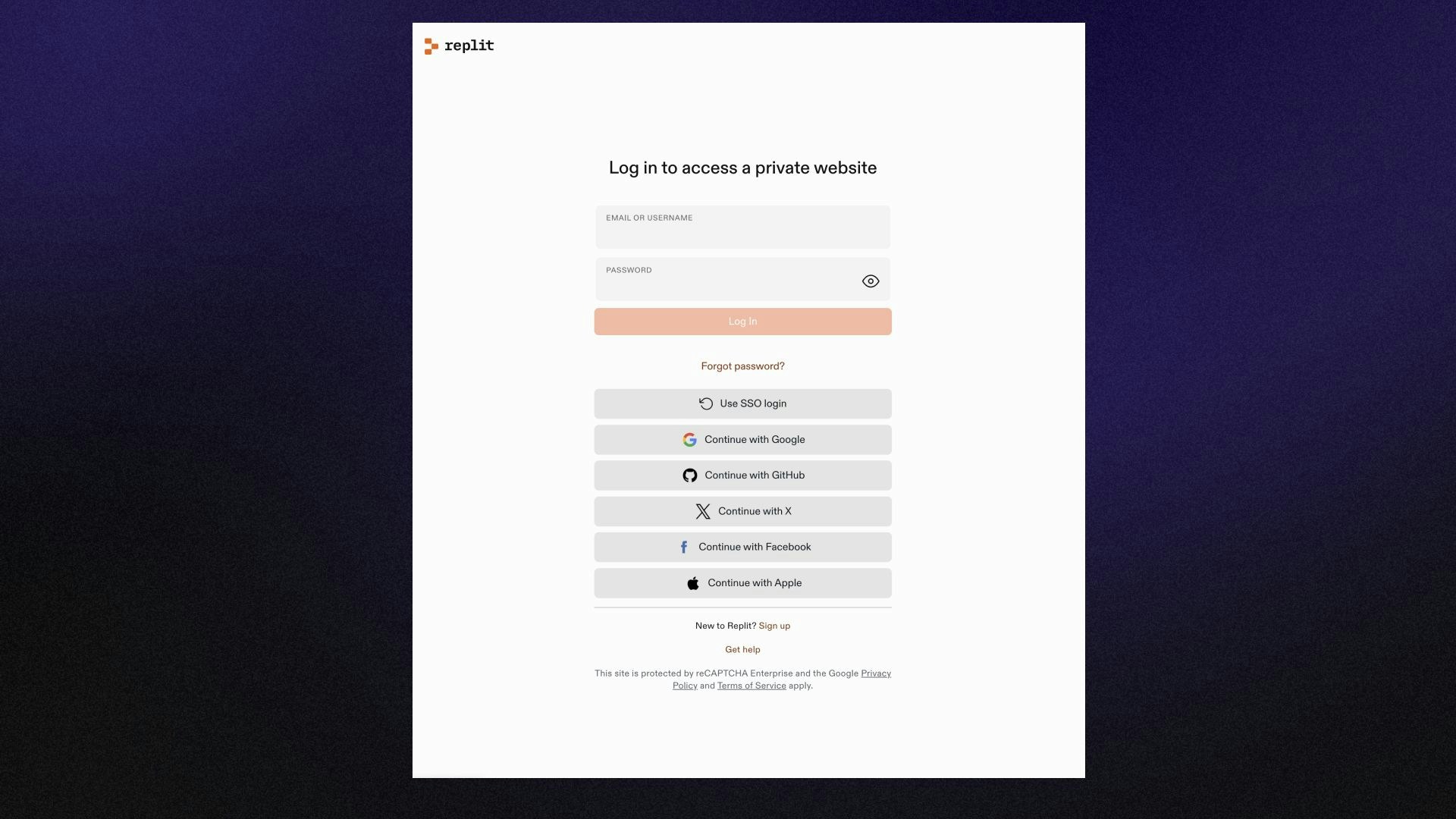
Private published apps add authentication to your Replit Apps without requiring any code changes. When enabled, Replit restricts access to your app using a Replit login screen. Only signed-in users that you’ve granted access to can use the site.Documentation Index
Fetch the complete documentation index at: https://docs.replit.com/llms.txt
Use this file to discover all available pages before exploring further.
Private Deployments are available on the Pro and Enterprise plans.
- Internal tools
- Apps in the beta testing phase
- Apps that access sensitive information
Access options
When you publish an app on the Pro plan, you can control who has access to it. You’ll see three privacy options:- Public: Your app is accessible to anyone on the internet who has the URL. This is the default access option on Pro and Enterprise plans.
- Workspace only: Your app is restricted to members of your workspace. All admins, members, and viewers in the workspace automatically get access when you publish. This is most useful in collaborative workspaces where you want to share an app with your team without making it public.
- Only you: Your app is fully private. Only you can access it, along with workspace admins and anyone you explicitly invite (individual users or groups). This is the most restrictive option.
- Both Workspace only and Only you are private deployments — visitors without access are prompted to sign in through Replit before they can view the app.
- In a personal workspace where you’re the only member, Workspace only and Only you behave the same way since there are no other workspace members. The distinction becomes meaningful when you’re working in a shared workspace with collaborators.
- If you need password-protected deployments (where anyone with a password can access the app regardless of whether they have a Replit account), that capability is available on the Enterprise plan.
Features
Private published apps provide the following features:- Access Management: Grant or restrict app access to individual users or groups within your workspace.
- Zero Code Configuration: Seamless authentication for your app with no code changes required.
Usage
When publishing your Replit App, you can choose a privacy option from the Public, Workspace only, or Only you dropdown. The following sections describe how to set up and manage your published app’s access.Scheduled Jobs omit this option because they do not listen for incoming
traffic.
Publish an app with restricted access
Publish an app with restricted access
- Select the user menu at the top left of the Home screen to view your workspaces.
- Verify or select the workspace in which to publish your Replit App.
- Open the Replit App you want to publish.
- In the publishing options, select Public, Workspace only, or Only you from the access dropdown.
- Select Publish to confirm the publishing.
View your published apps
View your published apps
- Select the user menu at the top left of the Home screen to view your workspaces.
- Verify or select the workspace in which you published your Replit App.
-
From the Home screen, select
 Published apps from the left dock.
You should see a list of the workspace’s published apps similar to the screenshot below:
Published apps from the left dock.
You should see a list of the workspace’s published apps similar to the screenshot below:

Edit existing published app access
Edit existing published app access
- Select the published app and open the Publishing tool.
- In the Publishing tab, select Edit commands and secrets, then choose the access option you want (Public, Workspace only, or Only you).
- Select Publish to confirm the publishing.
Next steps
To learn more about Private published apps, see the following resources:- Replit App Access Management: Manage access to your Private published app
- Billing for Teams: View pricing for Replit Pro and Enterprise