

UUID.servername.replit.dev and provide a live preview of your app as you develop.
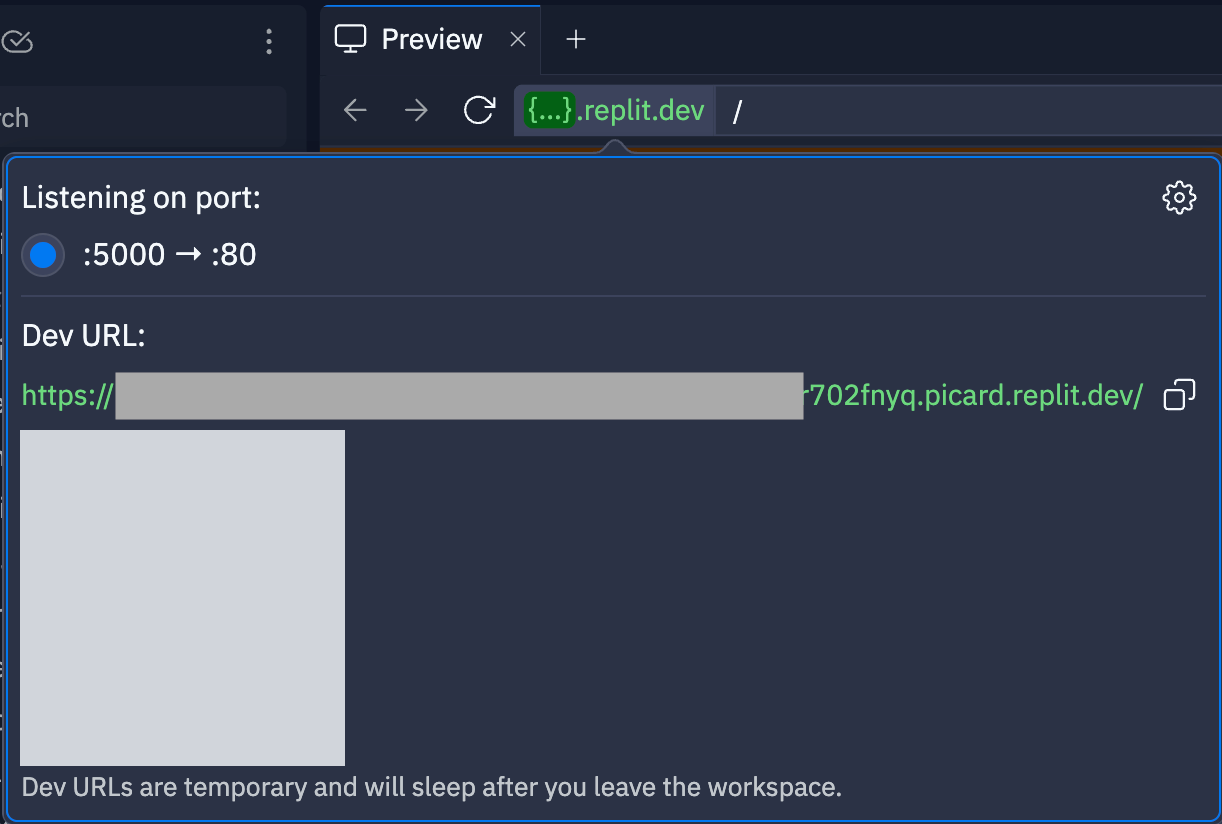
{...}.replit.dev text in the location bar.
Understanding development URLs
Development URLs are only live while you actively work on a Replit App. The URL can change each time you reopen the app. Development URLs allow you to view your work in a browser as you build and test. Development URLs are private by default and require authentication. Only you and authorized collaborators can view your in-progress work. Sharing the URL alone does not grant access.Educational banner
When you open a development preview in a new tab, an educational banner appears at the top of the page. This banner helps you understand the purpose of.replit.dev URLs as you build and test your applications. The banner provides context about development URLs and their intended use during the development process.
Testing external connections with private development URLs
Use external access tokens to test webhooks, CI jobs, and other automated connections without making your development URL public. This is the supported way to let an external service reach a private development URL.The token controls appear after your first publish, with deployment access set to Private. If you have not published yet, publish with private access to use these controls. In Enterprise Workspaces, ask a Workspace admin to manage tokens.
- Keep your development URL private.
- Open Publishing > Adjust settings > Security > External access tokens.
- Create a token with the Development environment and the shortest expiration that fits your test. A Production token does not work with a development URL.
- Configure the calling service to send
Authorization: Bearer <token>with its requests to your development URL.
project-protection-bypass query parameter described in the token usage guide. Prefer the header: URLs containing tokens can appear in logs, browser history, and screenshots.
Treat the token like a password, store it in the calling service’s secret settings, and revoke it when testing ends. Your app must be running, and its temporary development URL can still change.
Tokens support API traffic, not interactive browser previews. For browser access, sign in as an authorized collaborator.
Making development URLs public
The Private preview toggle controls whether your in-progress app requires authentication. For external API testing, use an external access token instead of disabling privacy. Make a development URL public only when you need to share a preview with someone who doesn’t have access, since anyone with the URL can view it. To make your development URL public:- Select + in the Project Editor tab bar to open Tools & files.
- Enter
Networkingin Search tools, then select the Developer result. - Select Networking.
- Turn off Private preview.
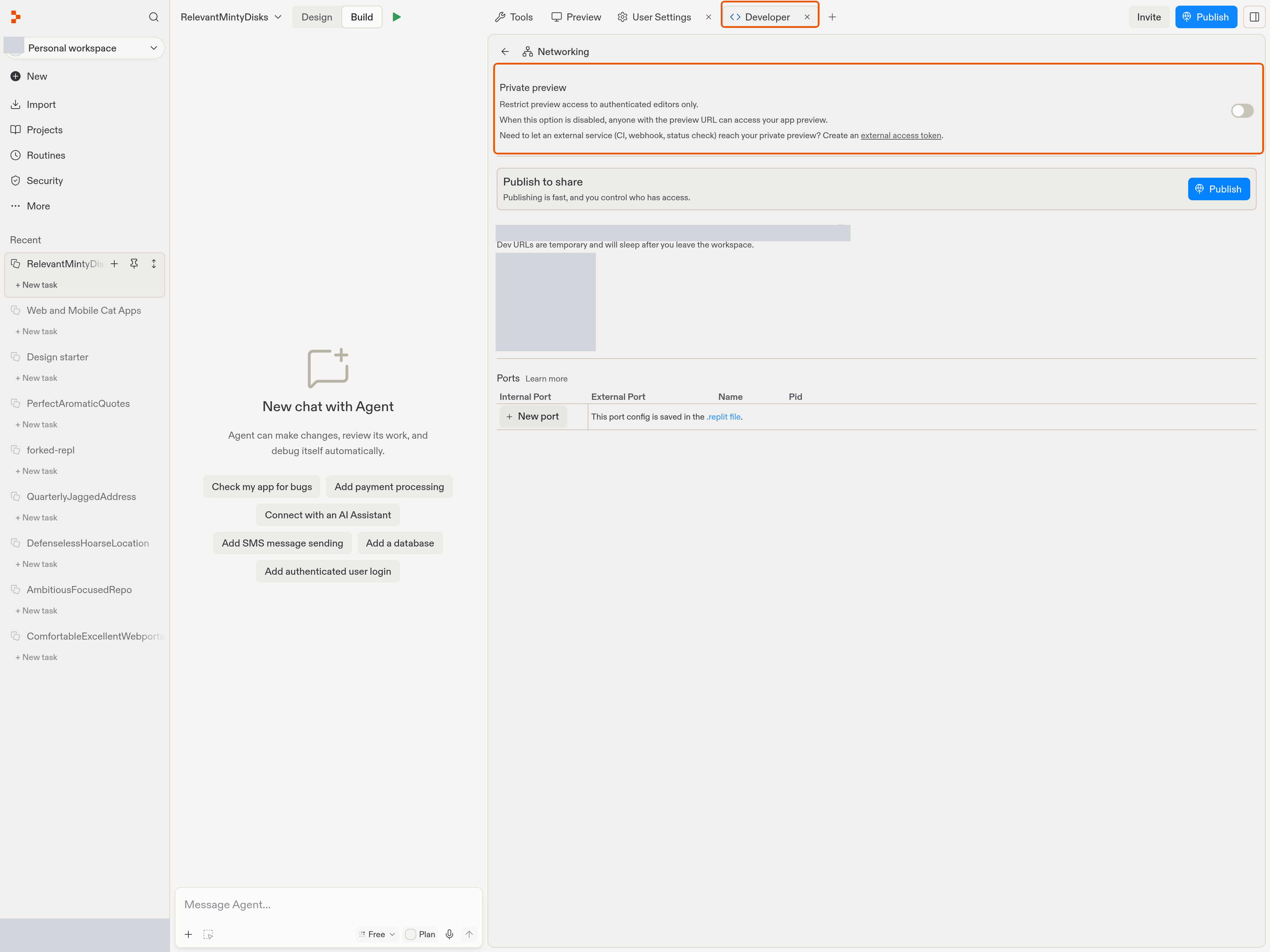
The Private preview control in Networking. This example has private preview turned off.
Enterprise customers can require private development URLs for all projects. This policy prevents making development URLs public.
Best practices
- Keep development URLs private to protect sensitive or proprietary work.
- Use Development external access tokens for external API testing without disabling privacy. Revoke tokens when testing ends.
- Make a development URL public only when needed for temporary testing with people who do not have access. Anyone with the URL can view the app while it is public.
- Publish your app for ongoing sharing instead of distributing a temporary development URL.