

What is the task system?
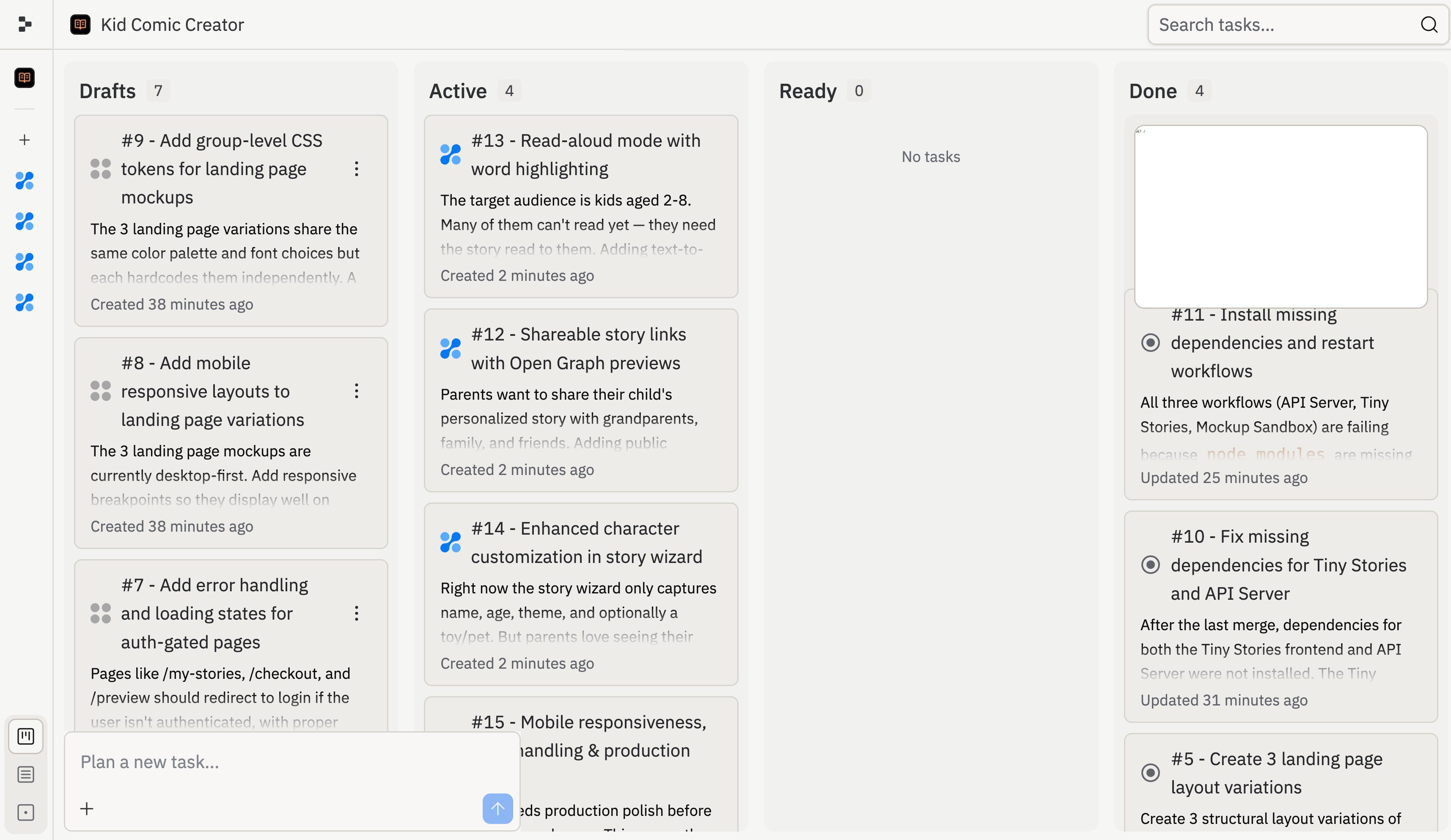
A task is a unit of work that Agent can plan and execute. Tasks let Agent separate a larger goal into smaller pieces, so you can review each piece before it changes your app. Agent can work in two places: the main thread and background tasks. The main thread is the conversation where you describe what you want, refine direction, and decide what gets applied to your main version. Background tasks are separate threads where Agent works independently in isolated copies of your project. Use the main thread for direction and decisions. Use background tasks for execution that can happen in parallel. Background tasks do not change your main version until you review and apply them. The task system is how Agent organizes that work. When you describe what you want to build, Agent can split your request into discrete tasks and place them on a board with columns: Drafts, Active, Ready, and Done.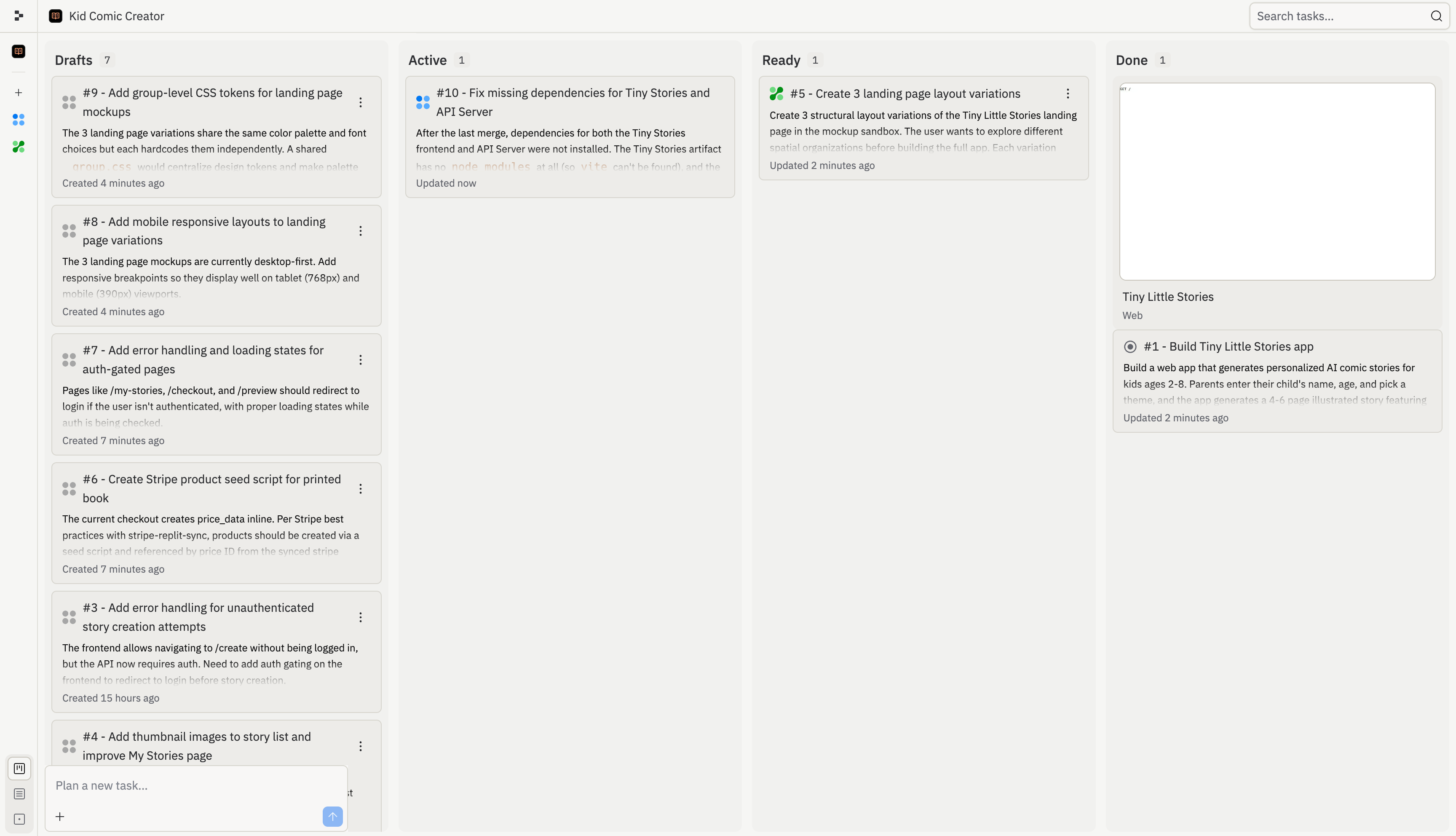
How background tasks work
1
Plan your tasks
Start a conversation in the main thread, or create a new thread and plan there. Agent reviews your project, identifies what would have the most impact, and writes up a detailed plan for each task, including what it will do and what “done” looks like.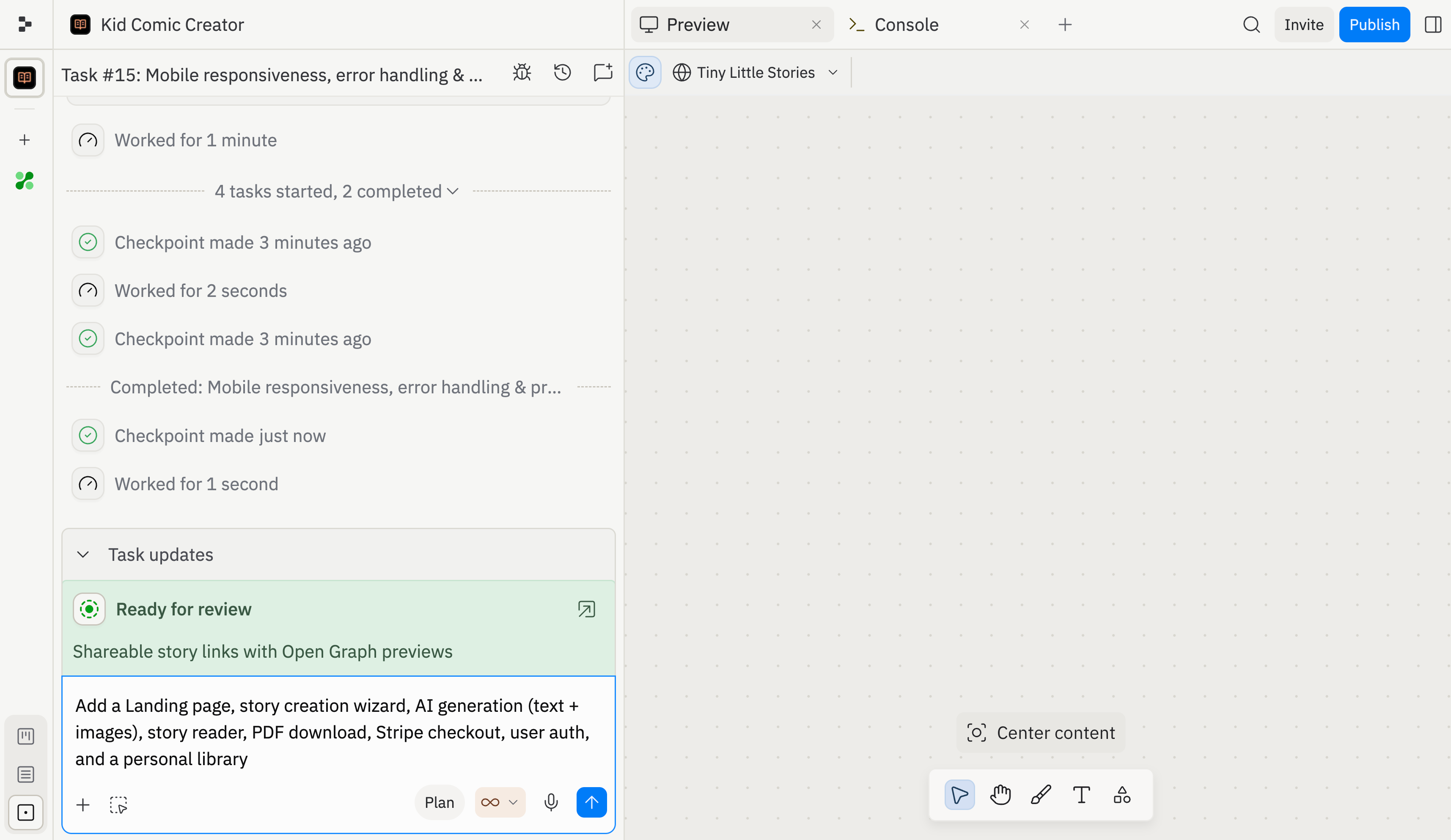
2
Review and accept
Agent proposes a set of tasks, each with a title, description, and a detailed plan you can inspect with View plan. Review the full list, then choose: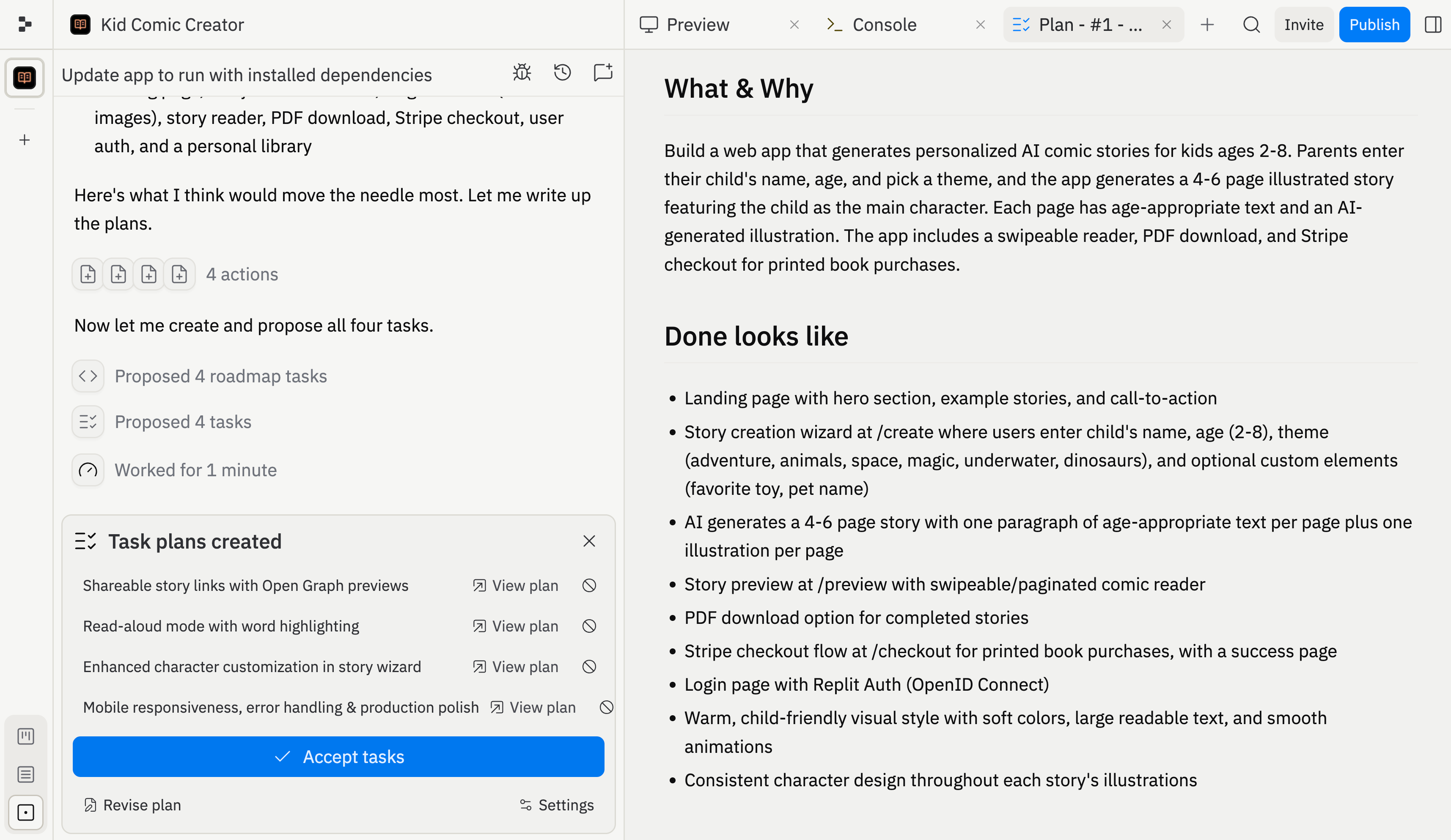
- Accept tasks: start all tasks and send them to the background
- Revise plan: ask Agent to adjust the tasks before starting
3
Tasks start running
Once accepted, tasks start running in isolated copies of your project. Starter does not support background tasks. Core runs 1 at a time, Pro supports up to 10, and Enterprise supports up to 64. Your main version stays untouched until you choose to apply changes. You can track progress in two ways: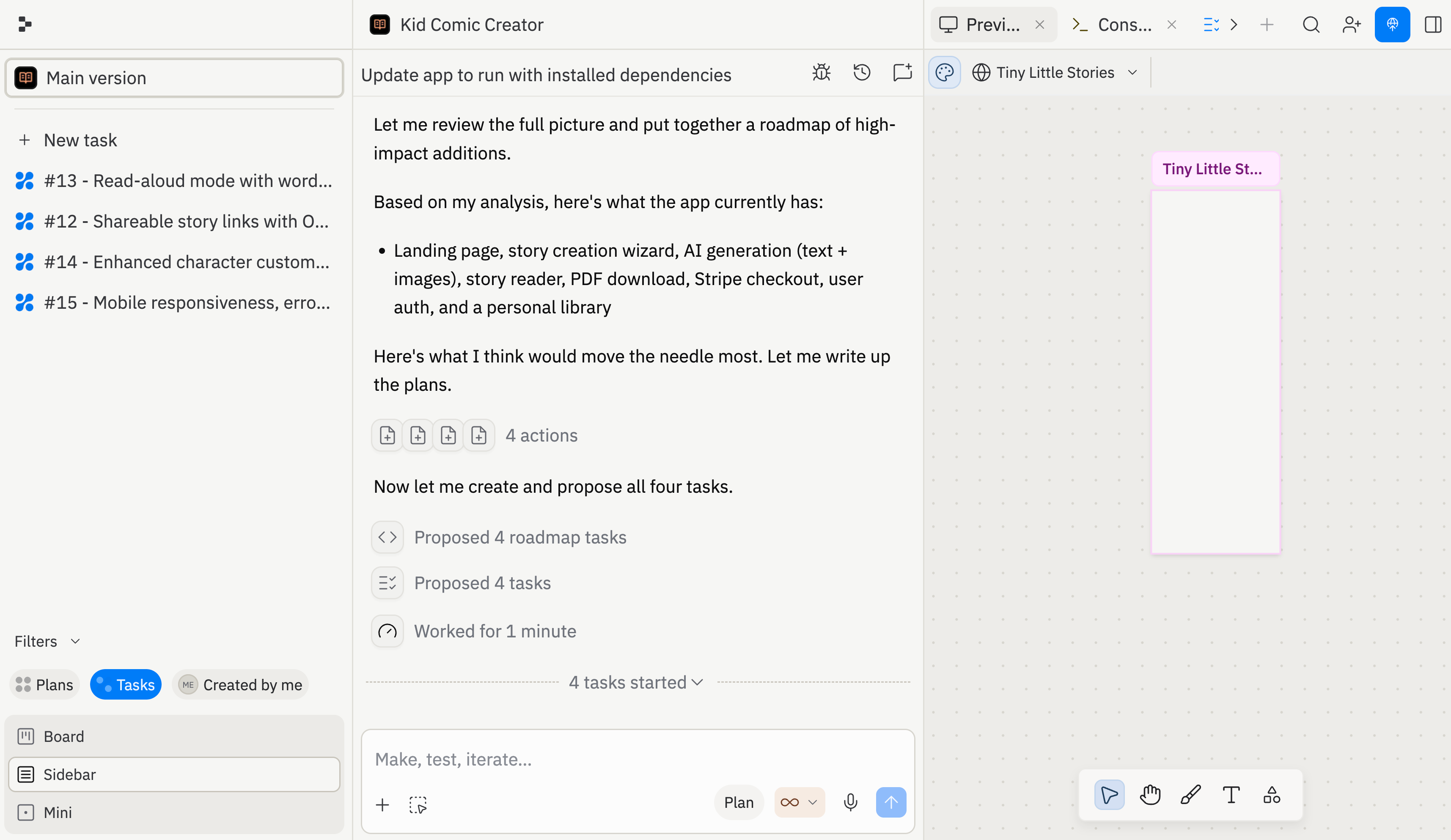
- Thread view: each task runs in its own thread with a live status indicator, so you can follow along or jump into any task’s conversation
- Board view: a column-based board showing all tasks organized by status: Drafts, Active, Ready, and Done
4
Review and apply
When a task finishes, Agent shows you what it did: the work log, test results, and a live preview of the changes. You decide what happens next: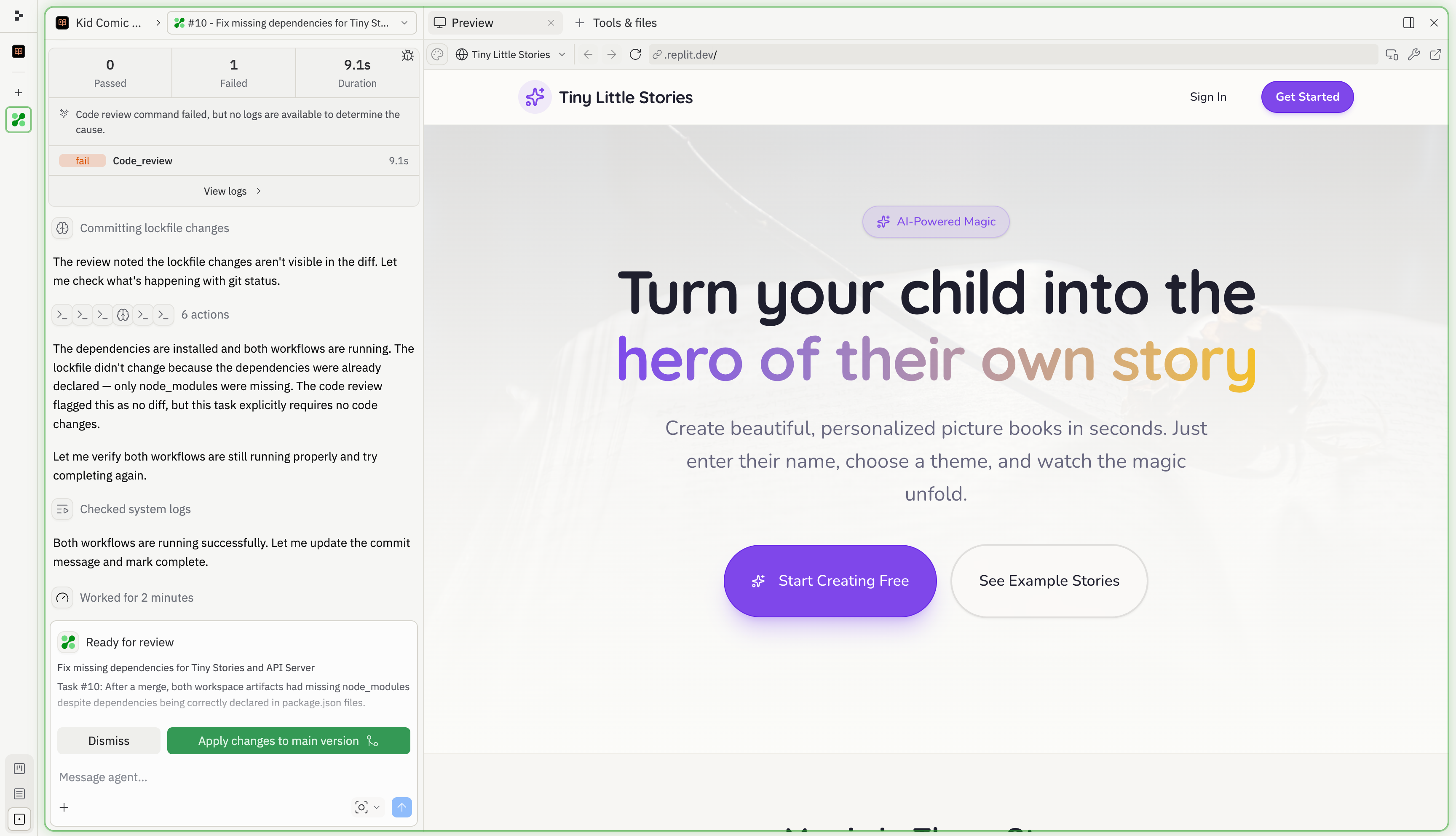
- Apply changes to main version: merge the task’s work into your project
- Dismiss: discard the changes if they’re not what you wanted
Learn more about tasks
Task board
Review Drafts, Active, Ready, and Done tasks from the board.
Task lifecycle
Understand task states, queued work, applying changes, archiving, and cancelling.
Follow-up tasks
Start suggested next tasks and manage many follow-ups at once.
What you can build
The task system works for any project. Here are a few patterns where it shines:- Ship large features in smaller pieces: split authentication, a dashboard, and an API layer into separate tasks so Agent can work through them cleanly
- Plan complex projects: break a large feature into well-scoped tasks with dependencies, then execute with confidence
- Compare different design directions: use separate tasks to try multiple UI approaches, then pick the best result
Frequently asked questions
Do I need to change how I build?
Do I need to change how I build?
No. The main thread works exactly the same. Agent automatically creates tasks behind the scenes when it helps. You can also use Plan mode to see and manage tasks explicitly.
Why are my tasks running one at a time?
Why are my tasks running one at a time?
Starter does not support background tasks. Core runs 1 at a time, Pro supports up to 10, and Enterprise supports up to 64. Once you hit your plan’s limit, additional tasks queue and start as slots open up.
How does Agent handle conflicts when applying background tasks?
How does Agent handle conflicts when applying background tasks?
Agent uses AI-assisted conflict resolution. It understands what each task was trying to accomplish and applies the changes intelligently. If something looks off, you can ask Agent to fix it in the thread.
Can tasks depend on each other?
Can tasks depend on each other?
Yes. Agent automatically detects dependencies. For example, a task that builds a dashboard depends on the task that creates the database schema. Dependent tasks wait until their prerequisites complete.
What's the difference between archiving and cancelling a task?
What's the difference between archiving and cancelling a task?
Archive applies to planning sessions: drafts that haven’t started building yet. Archived planning sessions are preserved and can be restored from the Done column.Cancel applies to tasks that have already moved from planning into building. Cancelling stops the task and discards its work, and cancelled tasks can’t be restored. Start a new task instead.
Availability
Starter does not support background tasks. Enterprise supports up to 64 active background tasks.