

A new way to work with Agent
So far, you’ve probably worked with Agent like a partner sitting next to you: you ask, you watch, you respond. Building in parallel is a different relationship. You hand a feature to Agent as a task, and it goes off and builds it in the background while you do something else. You already work this way in everyday life. You don’t stand in front of the washing machine until it finishes. You start the laundry, then go cook. Tasks work the same way: start one, and while it runs, start another, review something else, or just keep chatting with Agent in the main conversation. This changes your role. You stop being a passenger watching one build and become the director of several.Your app is safe while tasks run
The first question everyone asks: will a background task break my app while I’m not looking? No. Each task works on its own copy of your project. Your app doesn’t change until you review a task’s work and choose to apply it. Each task also gets its own Agent and inherits your full project context, so you don’t repeat yourself. Tasks are independent: you can start the next one the moment the first is running.Build in parallel
1
Open your project and pin the sidebar
Start from the default Build layout: Agent chat on the left and Preview on the right. Expand the global sidebar and pin it so the project’s task controls and status updates remain visible.
2
Create a task from the project
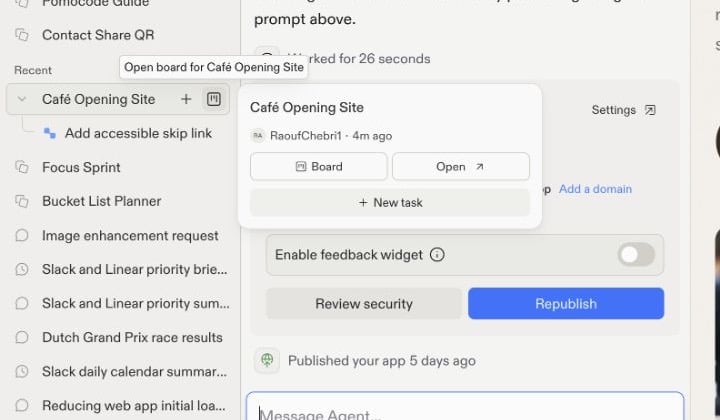
Expand the project in the sidebar, then select the + button beside its name. This is the quickest way to start a background task.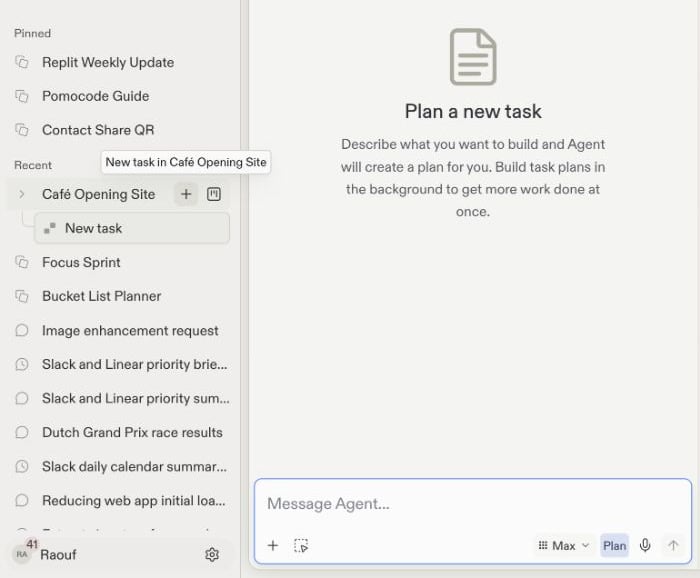
3
Describe one focused outcome
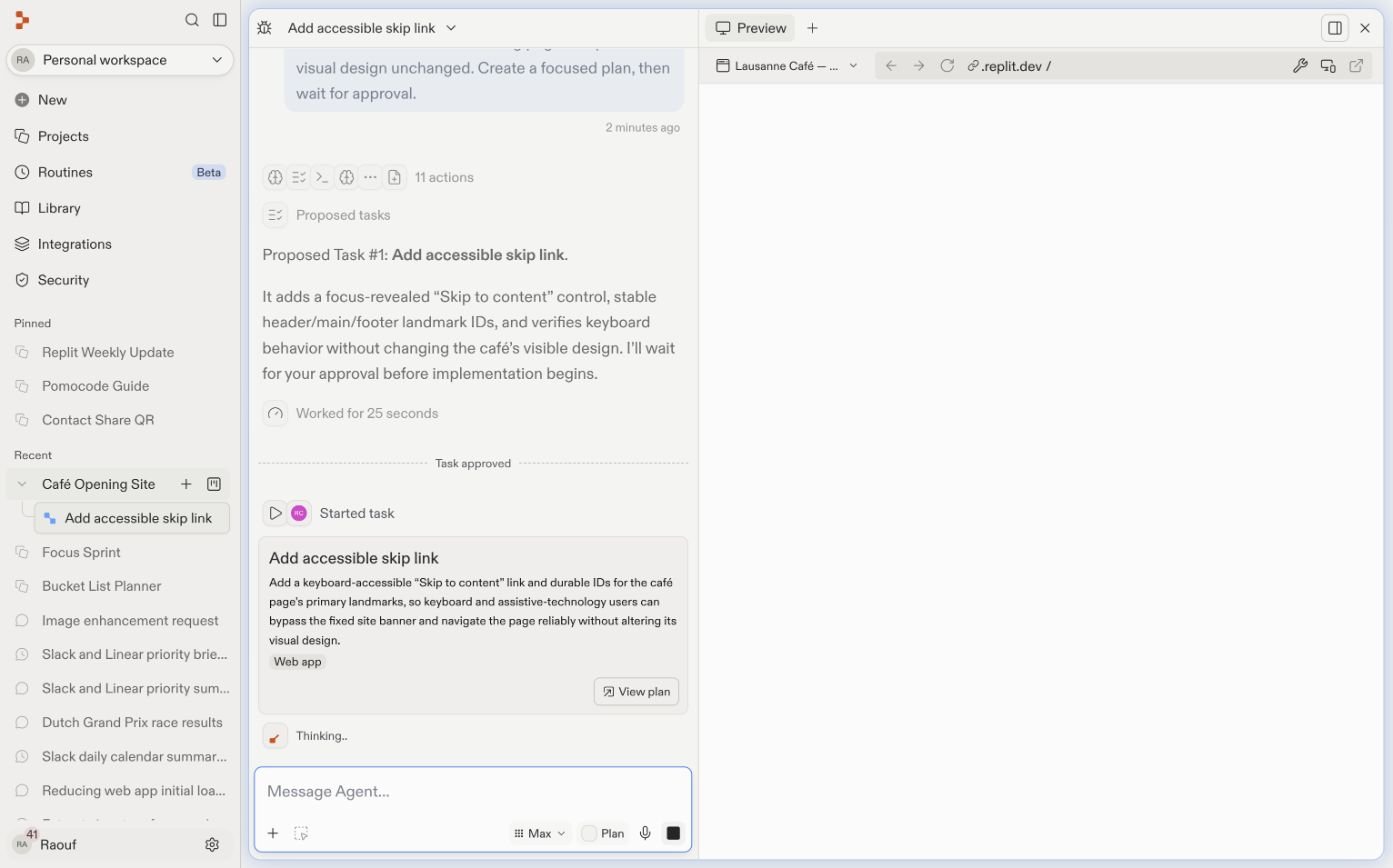
Give the task one clear result, then send it. Agent inspects the project and proposes a plan without changing the main version.
4
Review and approve the plan
Check the scope, implementation steps, definition of done, relevant files, and agent mode. Select Start building only when the plan matches your intent.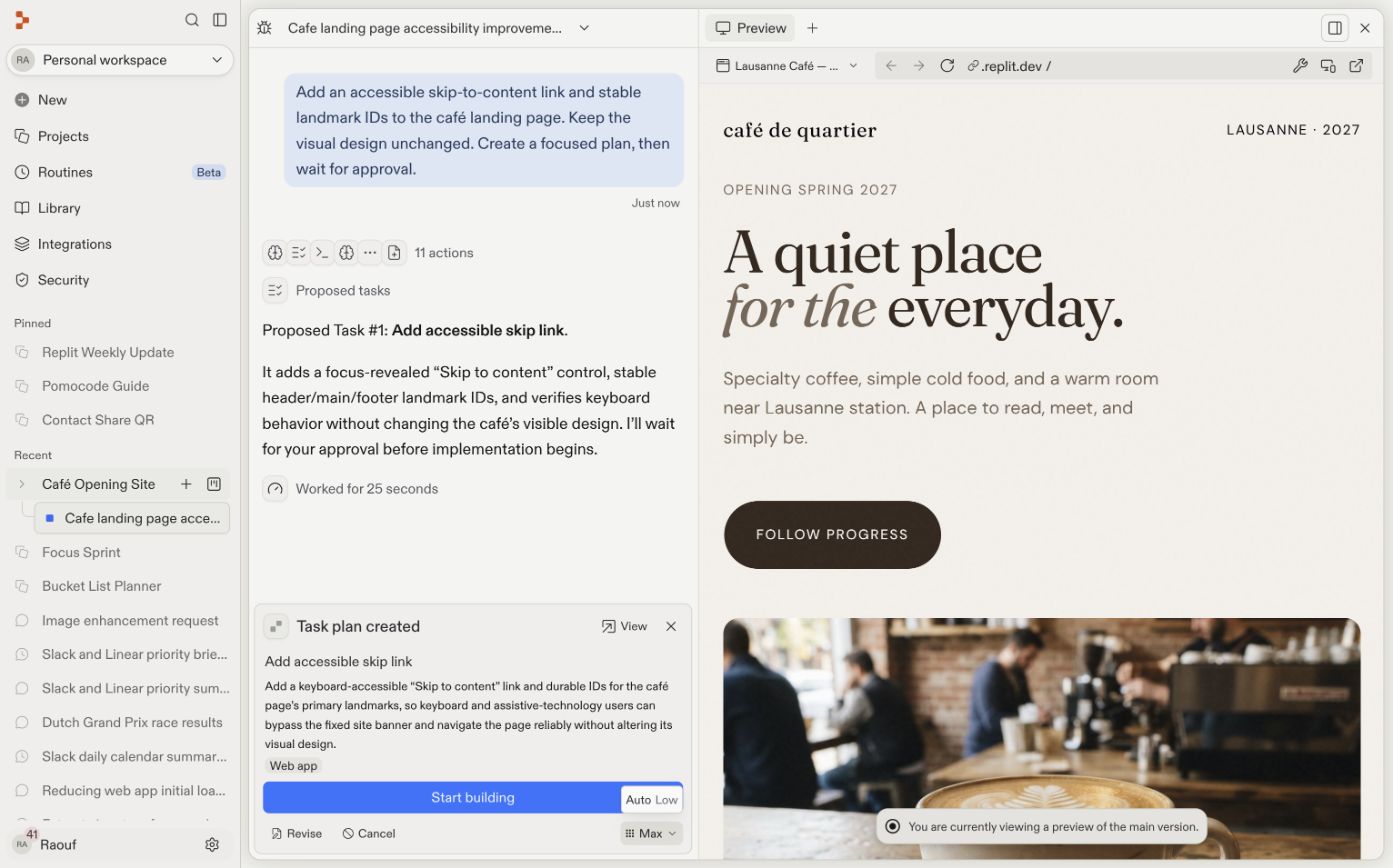
5
Create and approve the remaining tasks
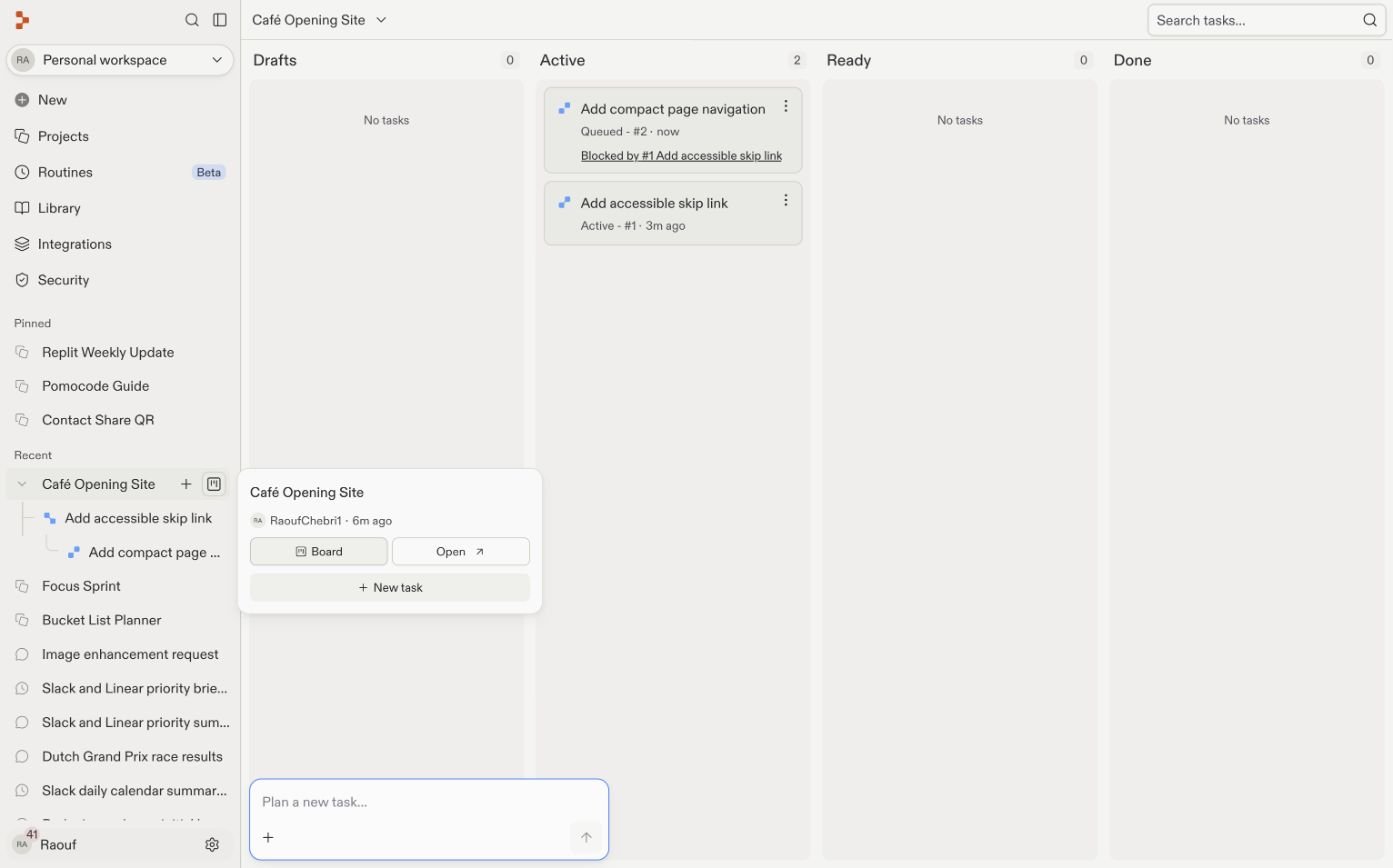
Repeat the process one task at a time. Give independent work separate outcomes. Describe dependent work in terms of the feature or project structure it requires so Agent can recognize the prerequisite.When a new task needs something another task is still building, Agent names the prerequisite in its plan and schedules the new task to begin after that work is complete and approved.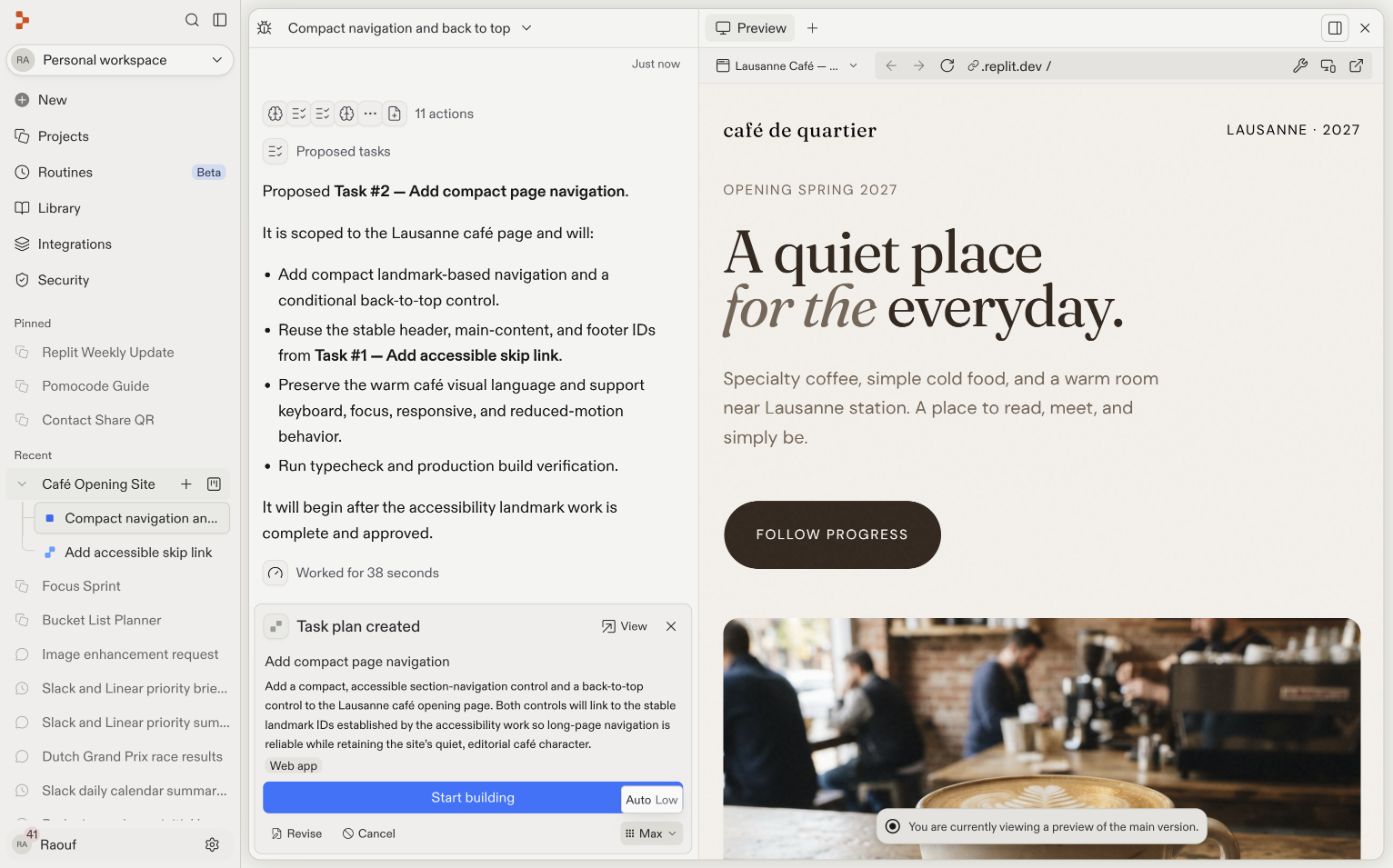
6
Let Agent schedule the work
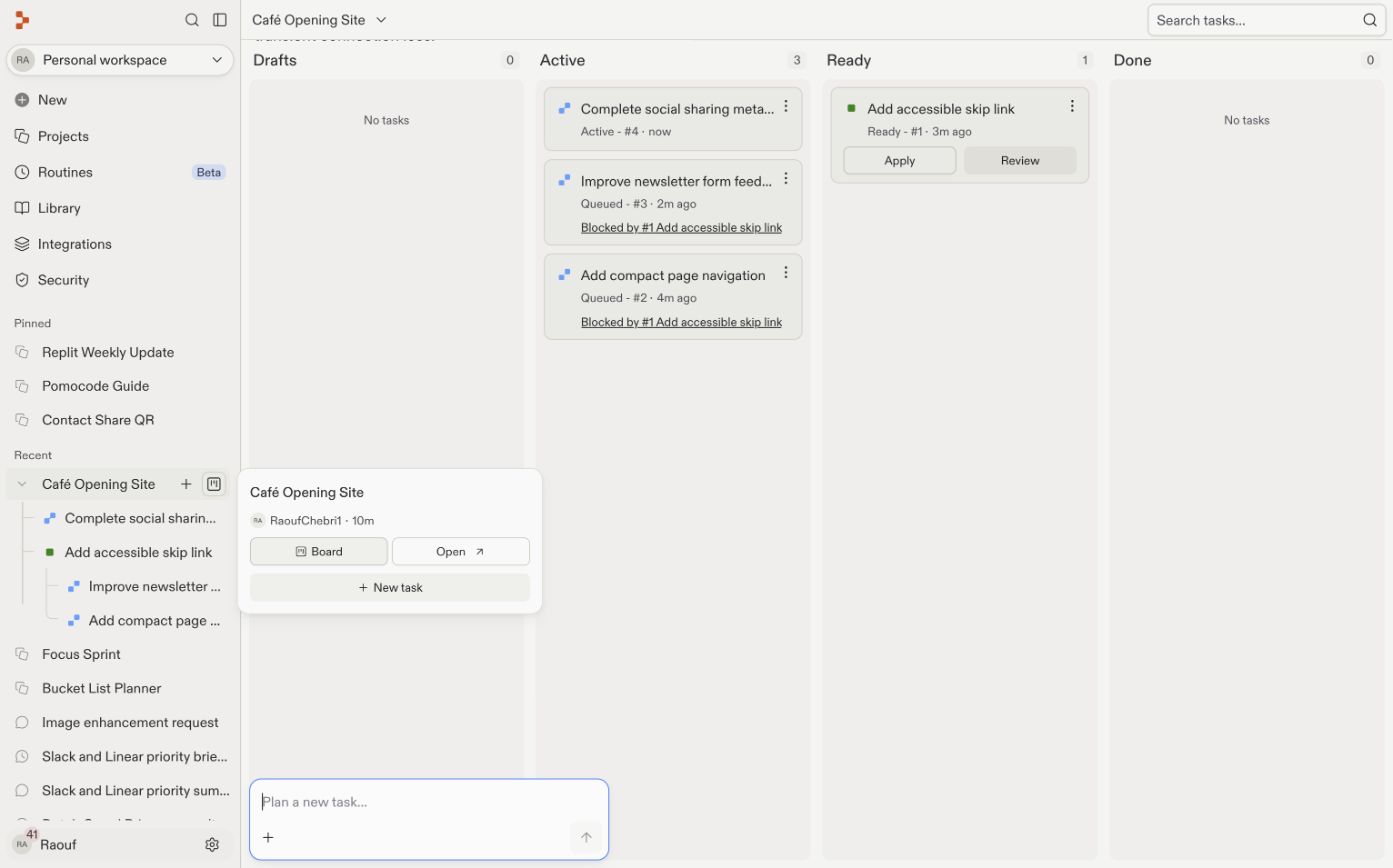
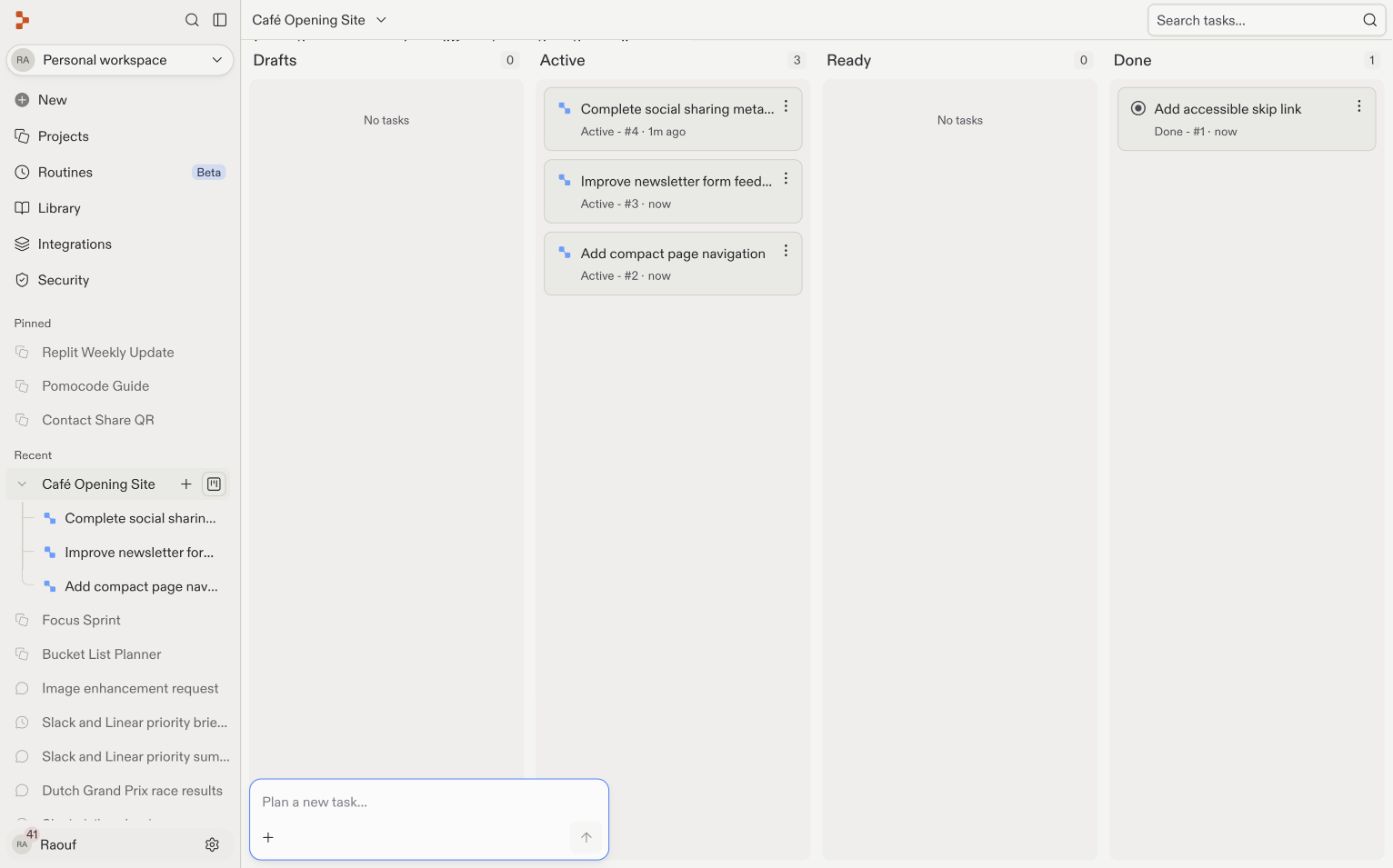
Open the board to follow Drafts, Active, Ready, and Done. Independent tasks run when capacity is available. Dependent tasks show what blocks them and remain queued until the prerequisite is applied.
7
Review and apply ready work
Open each Ready task, inspect its work and test results, and try the feature in Preview. Select Apply when it meets your expectations. Applying a prerequisite automatically unlocks the tasks that depend on it.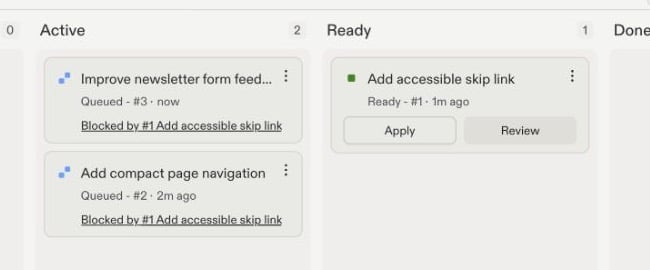
8
Verify the main version
Return to the default Build view after every apply. Use Preview to try the result in the main version, and consult the Agent chat for the implementation summary, checks, warnings, or anything that still needs attention.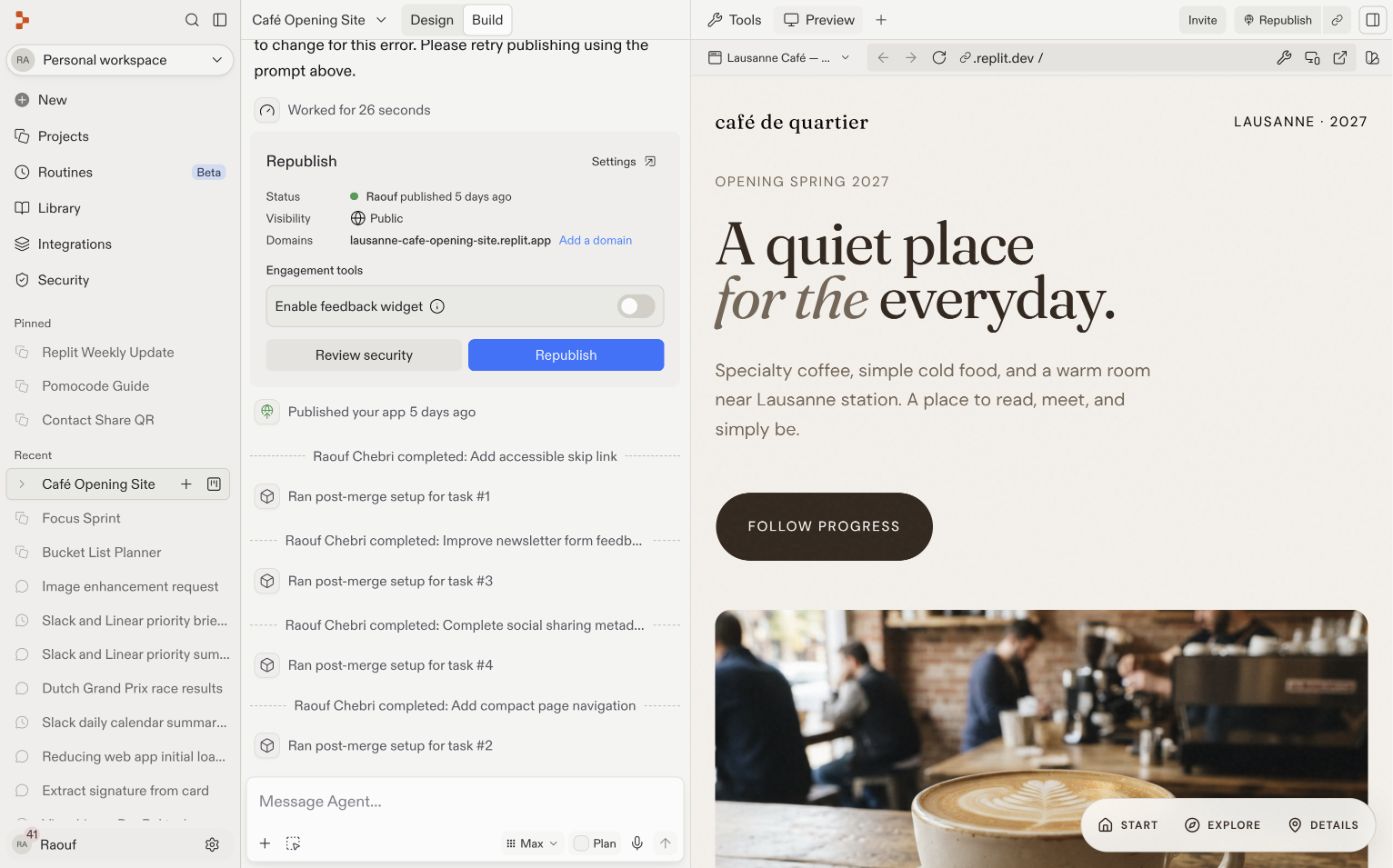
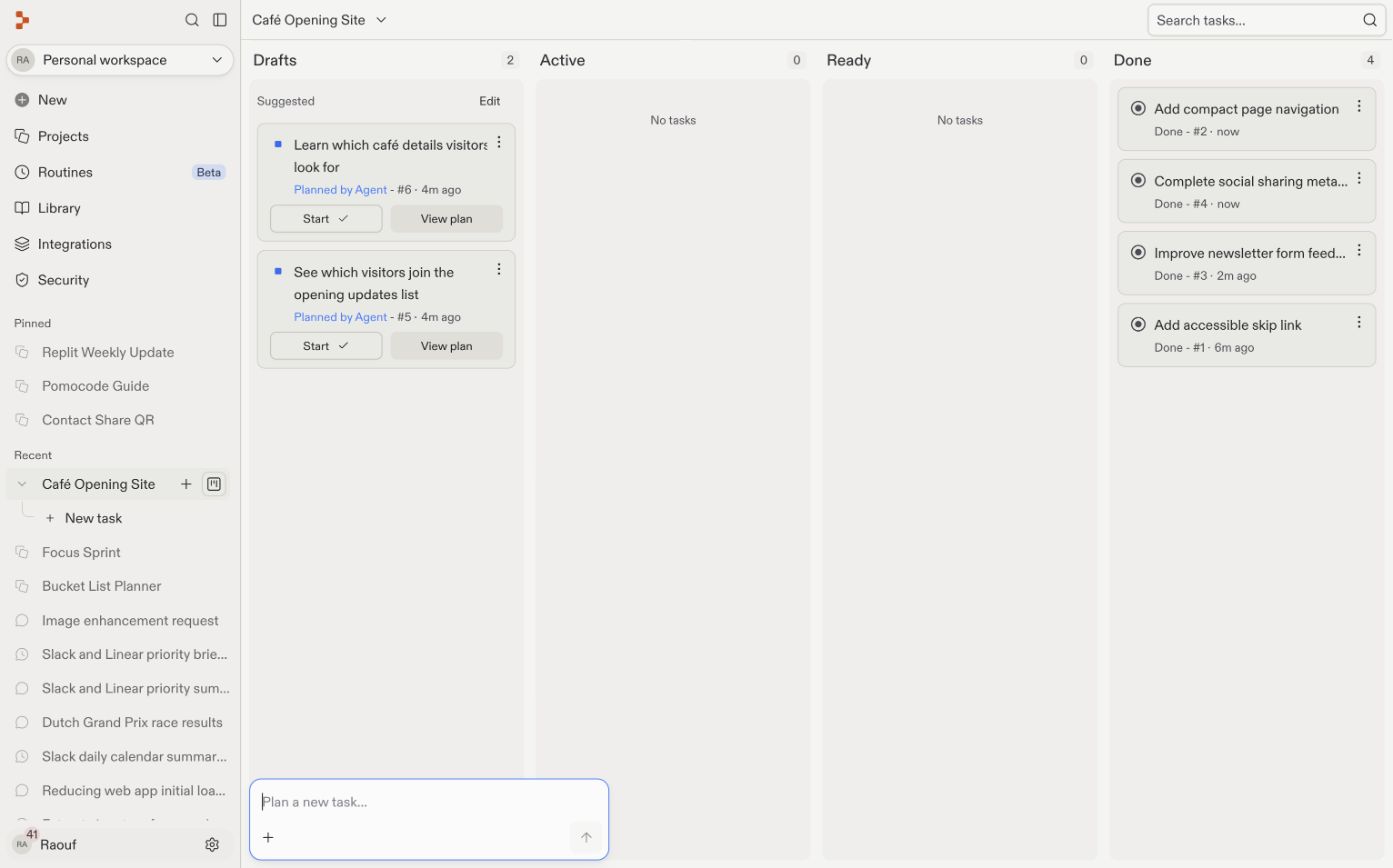
A worked example: four features at once
Imagine a café opening site. You want to add four focused improvements:- An accessible skip link and stable landmark IDs
- Compact section navigation that uses those IDs
- Better newsletter form feedback that also builds on the accessibility foundation
- Open Graph metadata, which only changes the document head
Slice your work small
The skill that makes parallel building work is cutting features into small, self-contained tasks. Small tasks finish faster, are easier to review, and are less likely to interfere with each other. A useful rule: if your task description contains “and”, consider splitting it.- Good: “Add an events page”, “Add a contact form”
- Too big: “Add events and registration and email notifications and an admin view”
- Add a dark mode toggle
- Add a customer reviews section
- Let customers reply to reviews
- Translate the app into French
Answer
Answer
Tasks 1, 2, and 4 are independent and can all run at once. Task 3 depends on task 2: there’s nothing to reply to until reviews exist. You don’t need to catch this yourself. Agent detects the dependency and sequences those two tasks for you.
Apply changes safely
Each task works in an isolated copy of your project. When you apply one task, your main version changes while other tasks may still be based on an earlier version. When two tasks change the same file, the Ready card can temporarily show Resolving conflicts after you select Apply. Wait for Agent to finish merging and rechecking the result; you do not need to resolve the files manually.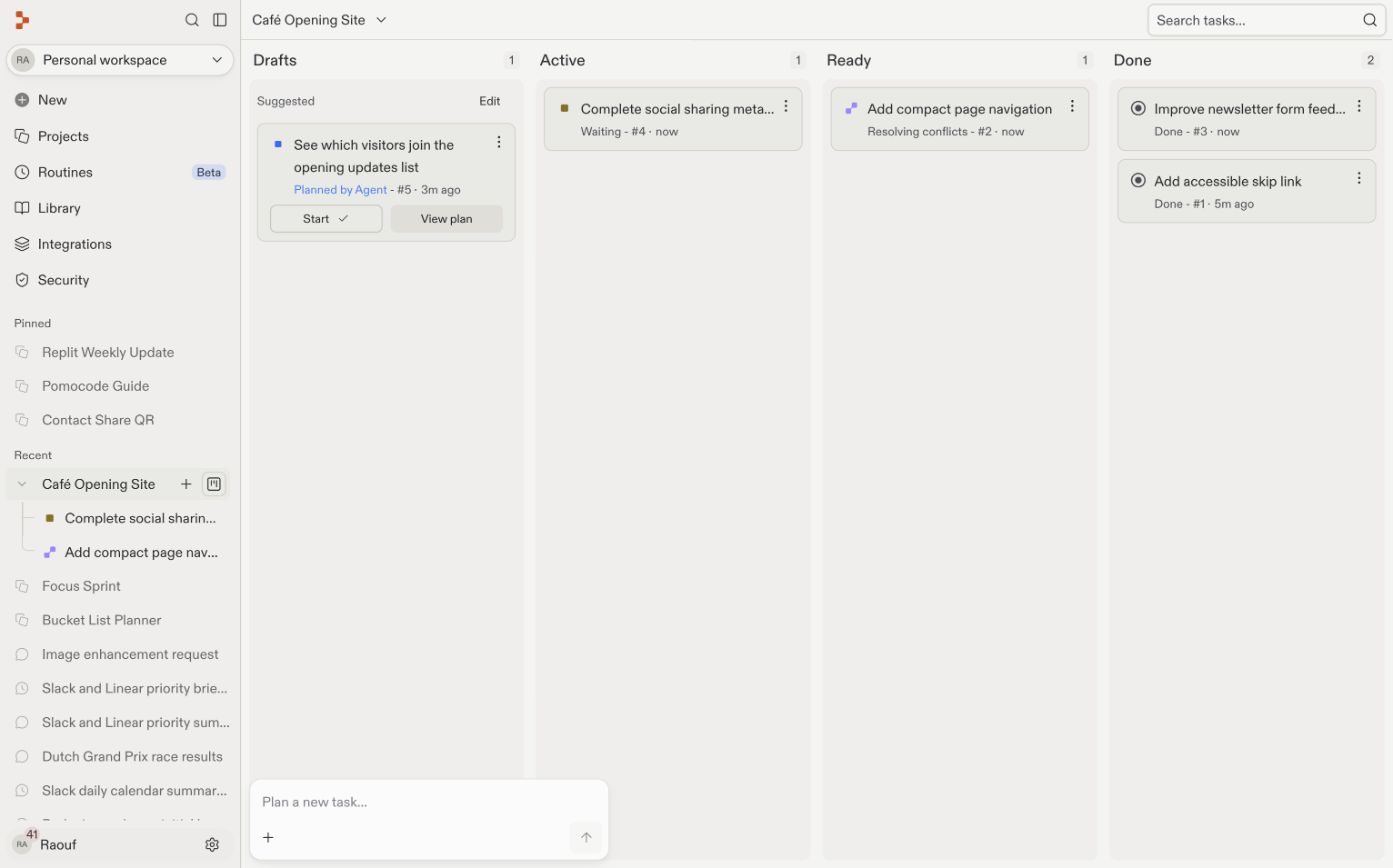
Review like a manager
Parallel building makes you a manager, and the classic manager mistake is approving work you didn’t check. The discipline is a simple loop, one task at a time:1
Test the task's work
Open the finished task and try the feature. Click through it like a user would.
2
Apply it
Happy with it? Apply the changes to your main app.
3
Check the main version
Confirm the applied feature works with the changes already in your app.
4
Repeat
Test and apply the next ready task until every task has landed.
When to stay sequential
Parallel building is a tool, not a rule. Stay in the main conversation, one thing at a time, when:- Two ideas touch the same screen. “Redesign the home page” and “change the navigation” will collide. Do them in order.
- You’re exploring. In design work, the result of one attempt changes what you want next. Exploration is a conversation, not a work order.
- You can’t describe the task in one sentence. If you can’t state it simply, you’re not ready to delegate it.
Work within your limits
Your plan controls how many background tasks can run at once. Additional tasks queue and start as slots become available. See Task system for the current limits. Your attention is a limit, too. Start with two tasks. If reviewing them feels comfortable, try three. You don’t need to supervise every step, but you still need to test each result before applying it.Next steps
- Task system: The full reference for how tasks work.
- Plan and Build modes: Why tasks start with a plan.
- Vibe coding 101: The build-in-small-slices mindset that makes slicing tasks natural.