Create your app using AI
⏰ Estimated time: 7 minutes Learn how to create your Replit App using Agent in this guide. Agent can build full apps from scratch, and you can use Fast mode for quick, targeted edits.Agent
Specializes in generating new projects and building complex features.

1
Create an App
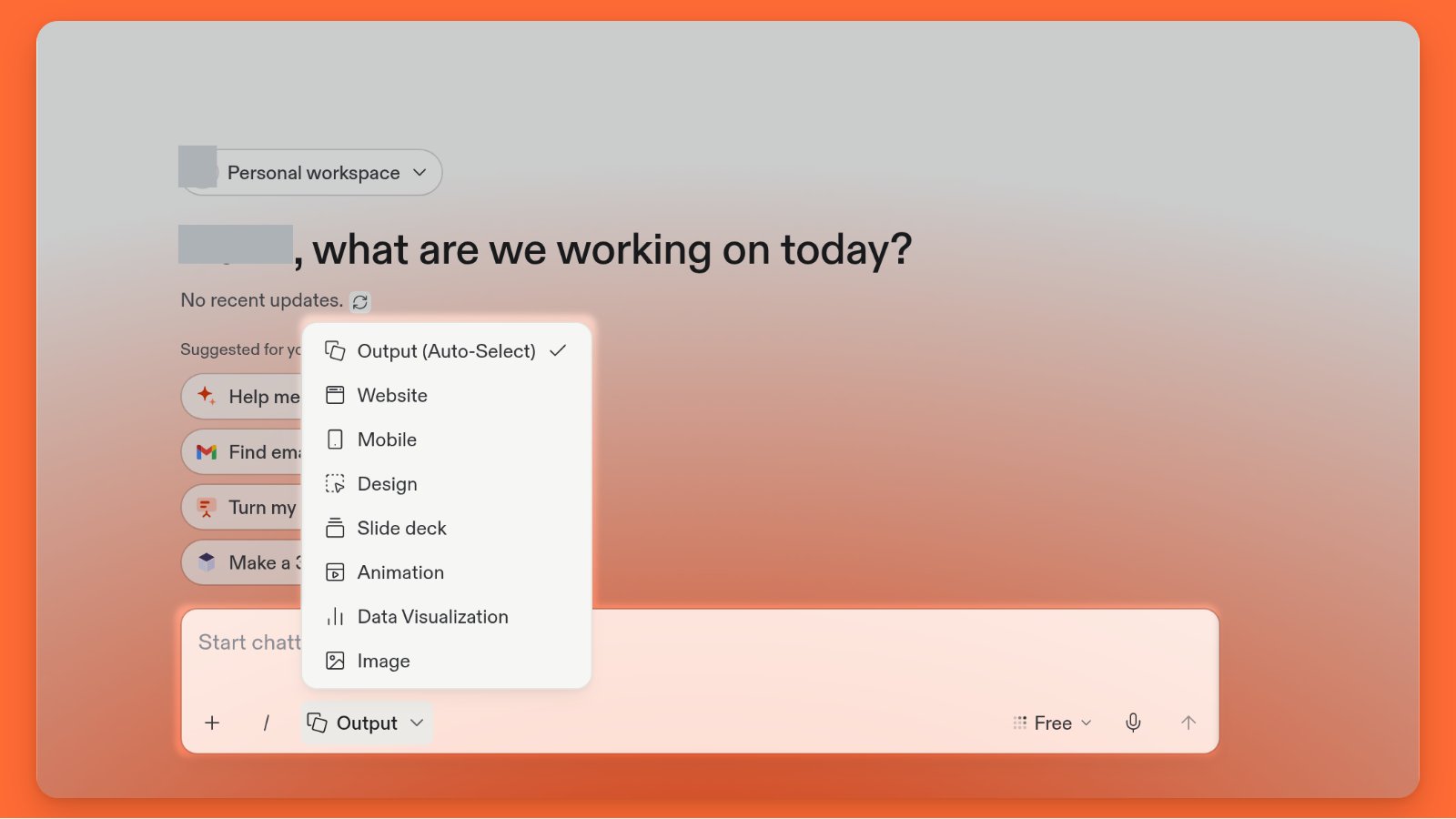
Navigate to the Home screen and select Create App:
Select the Create with Replit Agent tab as shown in the following image:


2
Craft your prompt
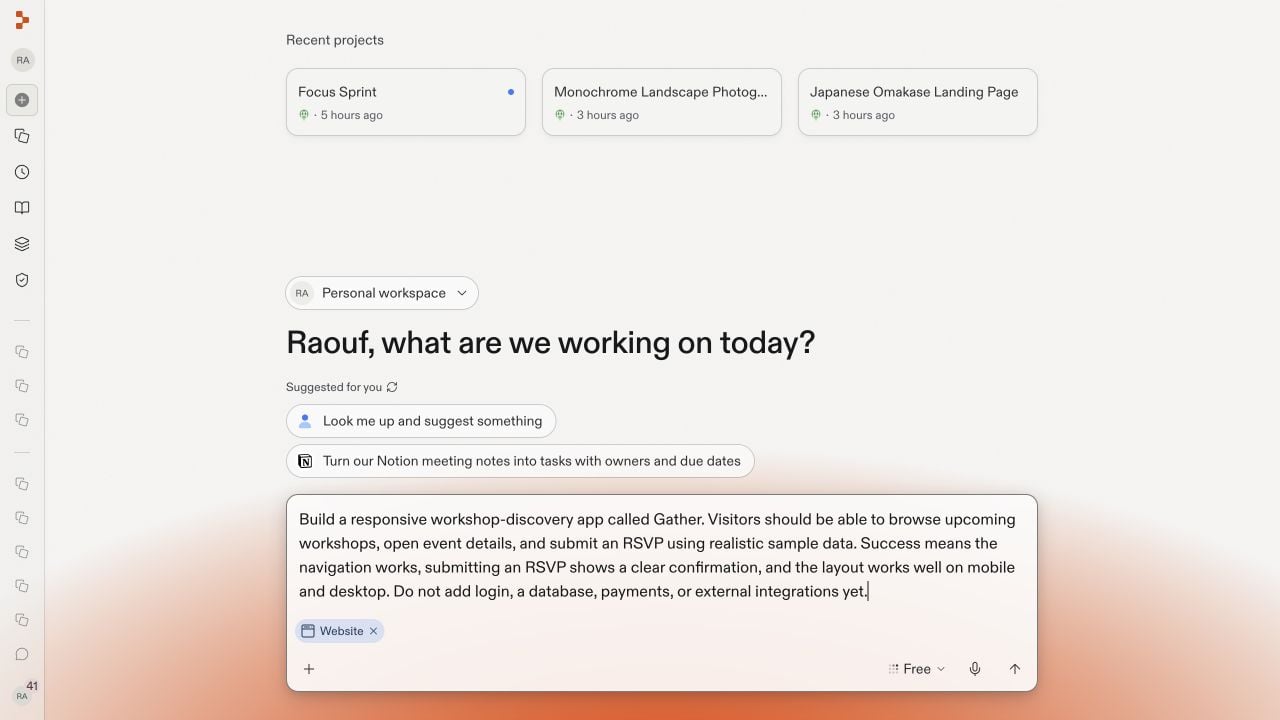
To ask Agent to create your Replit App, enter your prompt in the text area.
A prompt is a description of the task you want AI to perform.You can include text and file attachments in your prompt. Follow these steps to submit both in your prompt:
- Copy the following image:

- Paste the image into Agent text area.
- Enter the following prompt in the text area:
- Select Start building.
3
Review and approve Agent's plan
After you submit your prompt, Agent sets up your Replit App and provides updates on its status in real time.
You can monitor and view the history in the Progress tab.When Agent finishes setup, it prompts you with what it intends to build and options to include additional features as shown in the following image:
Leave the additional options unchecked and select Approve plan & start.

4
Test the app
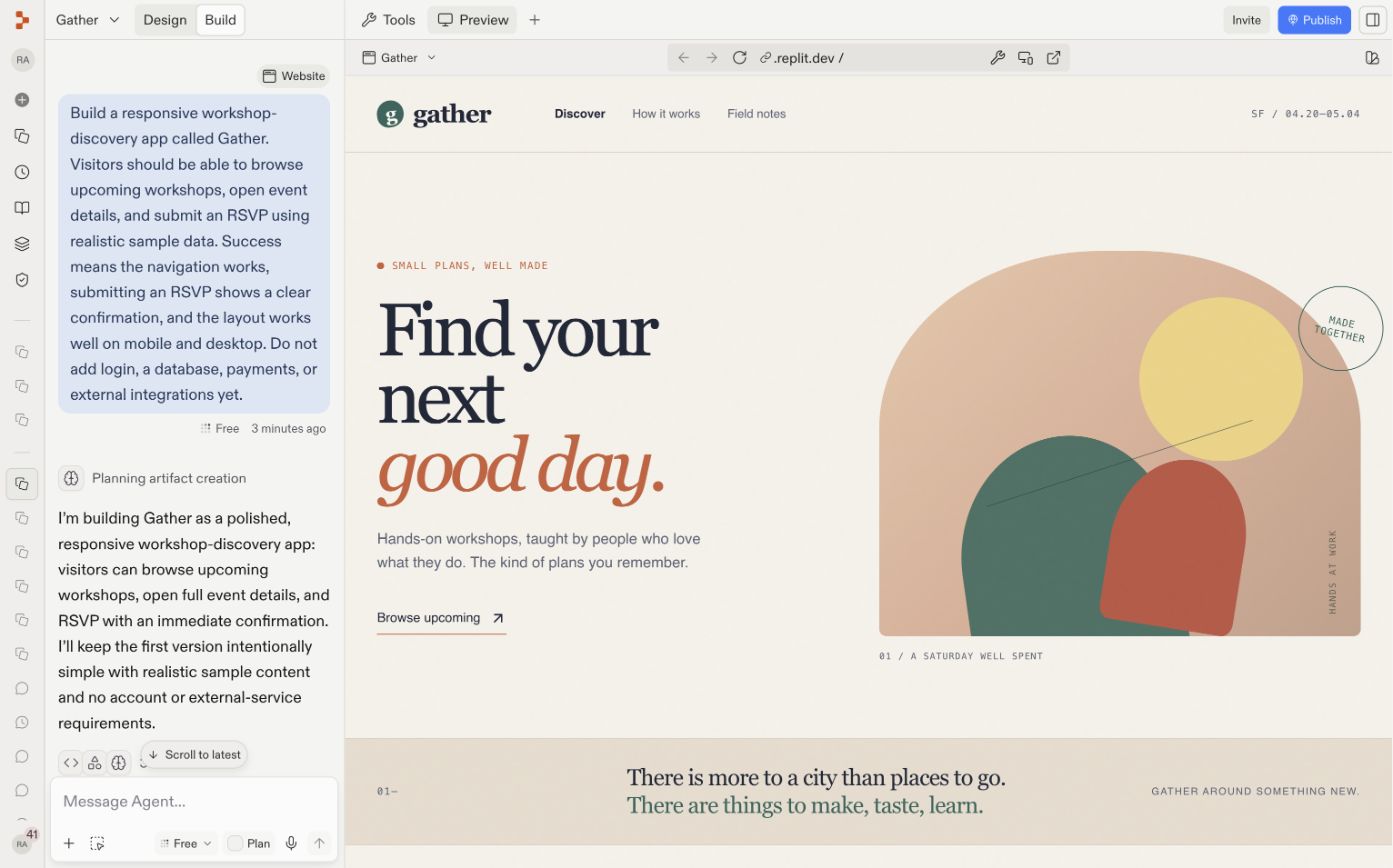
After Agent builds your app, navigate to the Preview tab, where you can interact with the website.
The website should resemble the following image:
Since the prompt only includes information about the landing page, Agent might omit content creation for the links on the page.The next step demonstrates how to use Agent to add those pages.
The generated website might differ since Agent can return different results for the same prompt.

5
Improve the app using the Agent
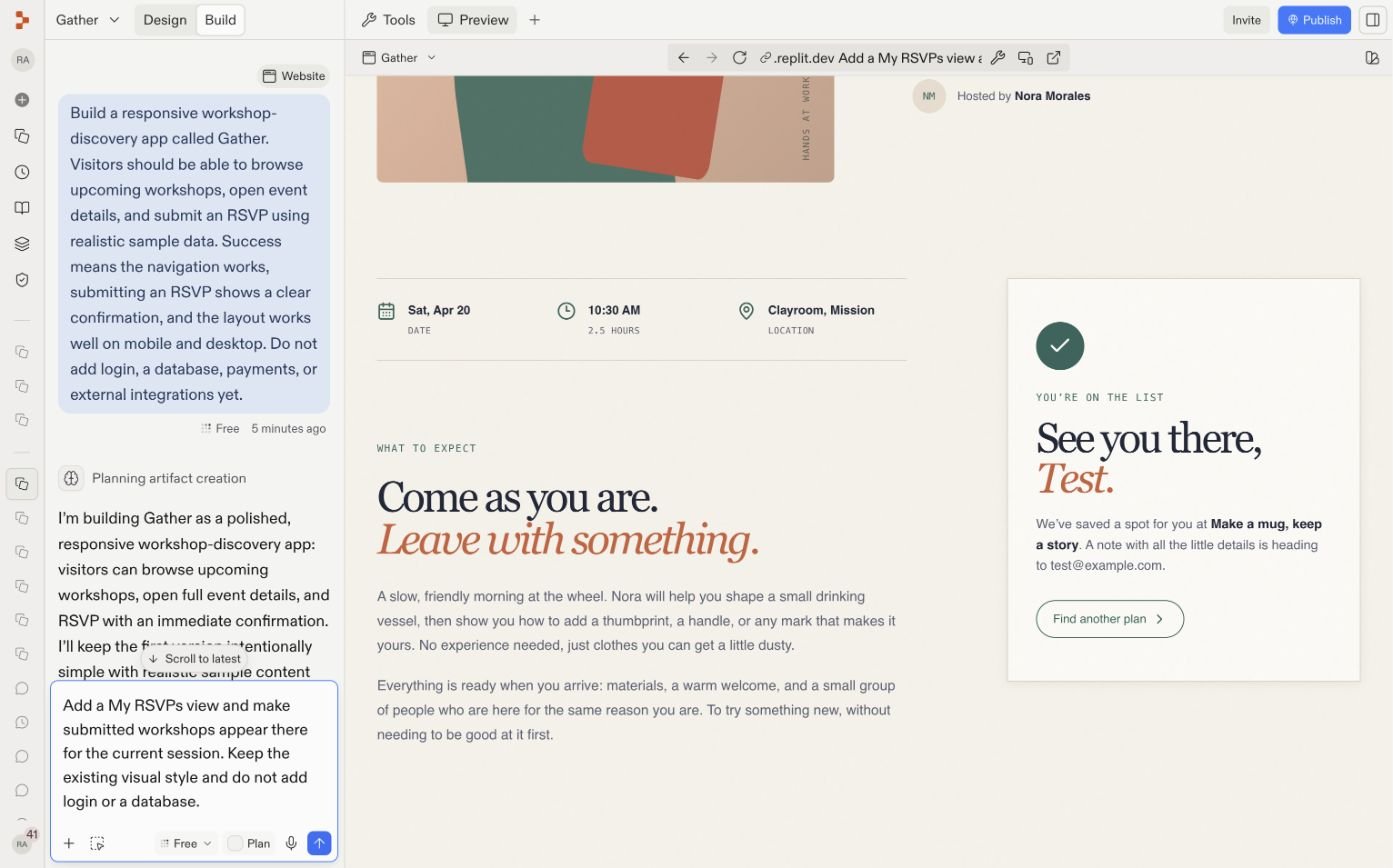
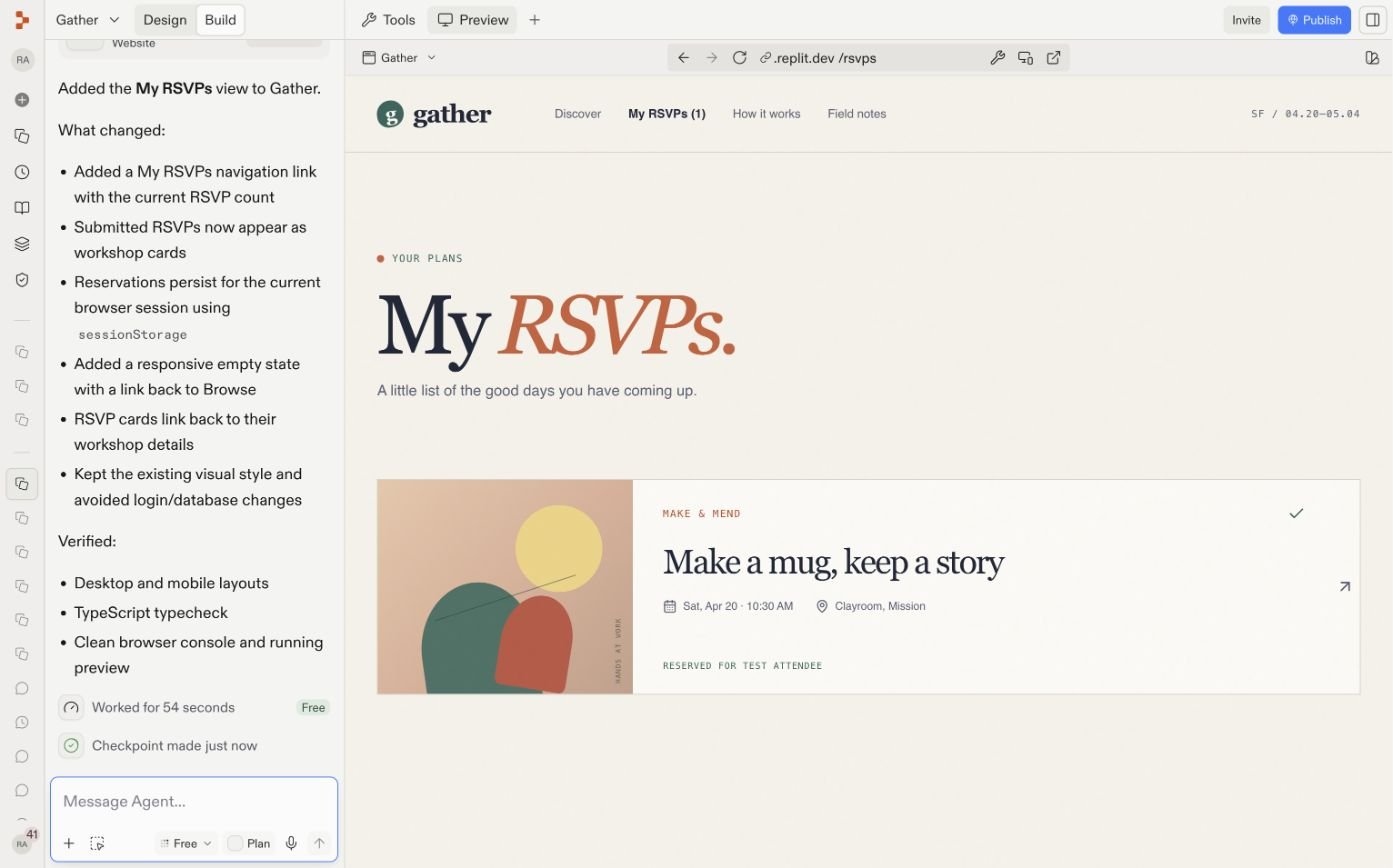
Navigate to the Agent tab, which should resemble the following image:
Enter the following prompt in the text area and submit it:You can select Preview code changes to view the Agent’s planned changes.Select Apply All and confirm your selection if prompted.At this point, you should have a navigable website that includes sample text and functional links.

Agent relies on popular AI models and occasionally produces results that don’t fulfill your request.
If you encounter issues, follow up with a prompt that describes the error messages or the incorrect behavior.
Alternatively, you can use the Rollback feature to restore your Replit App to a previously known working state.
Explore
Try the tasks in the following sections to build your knowledge of Replit.Undo an Agent change
Agent lets you perform a rollback, a feature that reverts your app to a previous checkpoint, discarding all changes made after that point. Follow these steps to revert the app to a specific checkpoint: For detailed information about checkpoints and rollbacks, see Checkpoints and Rollbacks.1
Locate the checkpoint
Navigate to the Agent tab and locate the checkpoint you want to restore.Select Rollback to here to undo all changes after that point as shown in the following image:

2
Verify the rollback
After Agent completes your request, check that the Agent tab displays “Rollback completed”.Confirm that your app functionality matches its state before the checkpoint.
Undo an Agent change
Agent lets you perform a rollback, a feature that reverts your app to a previous checkpoint, discarding all changes made after that point. Follow these steps to revert the app to a specific checkpoint:1
Locate the checkpoint
Navigate to the Agent tab and locate the checkpoint you want to restore.Select Rollback to here to revert all changes from the checkpoint after that point in time as shown in the following image:

2
Verify the rollback
After Agent completes your request, the Undo these changes button label should be replaced with Restore checkpoint.Confirm that your app functionality matches its state before the checkpoint.
Continue your journey
Now that you’ve completed this tutorial, you’re ready to explore more possibilities with your Replit App. Try the following next steps to enhance your skills:- Use Agent to create a new Replit App using your own prompt. If your prompt needs more direction or details, select the pen icon labeled Improve prompt.
- Add features to your app using Agent or Fast mode for quick edits.
- Publish your Replit App to make it publicly available. Learn more about publishing options and billing from About Deployments.
- Learn more about the AI-powered Replit features from the Replit Agent guide.