

Looking for another way to start building on Replit? Remixing lets you start from existing apps created by the community. It’s faster than building from scratch and a great way to learn from working code.Documentation Index
Fetch the complete documentation index at: https://docs.replit.com/llms.txt
Use this file to discover all available pages before exploring further.
Create your Remix
⏰ Estimated time: 5 minutes Follow the steps in this guide to create a Remix of an interactive digital piano app: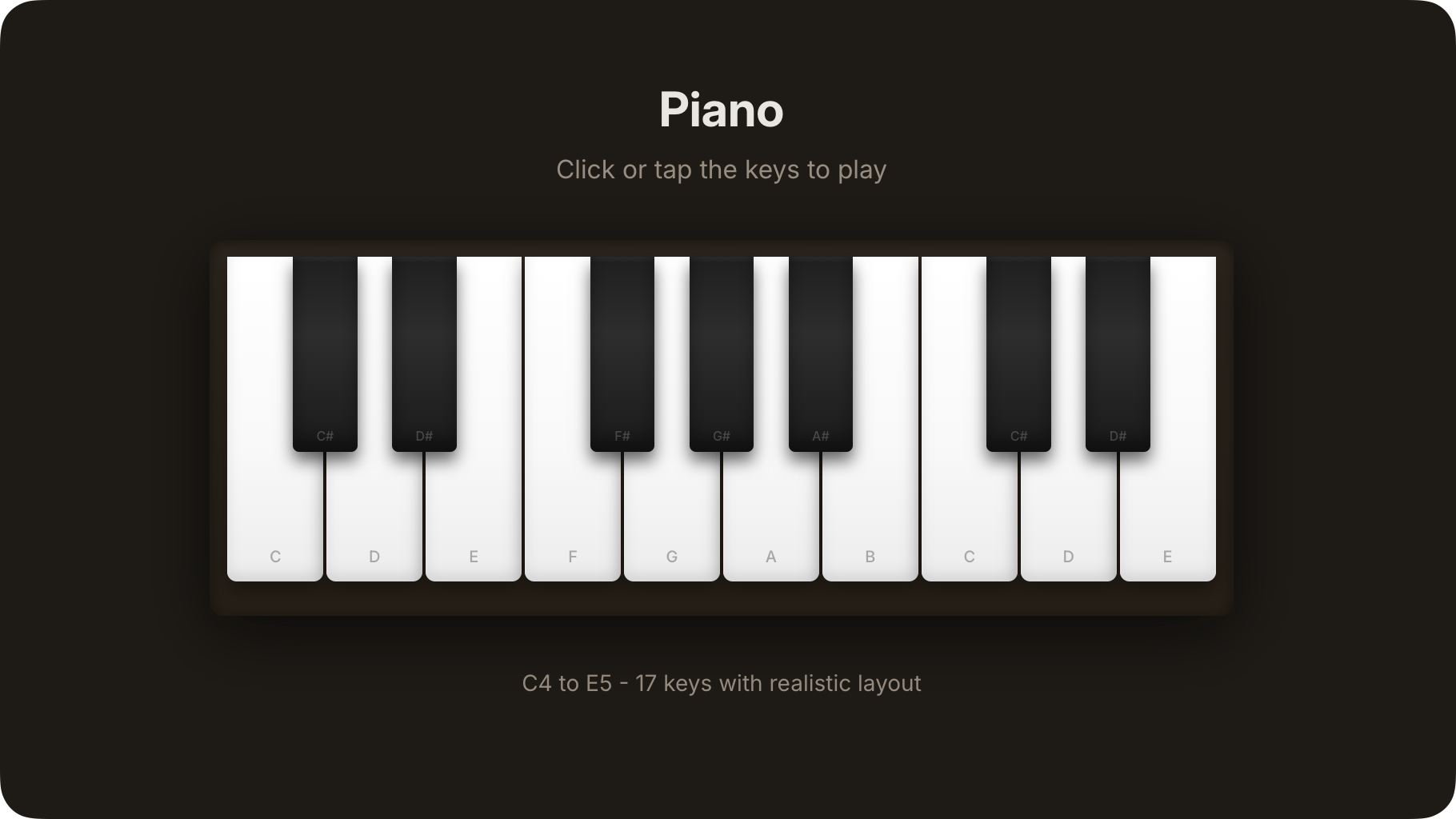
Remix the app
Select the Remix this app button below to start creating your own version of the Digital Piano app.
Complete the app details
After selecting the button, the Remix App dialog appears. Select Remix App to continue. You can edit these details later.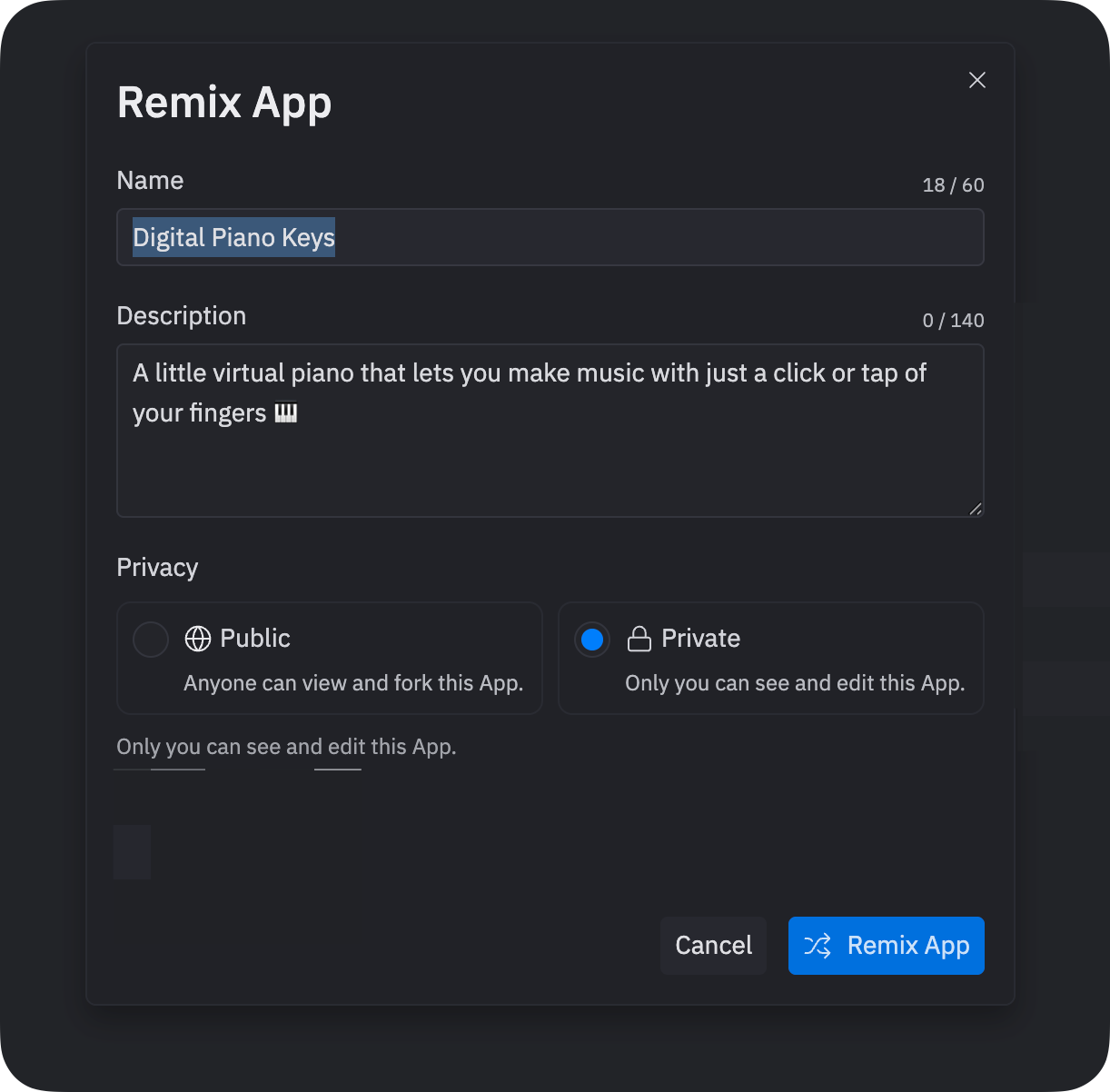
Enhance your Remix
Now that you have a working app, use Agent to modify and extend it. The following sections show practical examples of enhancing your Remix.Add a feature using Agent
Use Agent to add complex features to your Remix:Craft a prompt
Navigate to the Agent tab.Enter the following prompt in the text area:After you submit the prompt, Agent might pause and ask for clarification or confirmation. Respond in the text area.
Test the feature
Navigate to the Preview tab to see Agent’s updates to the piano.Try starting the tutorial mode and following along as keys are highlighted.Since the initial prompt excluded specific details about the visual design, the result might not
match your exact expectations.
Refine the feature
If the feature differs from your expectations, continue the conversation by entering a follow-up prompt
in the Agent text area. For example:To undo these changes, select Rollback to here in the Checkpoint created immediately
after starting the plan for the change in the Agent tab.Learn more about Checkpoints and Rollbacks.
Add a feature using Lite mode
Follow these steps to add a quick enhancement to your Remix using Lite mode:Craft a prompt
Switch to Lite mode and enter the following prompt:After you submit the prompt, Agent describes the changes it wants to make and lets you review the code changes before proceeding.
Select Preview code changes to view a comparison of the current code and the updates.
Continue your journey
Now that you’ve completed this tutorial, here are some remix-specific next steps:- Explore more remixes: Browse the community to find apps to remix and learn from
- Build from scratch: Try creating your own app with Agent to compare the experience
- Publish for remixing: Share your enhanced version so others can build on your work.