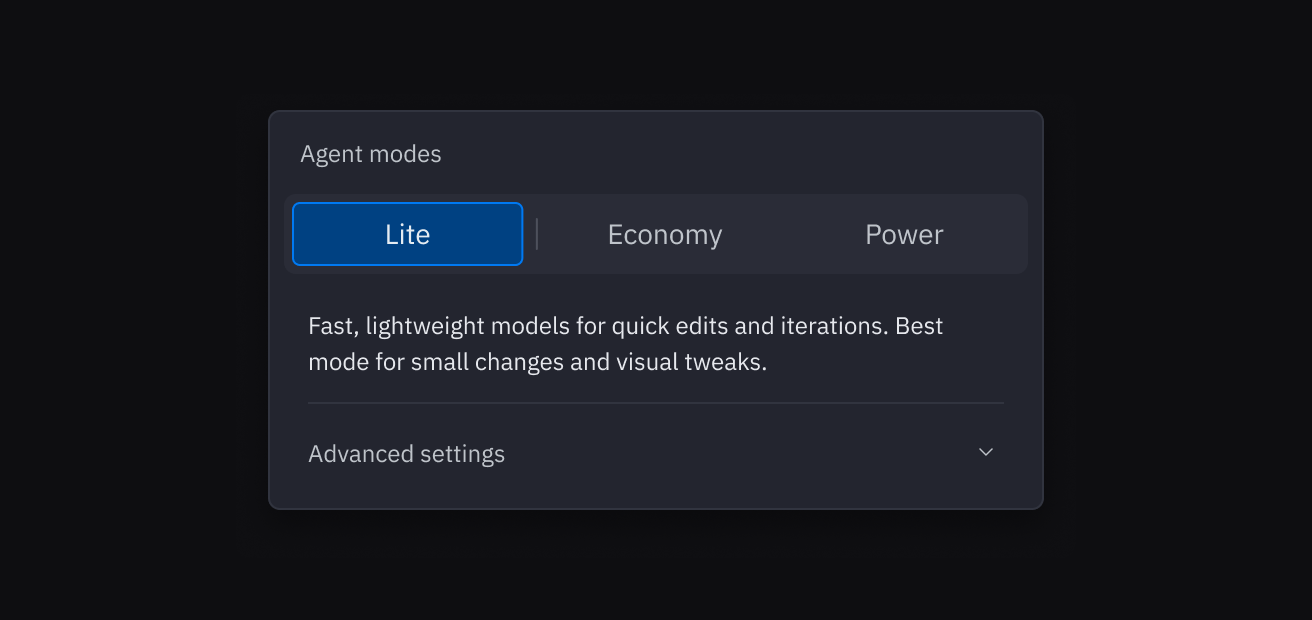
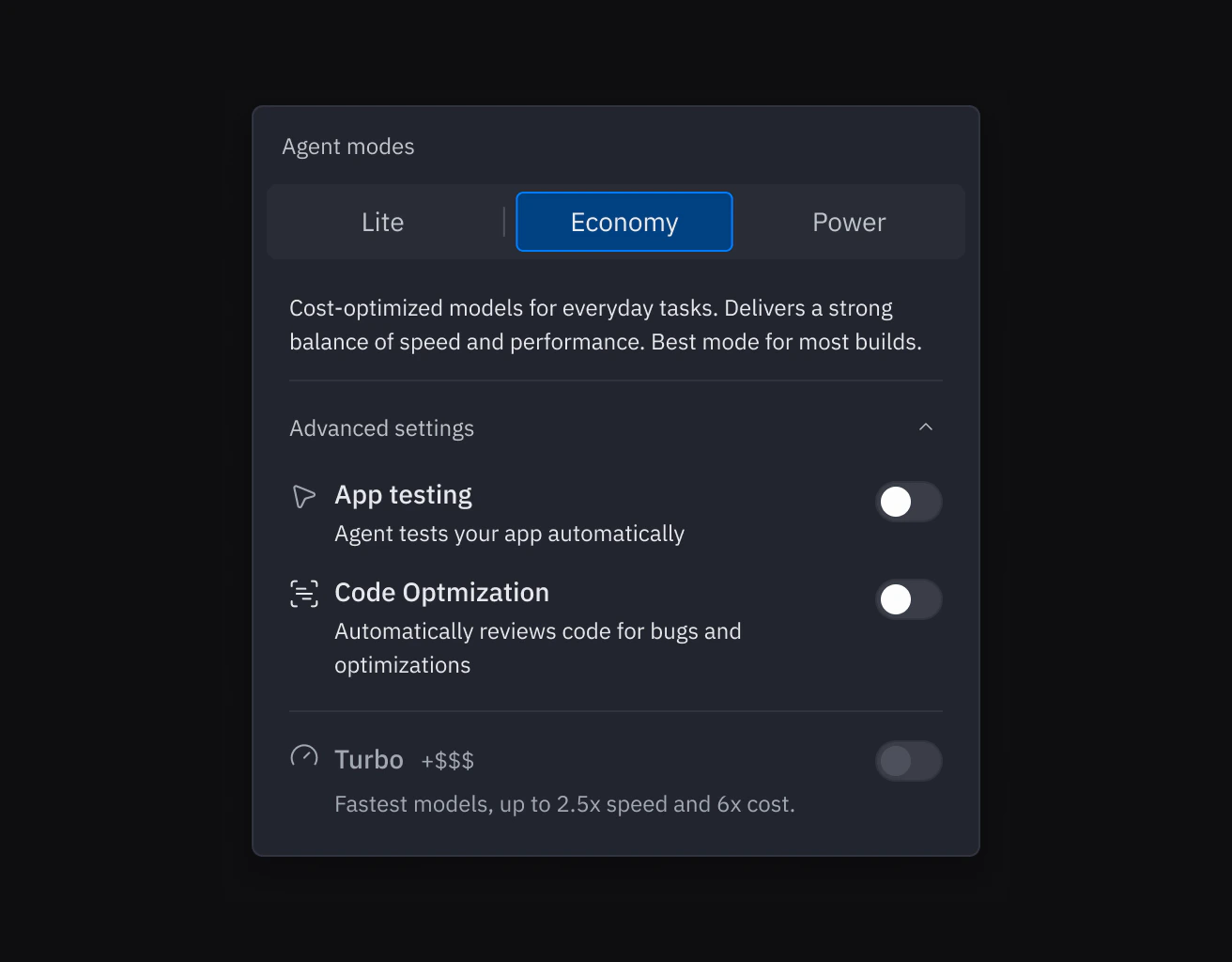
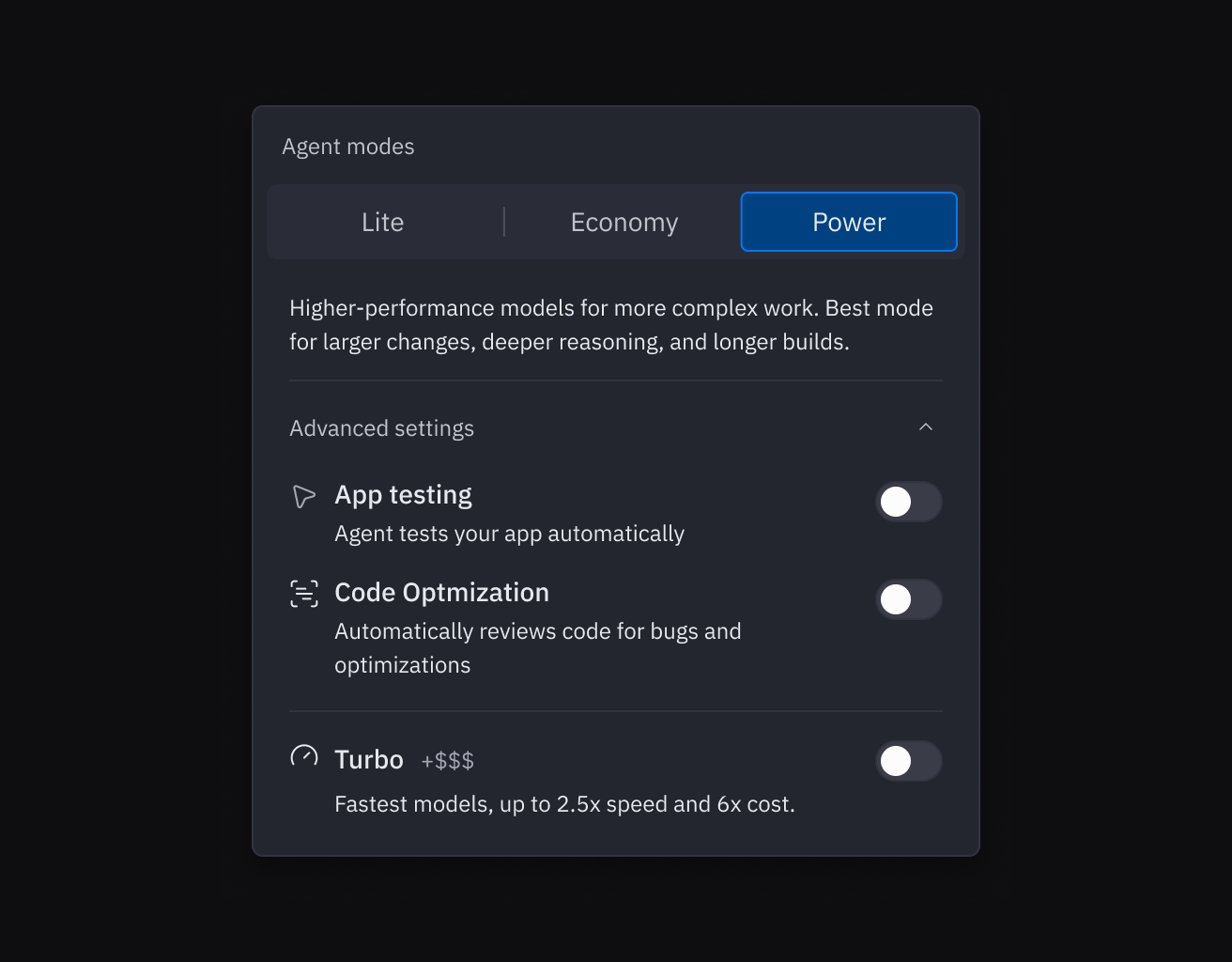
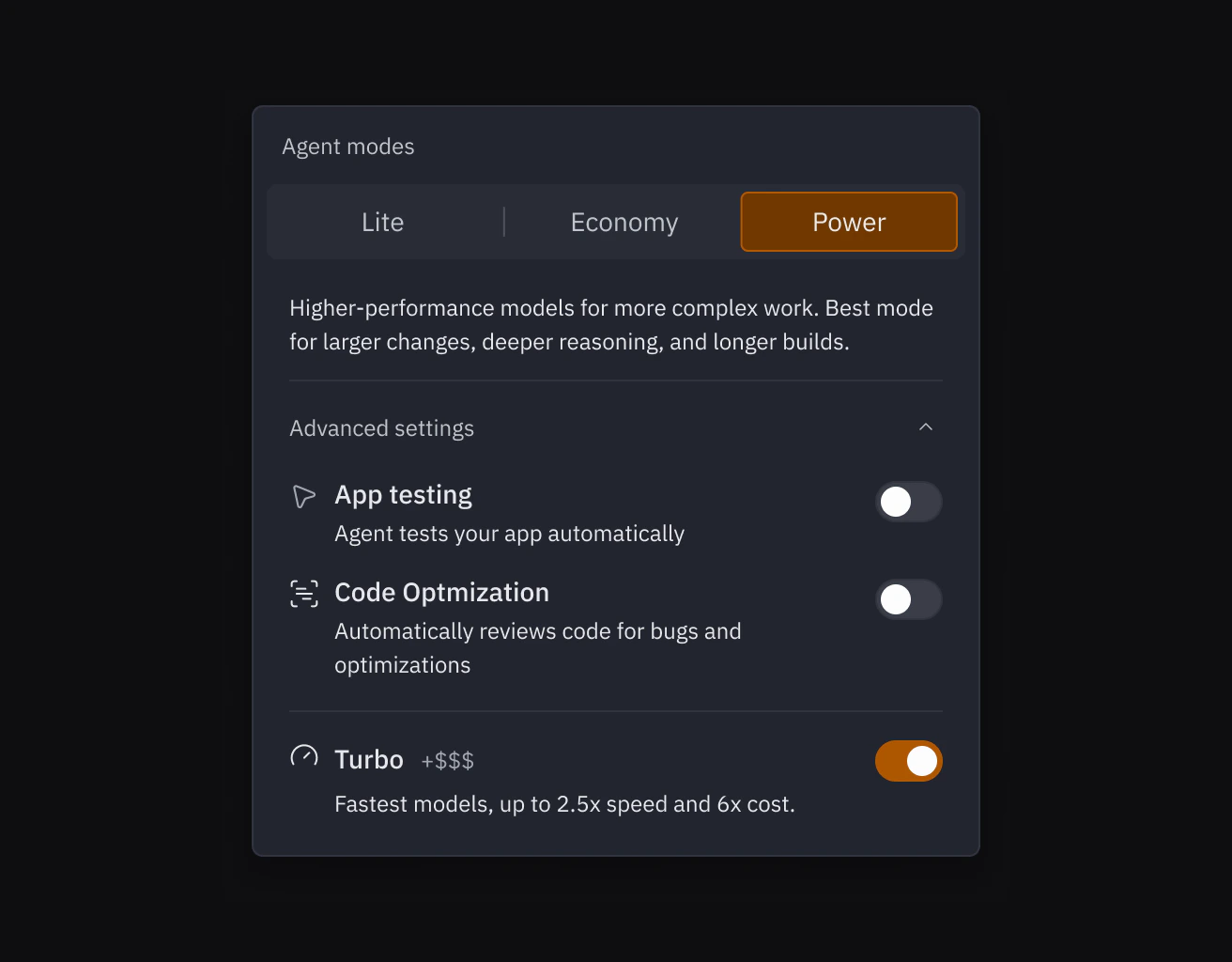
Lite mode is a lightning-quick version of Replit Agent optimized for targeted changes. Get visual tweaks, bug fixes, and reasonable-sized features in 10-60 seconds instead of waiting minutes. Perfect for rapid iteration and pair programming.

What is Lite Mode?

Lite mode is a specialized Agent experience designed for speed and precision. While the full Agent excels at creating comprehensive applications and implementing complex features, Lite mode focuses on quick, scoped changes that don’t require extensive planning or testing. Think of Lite mode as your pair programming partner for those moments when you need focused changes within your existing app. It’s built to keep you in flow without having to step away from your computer while waiting for longer builds to complete. Lite mode is primarily accessed via the lightning bolt (⚡) icon in the Agent prompt box, and can also be toggled through the Agent Tools control.
Agent input box showing the lightning bolt Lite mode icon available for selection

When to Use Lite Mode

Lite mode is ideal for:
  • Visual tweaks: Adjusting colors, spacing, fonts, or layout elements
  • Reasonable-sized features: Adding search bars, creating loading states, building form validation, or adding sorting functionality
  • Quick fixes: Correcting typos, fixing broken links, or addressing minor bugs
  • Rapid iteration: Making a series of focused changes while actively developing
  • Scoped updates: When you know exactly what you want changed and don’t need extensive planning
Lite mode may not be suitable for:
  • Creating new apps: Lite mode only works within existing apps—use full Agent to start from scratch
  • Complex features: Multi-file changes that require architectural decisions
  • Large-scale refactoring: Restructuring code across multiple components
  • New integrations: Adding third-party APIs or services
  • Database schema changes: Modifying data structures or relationships
For these larger tasks, use the full Agent experience which includes comprehensive planning, testing, and validation.

Features

Lite mode delivers a streamlined development experience with the following capabilities:
  • Lightning-fast execution: Complete most changes in 10-60 seconds
  • Targeted modifications: Makes only the changes you request without expanding scope
  • Cost-effective development: Typically more cost-efficient per prompt than autonomous mode
  • Real-time pair programming: Stay at your computer and keep building without long waits
  • Predictable results: Focused changes mean fewer surprises and more control

How to Use Lite Mode

Primary Access: Lightning Bolt Button

The quickest way to toggle Lite mode is using the lightning bolt (⚡) icon in the Agent prompt box:
Agent input box with Lite mode enabled, showing 'Quick, lightweight changes' text and highlighted lightning bolt icon
  1. Open Agent in your Replit App
  2. Click the ⚡ icon in the prompt box to enable Lite mode
  3. Make your request—keep it focused and specific
  4. Toggle off when you need full Agent for complex tasks

Alternative Access: Agent Tools

You can also access Lite mode from Agent Tools. Open the Agent Tools panel and select Lite from the options. Lite mode and Autonomous mode are two distinct approaches: choose Lite when you want quick results while staying at your computer, or Autonomous when you prefer more reliable, longer builds and can step away for a few minutes or more.

Example Prompts

Good for Lite mode:
  • “Change the submit button text from ‘Send’ to ‘Submit Application’”
  • “Increase the padding in the card component to 24px”
  • “Add email validation to the signup form”
  • “Make the sidebar background color darker”
  • “Add a search bar to filter the product list”
  • “Create a loading spinner when data is fetching”
Use full Agent for:
  • “Build a new todo app from scratch”
  • “Redesign the entire user dashboard”
  • “Add user authentication with Replit Auth”
  • “Integrate Stripe payment processing”
  • “Add a Linear connector”

How Lite Mode Works

Lite mode uses a streamlined version of Agent’s AI technology that’s optimized for speed and scoped changes:
  1. Focused analysis: Lite mode analyzes only the relevant files for your specific request
  2. Direct implementation: Makes changes immediately without extensive planning phases
  3. Streamlined execution: Skips comprehensive testing and architecture review for faster results
  4. Quick validation: Performs basic checks to ensure changes don’t break existing functionality
This approach allows Lite mode to deliver results up to 5x faster for scoped requests while maintaining quality for the types of focused, well-defined changes it’s designed to handle.

What’s Different in Lite Mode

To achieve faster speeds, Lite mode disables certain features: Disabled in Lite mode:
  • Code Optimizations: Lite mode and Autonomous mode are mutually exclusive—choose Lite for speed or Autonomous for reliability
  • App Testing: No automated browser testing
  • Architect: No architectural analysis
Still available:
  • Web search: Access real-time information
  • Other Agent tools: File operations, code editing, image generation, and more
Starter plan users can only use Lite Mode: To try the full Autonomous mode, you will need to be on a paid plan.

Pricing

Lite mode offers cost-effective pricing that’s typically more cost-efficient per prompt than using autonomous mode. The exact cost depends on the complexity and scope of your request, but Lite mode’s streamlined approach means you’ll generally pay less for focused, scoped changes.
Effort-based pricing: Lite mode uses the same effort-based pricing model as full Agent. Because Lite mode completes tasks more quickly and with a more focused scope, the total cost per request is typically lower than using autonomous mode for the same change.
For detailed information about AI pricing and how effort is calculated, see AI billing.

Use Cases

Visual iteration: Quickly try different colors, spacing, and layouts while actively designing Reasonable-sized features: Add scoped functionality like search filters, form validation, or loading states Bug fixes: Polish details rapidly before launch

Comparison: Lite Mode vs. Full Agent

FeatureLite ModeFull Agent
Speed10-60 seconds3-10+ minutes
Best forTargeted, scoped changesComplex features and full apps
ScopeFocused, well-defined requestsMulti-file, architectural changes
TestingBasic validationComprehensive App Testing
Code ReviewNoneAvailable with Code Optimizations
PlanningMinimalDetailed task lists and proposals
CostTypically more cost-efficient per promptHigher but more capable

Tips for Success

  • Use Lite mode for iteration and full Agent for new features
  • Keep requests specific for the fastest results
  • Switch modes when needed: If your change requires multiple files or complex logic, toggle off Lite mode
  • Review changes immediately while context is fresh

Frequently Asked Questions

Absolutely! Toggle Lite mode on for quick changes and off for complex features. You can switch between them at any time based on what you need.
Agent will let you know if a request needs full Agent mode. You can then either simplify your request or toggle off Lite mode for that task.
Yes! Lite mode supports the same languages and frameworks as full Agent.
Lite mode typically costs less per prompt than using autonomous mode because it completes tasks more quickly with a focused scope. Both use effort-based pricing, but Lite mode’s streamlined approach means lower costs for targeted changes. See AI billing for more details.

Next Steps

Ready to experience faster development with Lite mode?
  1. Try Lite mode now: Open any Replit App and enable Lite mode to make your first quick change
  2. Learn effective prompting: Review the vibe coding guide for tips on working with AI
  3. Explore Agent capabilities: Learn about full Agent mode for building comprehensive features
  4. Understand pricing: Review AI billing to understand how effort-based pricing works
Start building faster today with Lite mode!