

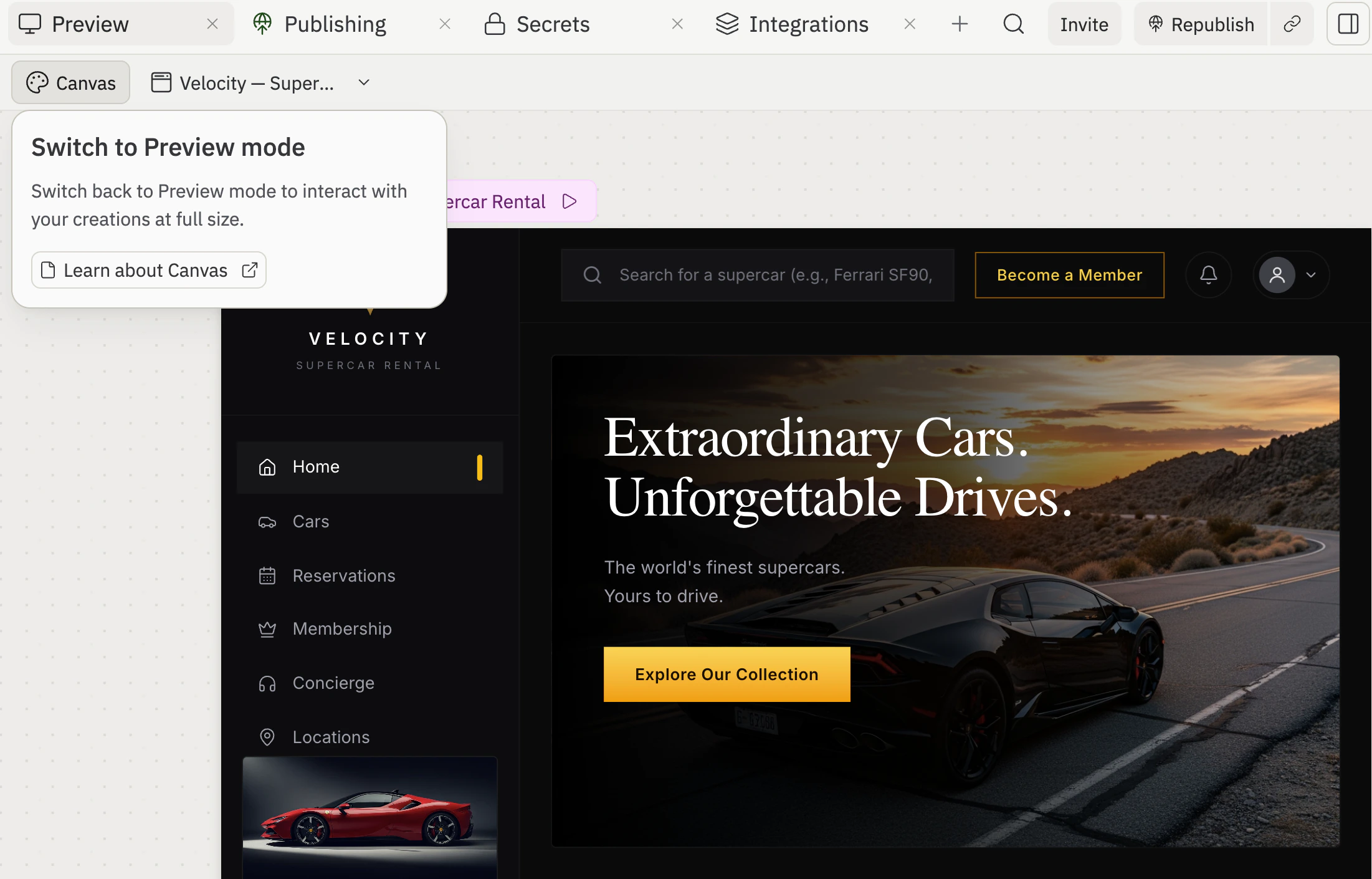
What is Canvas?
Canvas lets you create beautiful, interactive websites and app designs in just a few minutes. Simply describe your idea and Replit builds it for you. Canvas is perfect for:- Testing your ideas quickly: Visualize your app’s design before building functionality
- Creating polished websites: Landing pages, portfolios, restaurant menus, event pages
- Fine-tuning your design: Adjust colors, layouts, and content instantly
Canvas designs look and feel like real apps, but they don’t store data or connect to external services yet. When you’re happy with how everything looks, you can convert your design into a full app with one click. The steps below show you how.
What is Preview?
Preview shows your creation as a real, working application that can save data, let people sign in, and connect to other services. It’s the interactive, full-size view of your app. Use Preview when your app needs to:- User accounts: Let people create accounts and log in
- Save information: Store data like orders, messages, or user preferences
- Connect to other services: Process payments, send emails, or pull in data from other apps
- Handle complex tasks: Run an online store, manage bookings, or power a dashboard
Using both modes together
Canvas and Preview are built to work together. You don’t have to choose one or the other. You can start with design and evolve into a full app.1
Design first
Start in Canvas to quickly visualize your idea. Focus on how your app looks and feels—the layout, colors, buttons, and user experience.
2
Refine and iterate
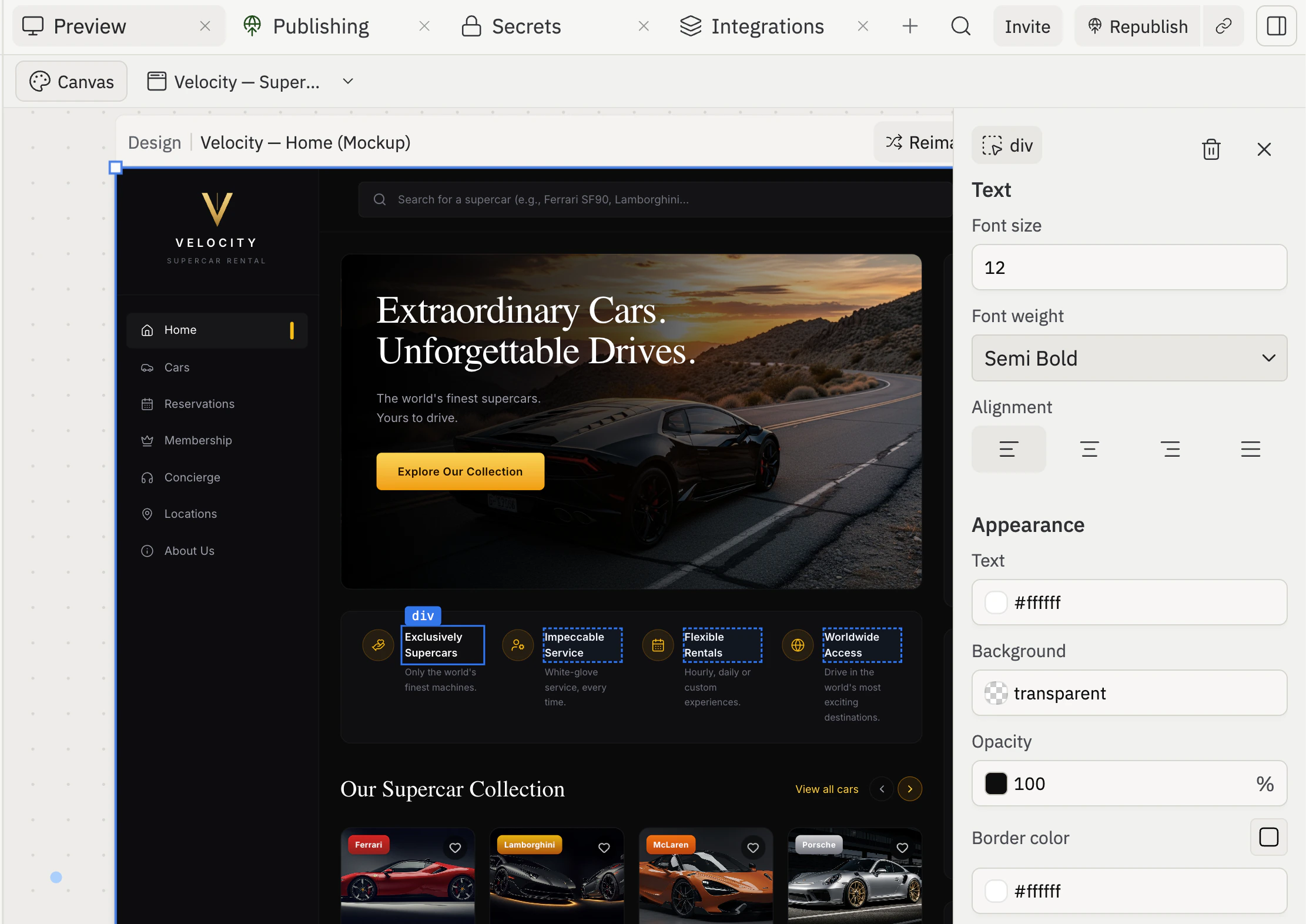
Use Reimagine to explore new directions for the selected design, or open the Visual Editor to click directly on elements and adjust them. You can also chat with Agent to describe changes you want—they appear immediately.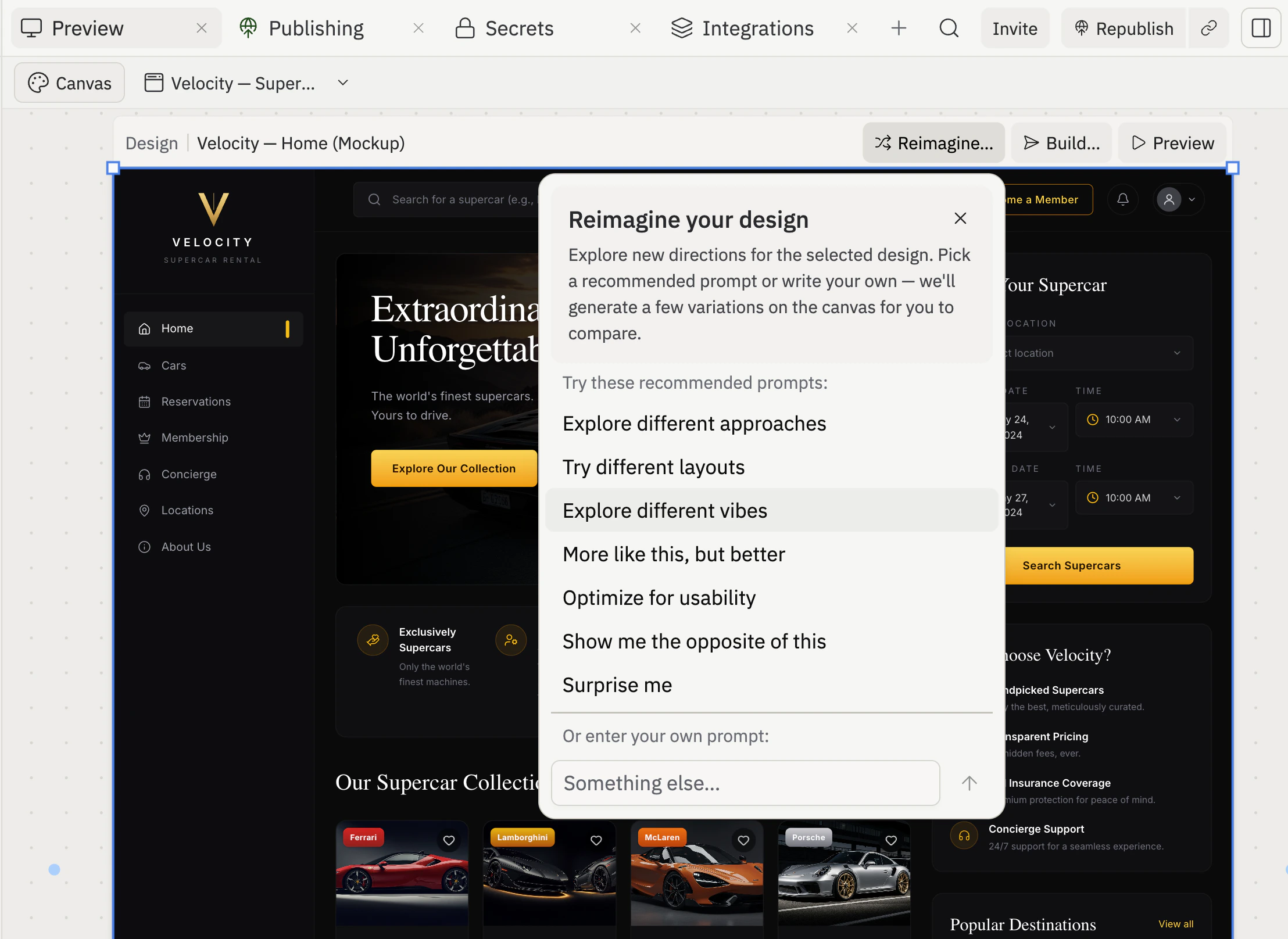
3
Convert to a full app
When you’re happy with your design and ready to add real functionality, select Build to convert your design into an app. You can create a new artifact or apply the design to an existing one. Agent adds the ability to save data, handle user accounts, and connect to services—all while keeping your design intact. See the Turn a Figma design into an interactive app guide for the full workflow.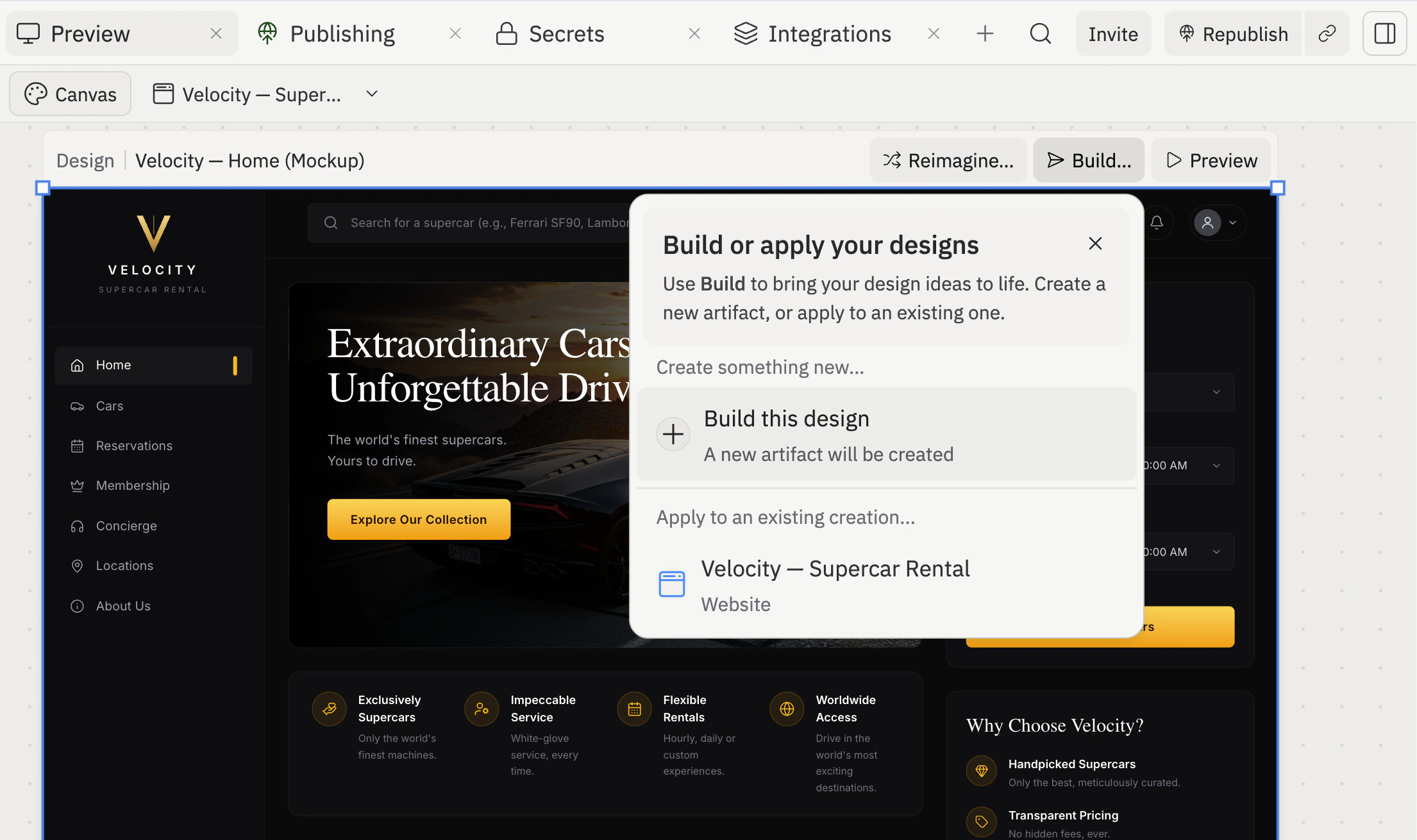
Agent will prompt you to convert when you try to add a database or advanced features.
4
Publish and share
Once your app is built, publish it so anyone can access it online. Replit handles all the technical infrastructure so your app works reliably for your audience.
When to use each mode
Start with Canvas
- You want to see your idea quickly
- You’re creating a simple website
- You want to test different designs
- Speed is your priority
Go straight to Preview
- You know exactly what you need
- Your app must save data from day one
- People need to log in
- You’re connecting to other services
Key differences
Next steps
Canvas
Learn more about creating designs
Visual Editor
Make visual changes with clicks
Agent
Explore what Agent can build for you
Learn
Learn the complete workflow