

What is Visual Editor?
The Visual Editor lets you make hands-on changes to your UI by clicking directly on elements. It works in both the Design Canvas and the Preview, so you can edit mockups and running applications the same way. Simple edits — text changes, color adjustments, spacing tweaks — update the source code directly without consuming AI credits. For changes that involve hidden complexity, the Visual Editor hands off to Agent automatically. Key concepts:- Deterministic edits: Simple changes (text, colors, spacing) apply directly to source code without an Agent loop
- No credit cost: Direct edits don’t consume AI credits — only complex changes route through Agent
- Dual context: Works identically on Design Canvas frames and in the Preview
- Source code sync: Every edit updates the underlying source code instantly
The Visual Editor is currently available only on web browsers. It is not supported on Mobile App or Desktop App.
How to use Visual Editor
Editing in Preview
Click any element in your running application to start editing. Modify text, colors, spacing, or images — and see changes applied live.1
Select an element
Click any element in the Preview to start editing.
2
Make your edit
Edit text inline, adjust colors with the picker, change spacing with style controls, or swap images. Use the editor pane in chat for additional properties like padding, margin, and more.
3
Save
Hit save to update the source code. Simple changes apply directly without consuming AI credits. If the edit involves complexity, the Visual Editor sends targeted metadata to Agent for assistance.
Editing on the Canvas
The same editing experience works on Design Canvas frames. Click any element within a frame to edit it — resize, change text, adjust colors and spacing on your mockups without going through an Agent loop.Text editing
Click any text element and type to change it directly. If the text is a string in your source code, the edit applies immediately.Color adjustments
Use the color picker to adjust text and background colors. Type a color name like “purple” in the input field, or use the eyedropper to pick a color from anywhere on your screen.Style changes
Adjust padding, margins, and layout across elements using intuitive controls.Layout controls
The Visual Editor groups every control into clear sections so you can find the one you need faster: Text, Layout, Color, and Border. (The Image section also appears when you select an image element.) The Layout section is where you adjust how children sit inside a container without going through Agent. Select a flex container, expand Layout, and you get:- Alignment: A 3×3 dot picker for where items sit along both axes inside the container.
- Direction: Two arrow buttons that stack children in a row or a column.
- Gap: A pixel value for the space between items. The icon next to the gap input changes to match the current direction so you always know whether you are adjusting horizontal or vertical spacing. Next to it, an arrow icon toggles Distribute space between items, which pushes children to opposite edges of the container.
- Outer space: Per-side inputs for the space outside the element (one input per side, with a link toggle to lock all four sides at once).
- Inner space: Inputs for the space inside the element along each axis, with a link toggle for both axes at once.
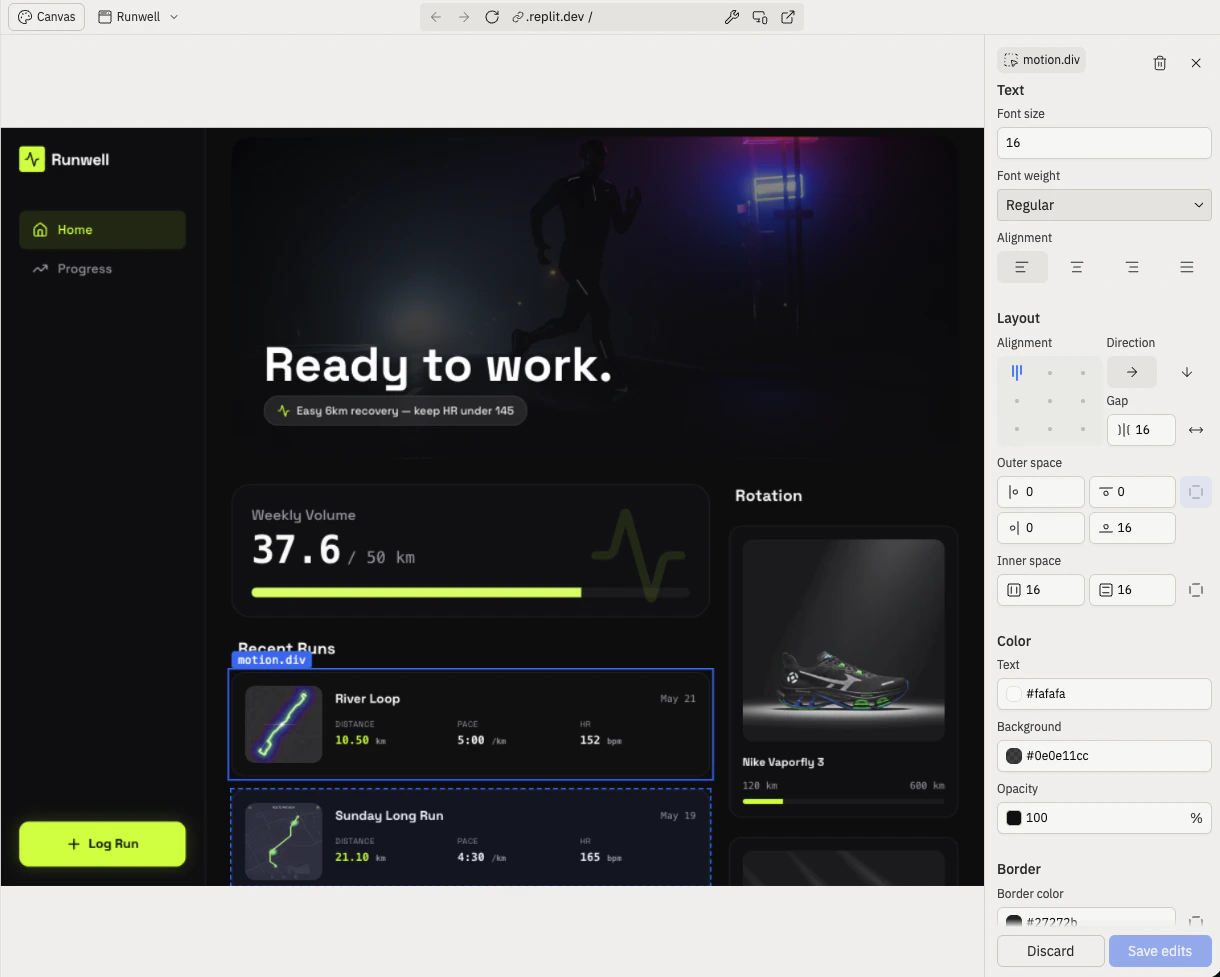
Image updates
Select images to swap URLs or upload your own files with instant previews.What you can do
- Quick text fixes: Update copy, labels, and headings without opening source files
- Color exploration: Try different color schemes by clicking and adjusting — no need to find the right CSS
- Layout tweaks: Fine-tune padding, margins, and spacing visually instead of guessing pixel values
- Image swaps: Replace placeholder images with real assets by clicking and uploading
- Design iteration: Rapidly adjust Canvas frames to compare visual directions without Agent round-trips
Frequently asked questions
Do Visual Editor changes cost AI credits?
Do Visual Editor changes cost AI credits?
Simple, deterministic edits — text changes, color picks, spacing adjustments — don’t consume AI credits. They update the source code directly. If the Visual Editor detects hidden complexity, it routes the change through Agent, which does use credits.
Can I edit elements that appear in multiple places?
Can I edit elements that appear in multiple places?
Yes. Selecting an element rendered in a loop or reused across components highlights and updates all instances at once.
Why can't I edit the text on some elements?
Why can't I edit the text on some elements?
Composite elements made up of multiple sub-elements can’t be text-edited directly in the Visual Editor. Ask Agent in chat to make those changes instead.
How do I find the source code for an element?
How do I find the source code for an element?
Click the top-left label on a selected element to jump to its location in the source code.