

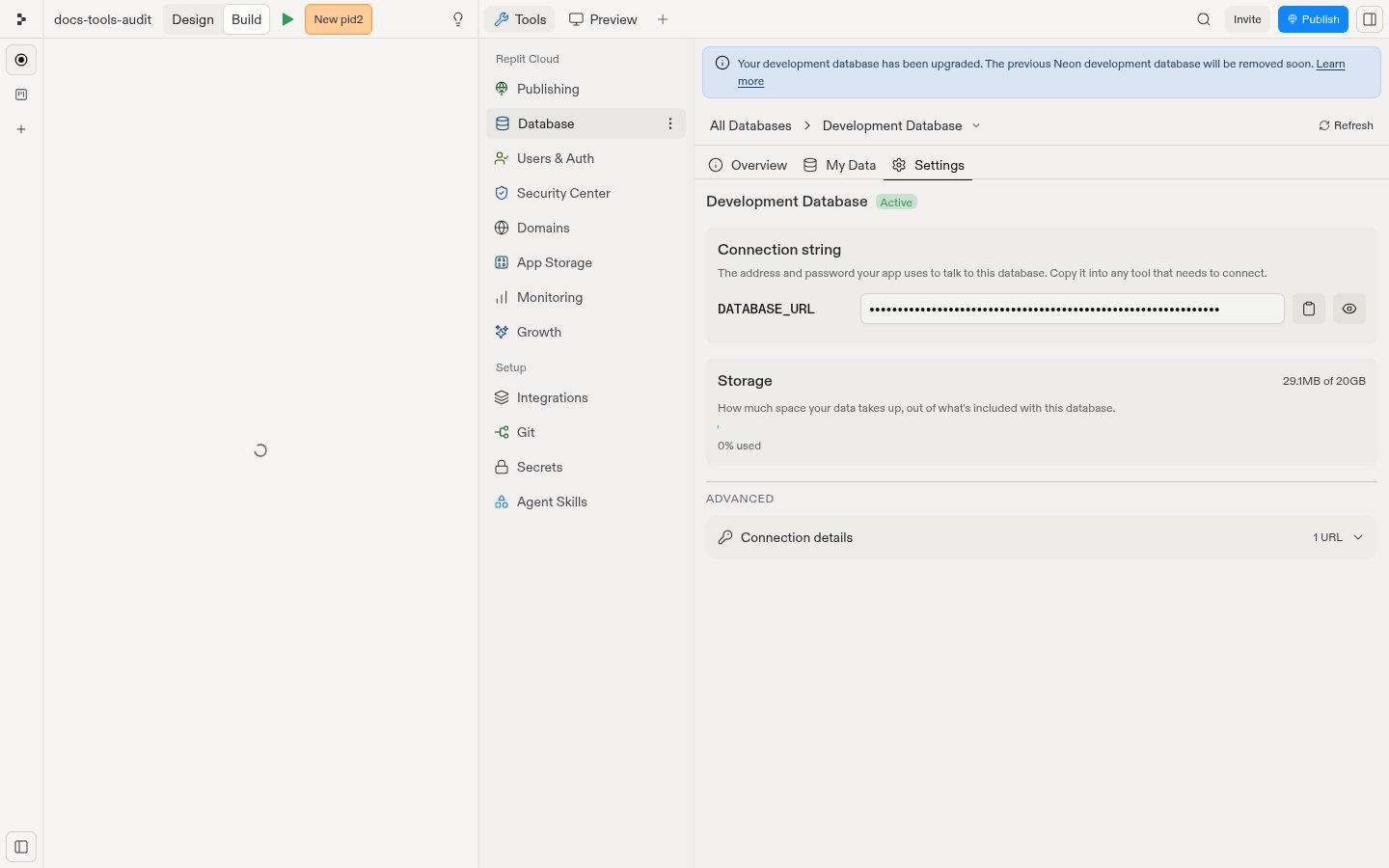
Environment variables
The following environment variable is available for connecting to your development database:DATABASE_URL: how to connect and authenticate to the database
DATABASE_URL is scoped to your app, your development database cannot be accessed by other apps, even ones you own, or by external database viewers. Even if leaked, it cannot be used by anyone else to access and modify your database.
If your development database is still on the legacy Neon infrastructure, the additional variables
PGHOST, PGUSER, PGPASSWORD, PGDATABASE, and PGPORT are also available. These are not provided for databases hosted on Replit’s current infrastructure; use DATABASE_URL instead.Connect an external tool
You can connect to your production database from any PostgreSQL-compatible SQL client using the connection string from the production database’s Settings tab.Security
When you add a database integration using Agent, it adds an Object-Relational Mapper (ORM) that handles all database communications with built-in security:- Schema validation: Verifies data conforms to expected formats
- Data sanitization: Automatically cleans up builder input to prevent SQL injection attacks
Regenerate production database credentials
If a production connection string was exposed, regenerate its credentials in the Database tool. This action creates a new password for the Neon production database. Existing production connection strings stop working immediately. You can regenerate credentials when all of these conditions are true:- Your app has a Neon production database.
- You are the app owner or an administrator of the owning workspace.
- You use Replit in a web browser.
- No deployment is in progress.
- If your app has a live deployment, its latest build completed successfully and uses Autoscale or a Reserved VM.
Regenerate the credentials
- In the Tools pane, select Database.
-
Select Production Database, then select the Settings tab.
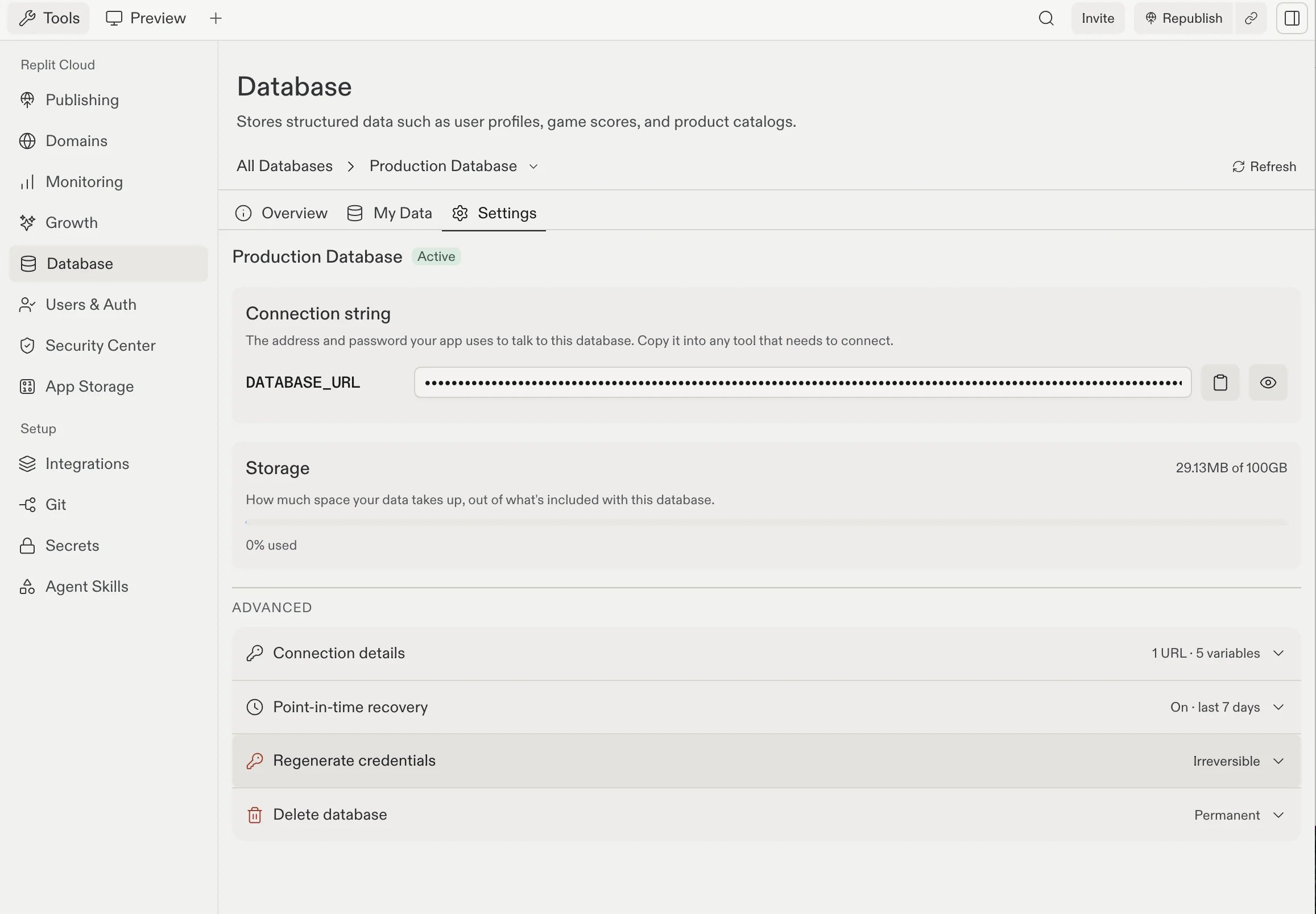
- Under Advanced, expand the Regenerate credentials row.
-
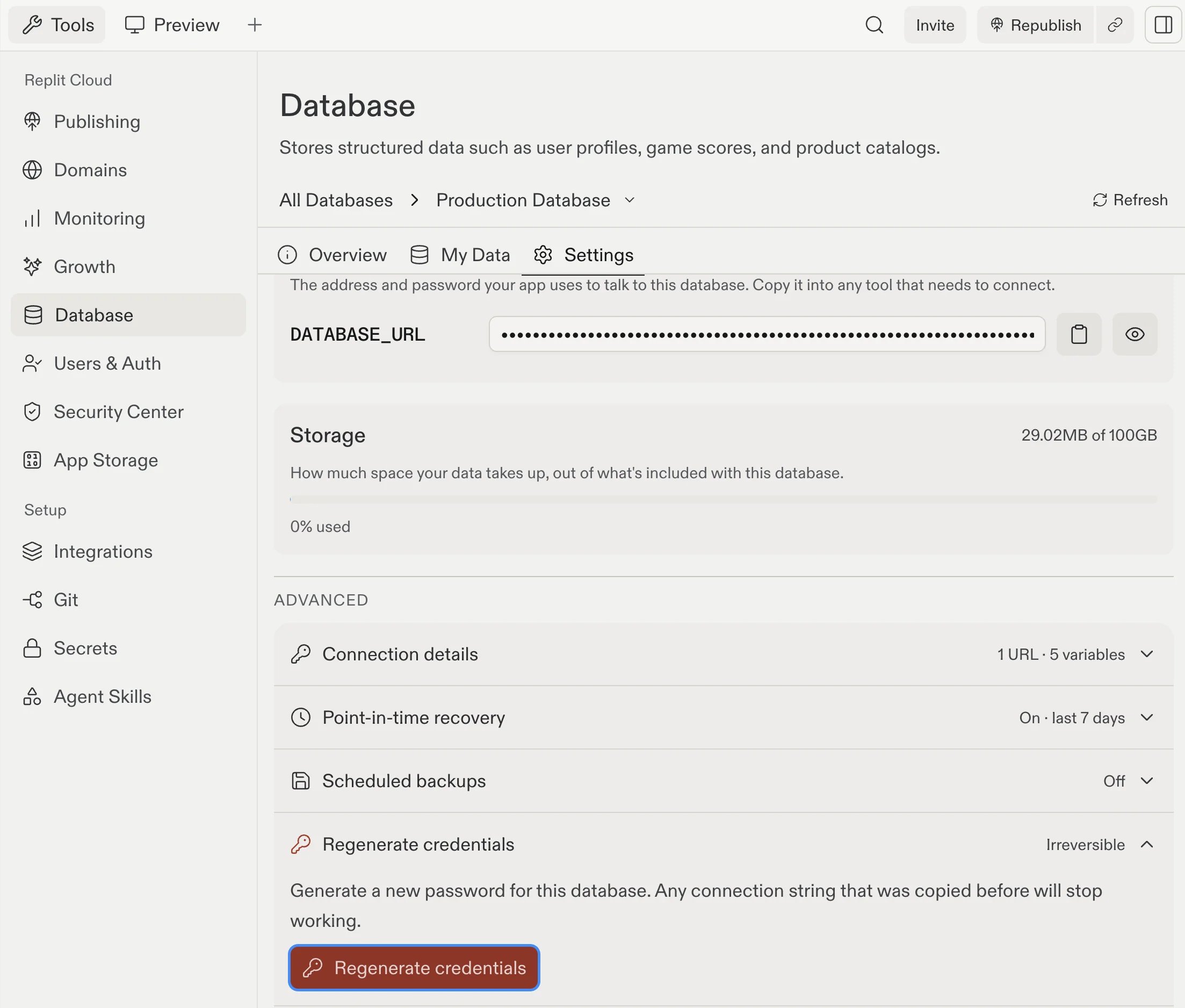
Select the Regenerate credentials button.
-
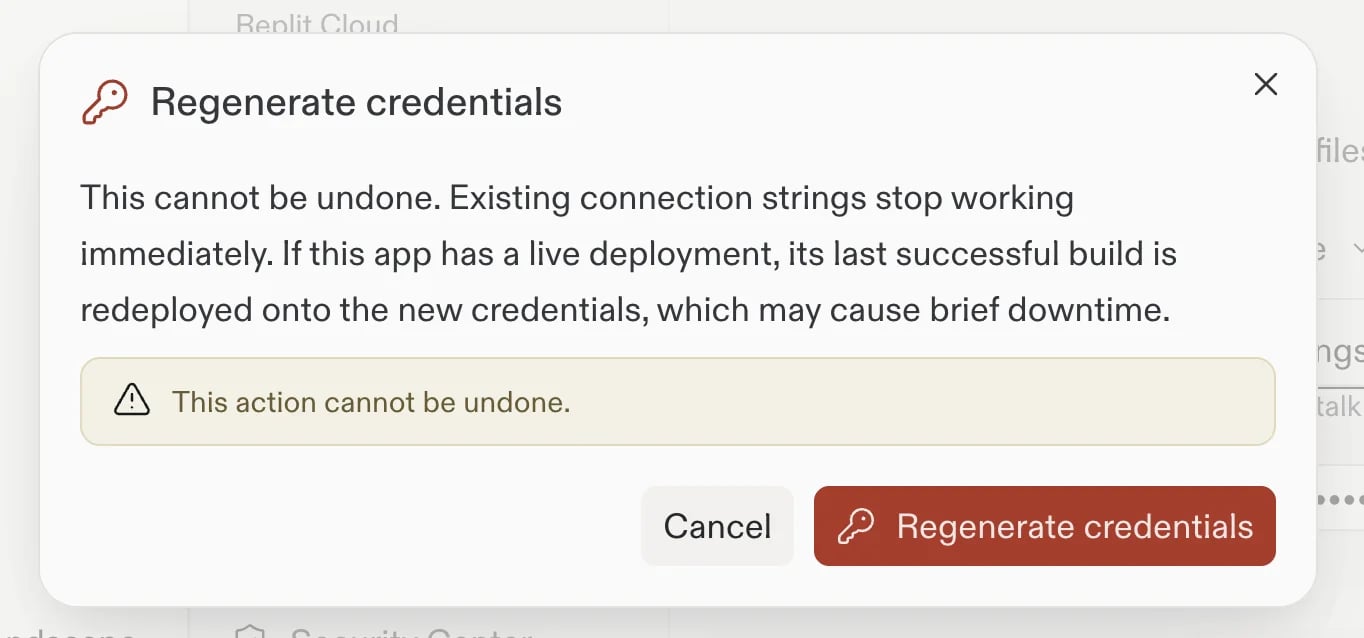
In the confirmation dialog, select Regenerate credentials to confirm.
- Select Refresh to load the new connection string.
- If your app has a live deployment, open Publishing and monitor the redeploy.
- Replace any connection strings that you copied to external tools or custom integrations.
What changes
Regenerating credentials creates a new password for the production database. Only the password part of the connection string changes. The host, database name, and role stay the same. For a supported live deployment, Replit redeploys the latest successful build with the updated connection string.Next steps
- Work with your data: Browse and query without leaving Replit.
- Development and production: How your two databases differ.