

@Replit in a channel or send it a direct message to ask questions, work on existing projects, and collaborate with your teammates across Slack channels. Replit replies in Slack, shares progress as it works, and gives you a link to open the chat in Replit.
You connect the bot to a Replit workspace, then each teammate links their own Replit account. Replit uses the linked account’s permissions when handling a request.
This guide covers talking to Replit Agent from Slack. To let Agent search or send Slack messages as a tool, set up the Slack connector separately. See Manage connectors.
What you can do
- Keep your team informed. Get answers and progress updates in the Slack thread where you made the request.
- Work on existing projects. Point Replit to a project or connected repository and describe the changes you want.
- Use connected tools. Ask Replit to work with information from tools available to your account and workspace, such as Linear or Notion.
- Ask questions about your codebase. Get an explanation of a feature, investigate a bug, or understand how part of your application works.
- Start a project from an idea. Ask Replit to build an internal tool, website, or app, then open the project in Replit to continue.
How it works
A new Slack thread starts a Replit chat. Follow-up requests in that thread continue the same chat, so you can refine the request without starting over. Replit posts its responses and progress in the thread. Select View in Replit to open the associated chat in your browser. Some steps, such as reviewing a detailed choice or completing setup for another tool, may ask you to continue in Replit. In channels, mention the bot on every request, including follow-ups. In direct messages, write to it without a mention. Reply in the same DM thread to continue a task; a new top-level DM starts a separate chat.Each thread is tied to the person who started its Replit session. Other channel members can read the replies, but they cannot take over that session or answer its approval prompts. To make their own request, they should mention Replit in a new thread.
@Replit. If your workspace chooses a different handle, use that name instead.
Set up Replit on Slack
Setup has two parts: install the workspace bot, then connect your personal Slack and Replit accounts.Before you begin
You need:- A Replit team workspace with the Slack feature enabled.
- A verified Replit account with access to that workspace.
- Permission to add the bot in Replit and install apps in the target Slack workspace.
1. Add the workspace bot
- In Replit, switch to the workspace you want to use.
- Open Settings → Workspace overview.
- Under External platforms, select Manage next to Slack.
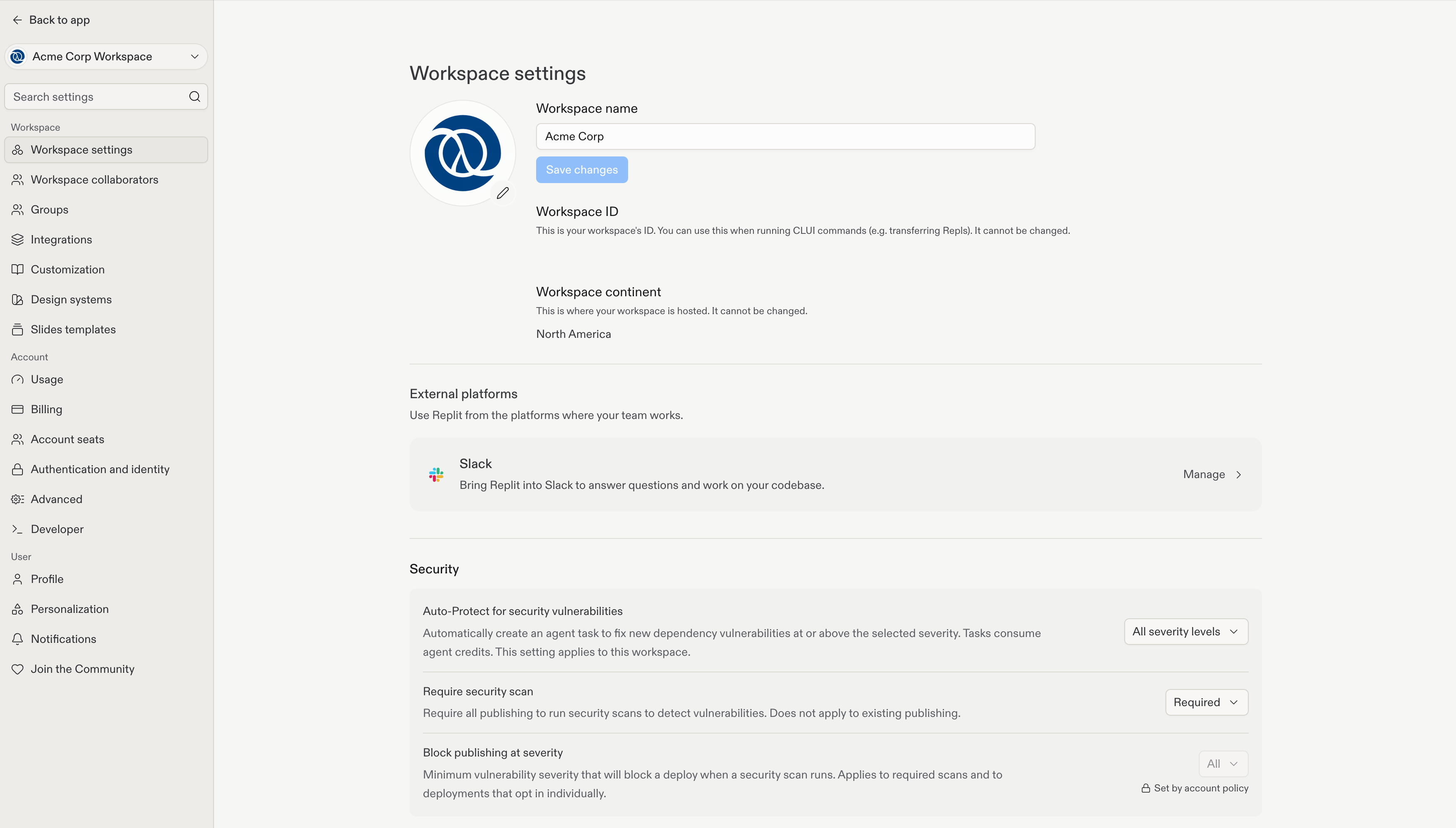
- Enter a Slack handle. This is the name teammates will mention, such as
@Replit. - Select Add to Slack, then follow the authorization flow in Slack. If Replit shows Continue in Slack, select it to finish authorization.
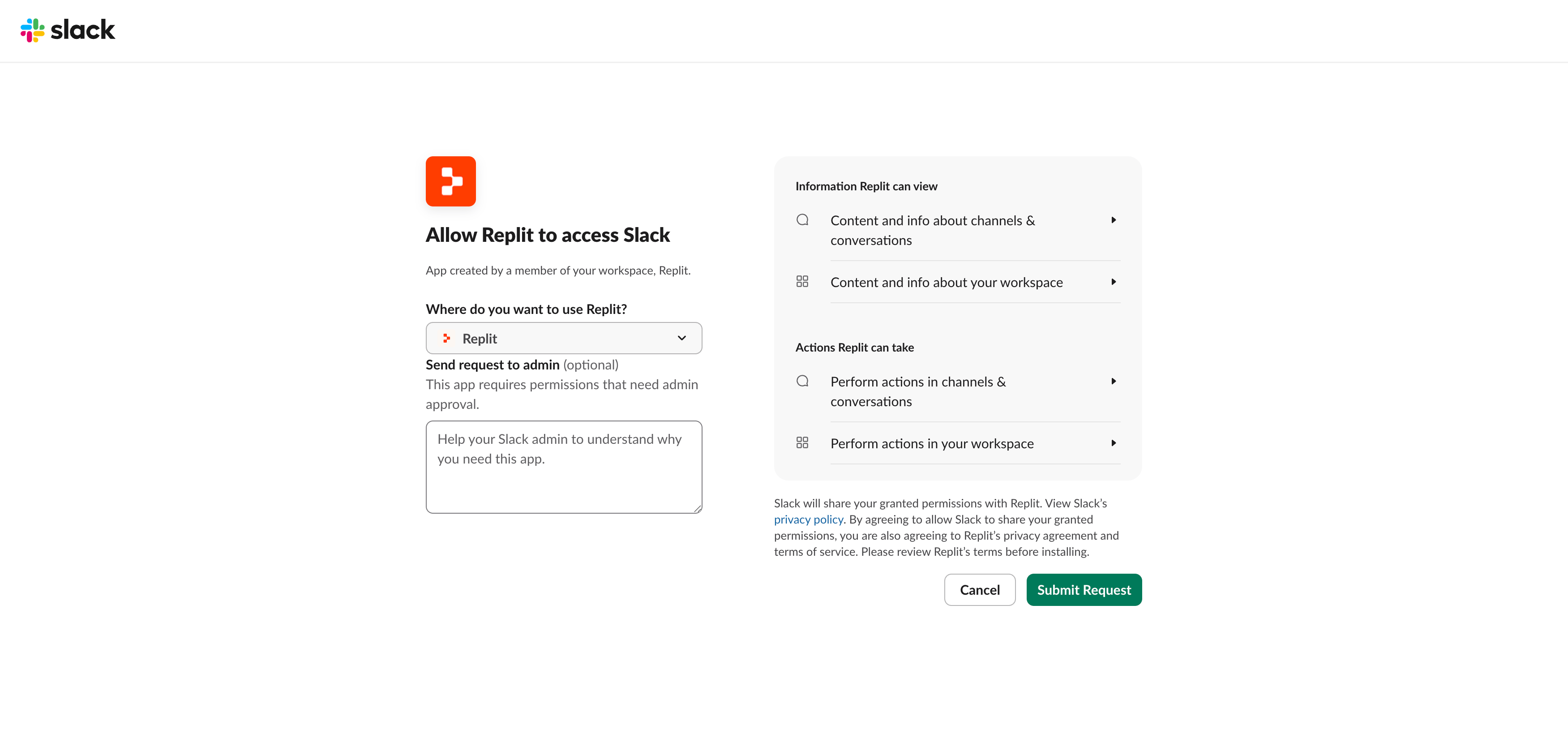
- Review the requested permissions and authorize the installation for your intended Slack workspace.
- Return to Replit and wait for the bot’s status to show Installed. Setup can take a few minutes.
2. Link your Replit account
Each teammate completes this step individually.- Open a DM with the bot, or invite it to a channel and mention it with a request.
- Replit sends you a private prompt to connect your account. Select the account-link button.
- Sign in to Replit if needed. After signing in, return to Slack and select the account-link button again.
- On Connect your Slack account, check the Replit account and workspace shown.
- Select Allow to connect the accounts, then return to Slack.
Using Replit in Slack
In a channel
Invite the bot to the channel, then mention it with a specific request. Replit only reads context from Slack channels you have granted it access to. Do not assume that Replit reads earlier channel messages unless you explicitly ask it to in your prompt.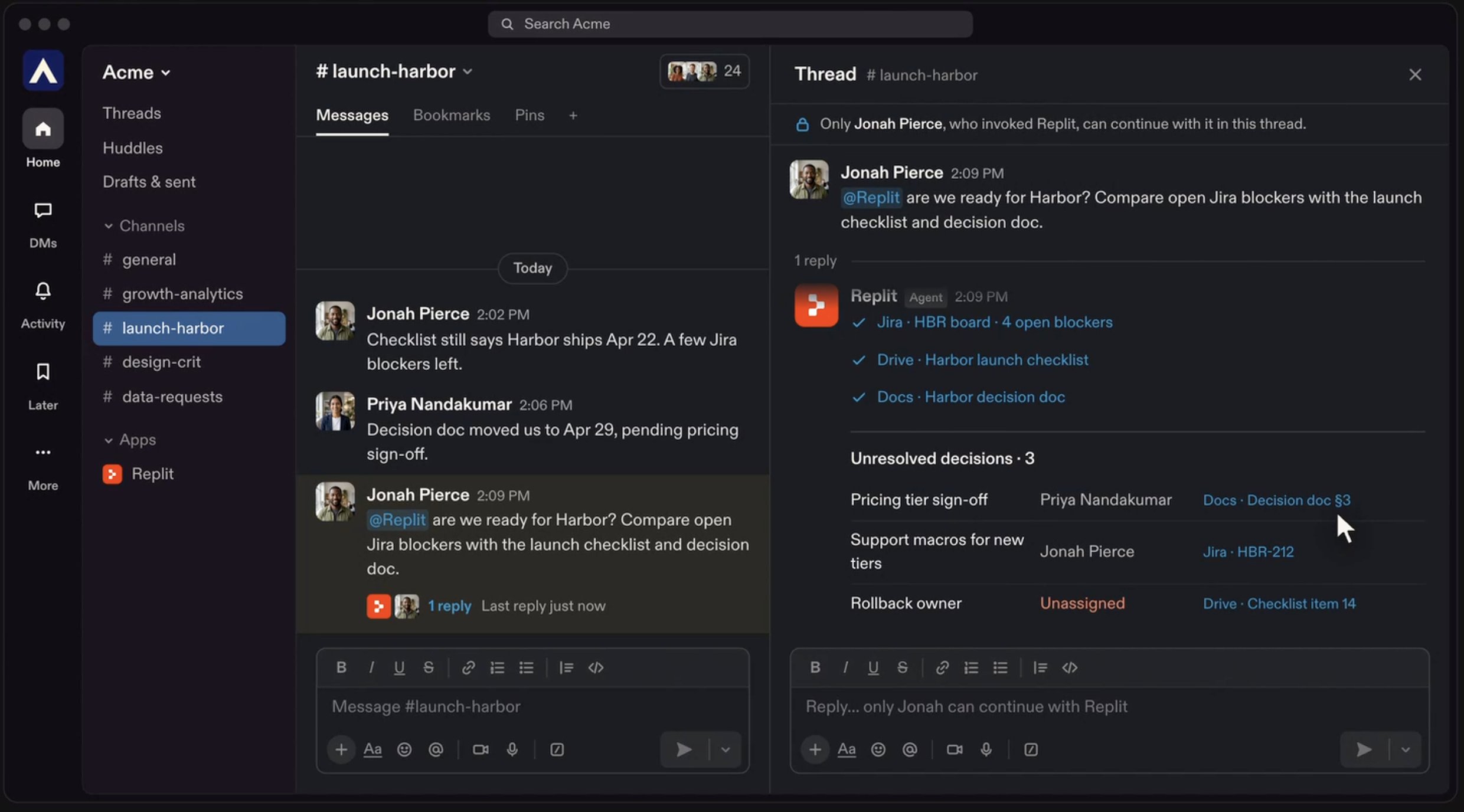
In a direct message
Open the bot’s Messages tab in Slack and send a request. No mention is required: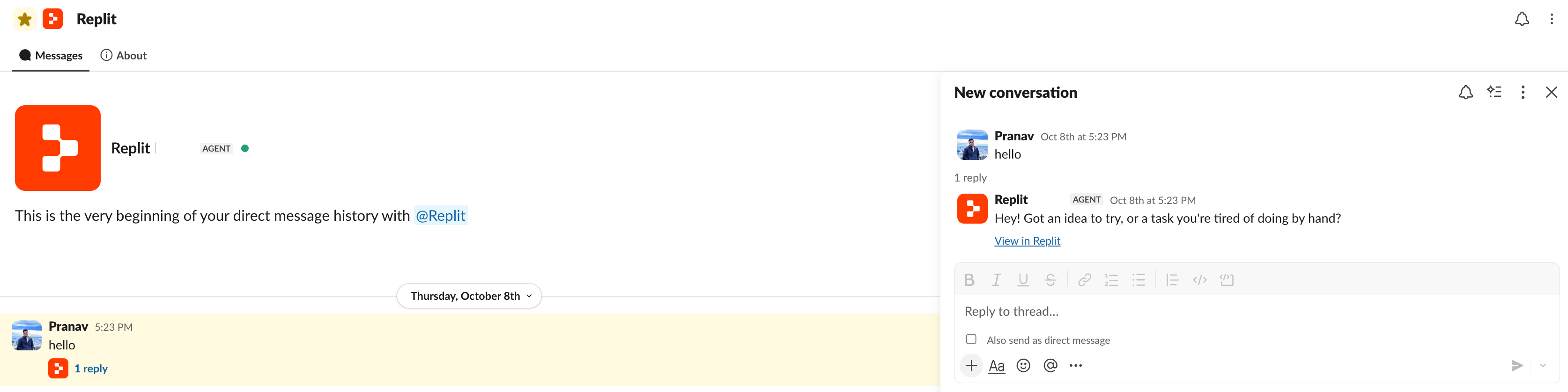
Answer questions and review actions
When Replit needs input, it can show buttons or a form in Slack. Answer there when available. For requests that need a richer interface, use the link to continue in Replit. Only the person who started the session can answer its questions or approve its actions. If Slack rejects an answer, try again or open the chat in Replit.Open results in Replit
Use View in Replit to review the chat, open a project, or access results that need the browser. Supported generated files can also appear as Slack attachments. When a file cannot be attached, use the Replit link.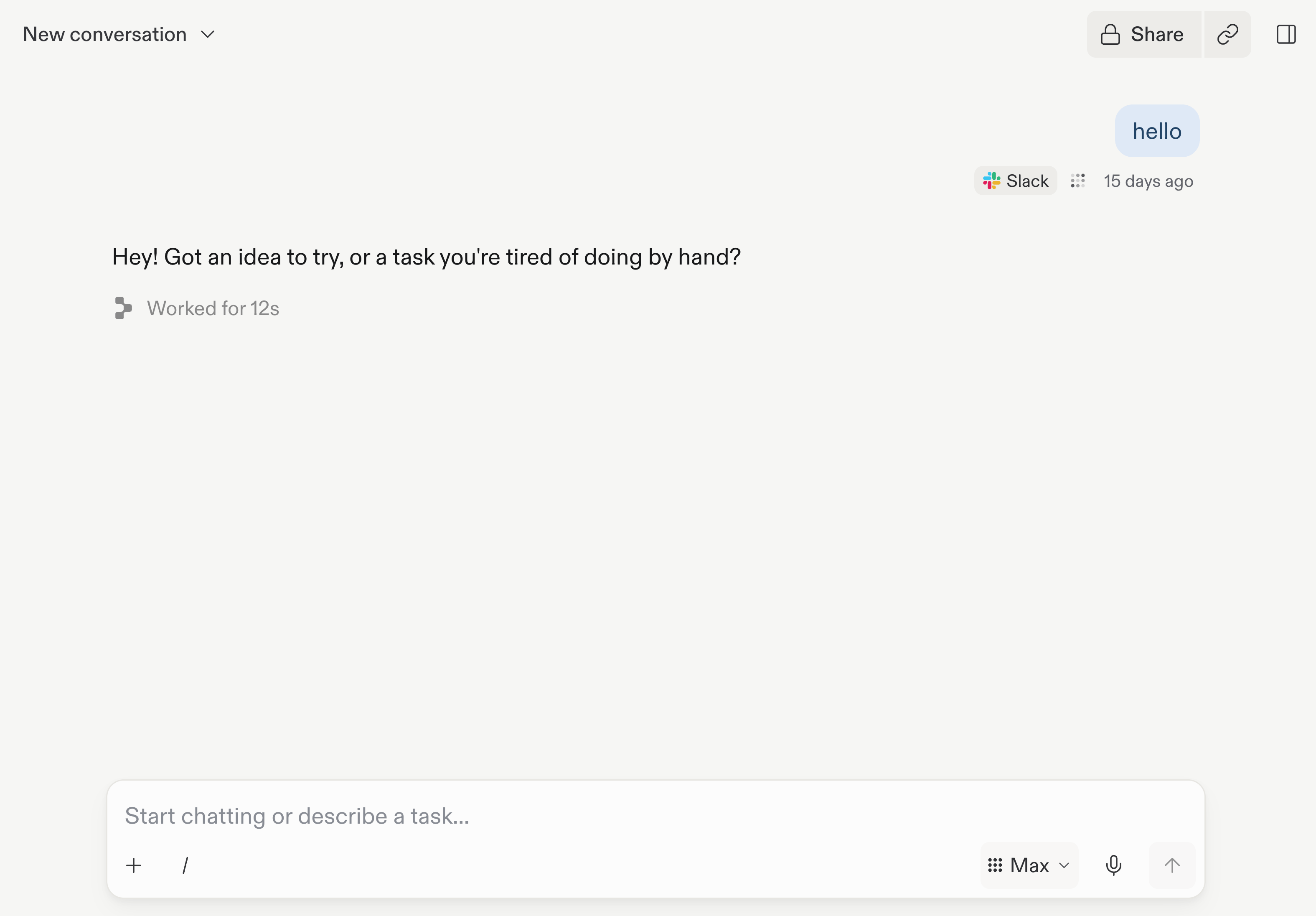
Use slash commands
The workspace bot provides a slash command based on its handle. The examples below assume the handle@Replit. If your workspace uses a different handle, replace /replit with that name.
Command responses are visible only to you. Use mentions or DMs to ask Agent to do work.
Permissions and visibility
Installing the bot does not give every Slack member access to your Replit workspace. Each person must link an eligible Replit account, and requests are checked against that person’s access. The Slack app requests permissions to receive mentions and messages, respond in threads, show working status, identify users, work with files, and add reactions. The workspace bot also requests permission to provide slash commands. Review Slack’s authorization screen before installing. The bot responds to requests addressed to it. Ordinary channel messages do not become Agent requests. Searching Slack history or using Slack as a connected tool is a separate capability with its own connection and permissions.Manage the connection
Return to Settings → Workspace overview → External platforms → Slack to manage the bot and your linked account.Change the bot’s handle
A workspace admin can edit Slack handle, select Save changes, and complete authorization in Slack. The bot’s slash command changes with its handle.Update or reinstall the app
If Update app appears, a workspace admin can use it to apply an available app update. Slack may require approval for new permissions. If someone removes the app in Slack, Replit shows Uninstalled. Use Reinstall and complete Slack authorization to reconnect it.Unlink your account
Select Unlink in the account section, or run/replit unlink in Slack. If your workspace uses a different bot handle, replace /replit with that name. The next request requires you to link again. Existing chats keep their original owner.