

How it works
Monitoring alerts, Auto-fix, and Auto-republish are separate settings. You can receive alerts without allowing Agent to change your code, or let Agent attempt fixes while keeping control over publishing. Automatic checks watch three signals: application error logs, HTTP errors, and request latency. These checks don’t cover every metric Agent can investigate. With Auto-fix enabled, Monitoring Agent responds to alerts in the background:1
Investigate the alert
Agent uses your app’s production metrics, runtime logs, and code to
investigate the cause.
2
Attempt and validate a fix
When Agent identifies an actionable cause, it attempts a fix and validates
the change. An alert doesn’t guarantee a fix. For example, an external
service problem may require action outside your app.
3
Publish the fix
With Auto-republish enabled, Agent can automatically publish its validated
fix. Otherwise, review the result in Agent chat and
republish your app to make the fix live.
Auto-republish is experimental and requires Auto-fix. Auto-fix alone
doesn’t authorize publishing changes to your live app. Some changes, including
migrations and index operations, may be risky.
Set up Monitoring Agent
Configure monitoring separately for each published app. Monitoring Agent runs may incur Agent usage charges. Track spending on your usage page.1
Open the publish settings
Open the Publishing tool. For an existing published app, open its publish
settings. For a new app, configure monitoring during your first publish.
2
Enable monitoring alerts
For an existing published app, switch on Monitoring alerts. The change
saves immediately without republishing. Uptime checks are managed separately.During your first publish, switch on Enable Active monitoring under
Suggested add-ons. This also enables uptime checks where available.This example shows first-publish settings, with monitoring enabled and
Auto-fix and Auto-republish still off.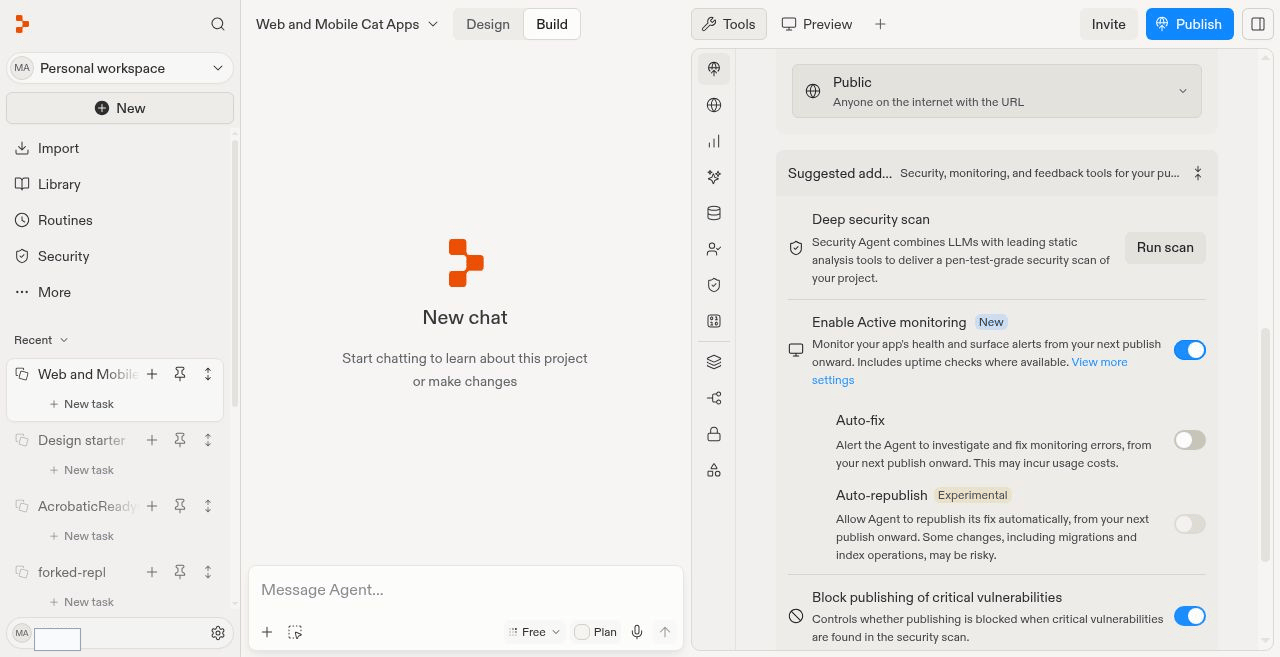
3
Enable automatic fixes
Switch on Auto-fix to let Monitoring Agent investigate
and fix monitoring errors.For an existing published app, this change saves immediately. For a new app,
select Publish to apply your settings and start monitoring.
4
Choose whether to republish automatically
Enable Auto-republish to let Agent publish its fixes automatically.
Leave it off if you want to review and publish changes yourself.For an existing published app, this change saves immediately. For a new app,
the setting takes effect from your first publish.
Review alerts
Open the Monitoring tool and find the Monitoring alerts table:- Active: Issues that currently affect your app.
- Resolved: Issues that stopped affecting your app within the last 30 days.
Email preferences
Open Settings > Notifications and find Active monitoring alerts to control your alert emails.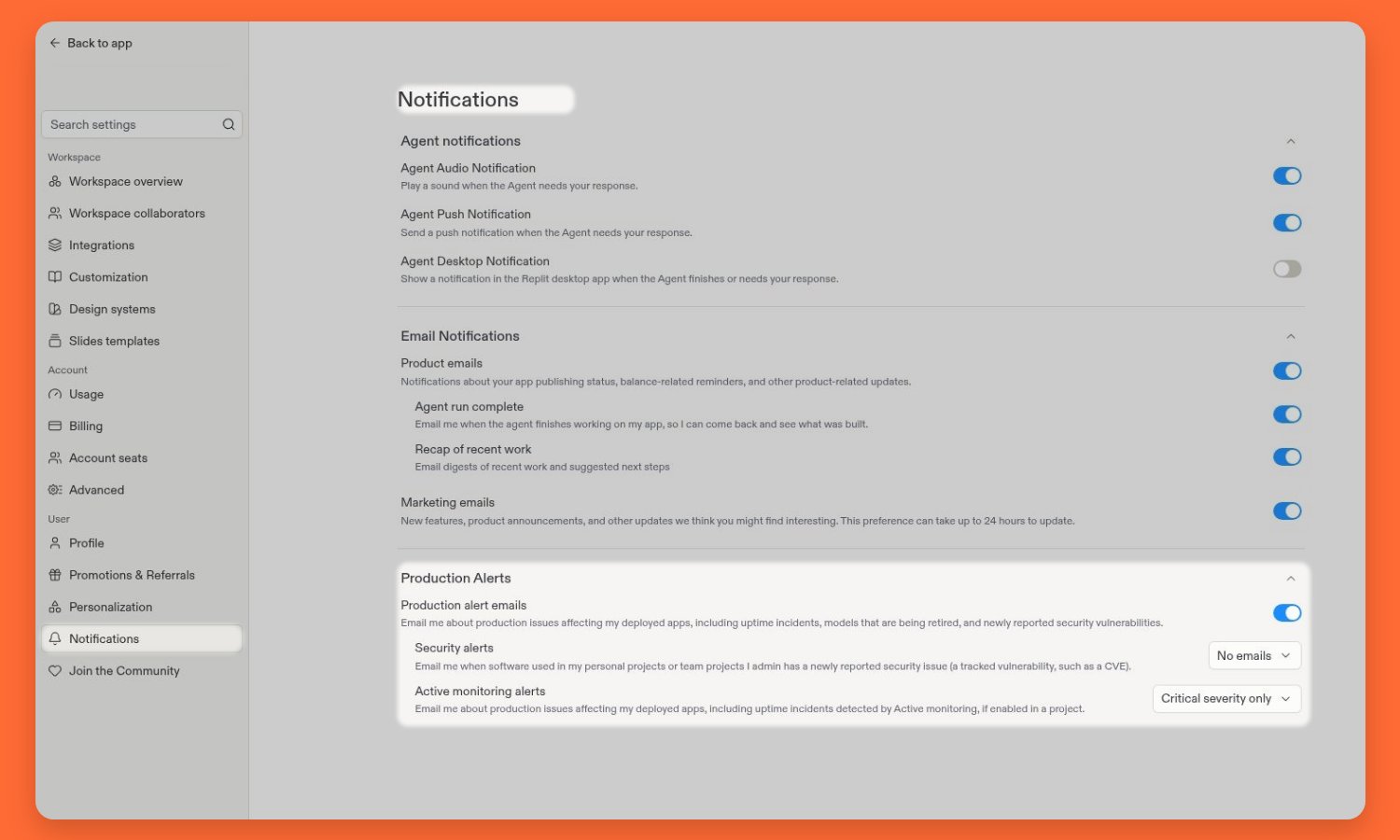
Ask Agent about production
You don’t need to wait for an alert or enable Auto-fix to ask Agent about your published app. Try prompts such as:- “Why did my app return 500 errors in the last hour?”
- “Which endpoints were slowest today? Compare their p50 and p99 latency.”
- “Check CPU and memory usage since my last publish.”
- “Read the runtime logs for the revision that failed to start.”
Available telemetry
Agent can query more telemetry on demand than the three signals used for automatic alerts. Available metrics depend on your deployment type and cloud provider.- HTTP traffic: Request count, request latency, 4xx and 5xx response counts, and availability.
- Endpoint performance: Request count, latency, and 4xx and 5xx response counts for each endpoint. Latency includes average, p50, p95, and p99 values.
- Compute: CPU and memory utilization, active instance count, startup latency, and instance uptime.
- Storage and network: Disk usage, disk utilization, and network egress.
- Application errors: Error log count and runtime logs filtered by severity or deployment revision.
Next steps
- Monitoring: Inspect your app’s health, resource usage, and logs.
- After you publish: Review and publish changes to your live app.
- Manage spending: Track usage and control costs.