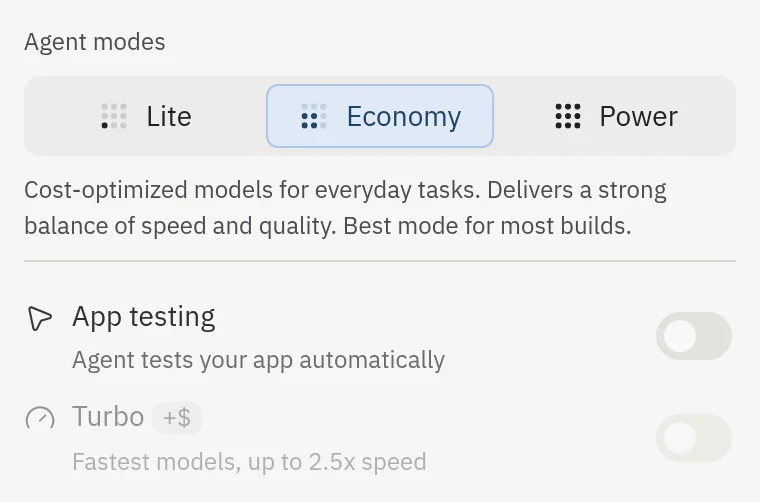
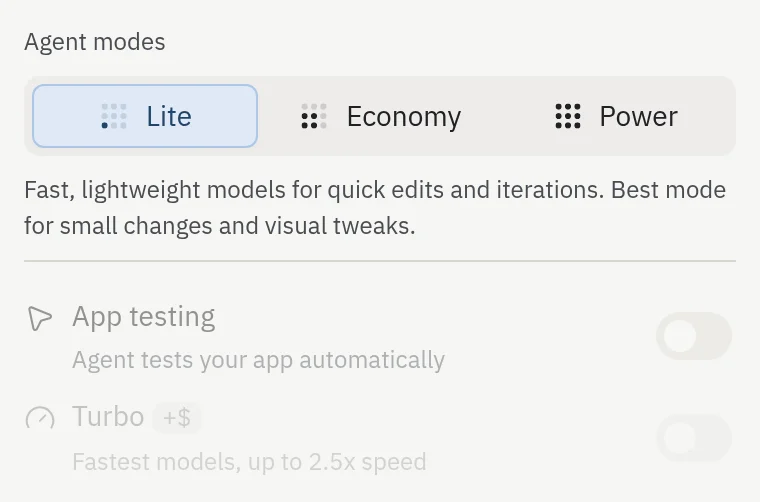
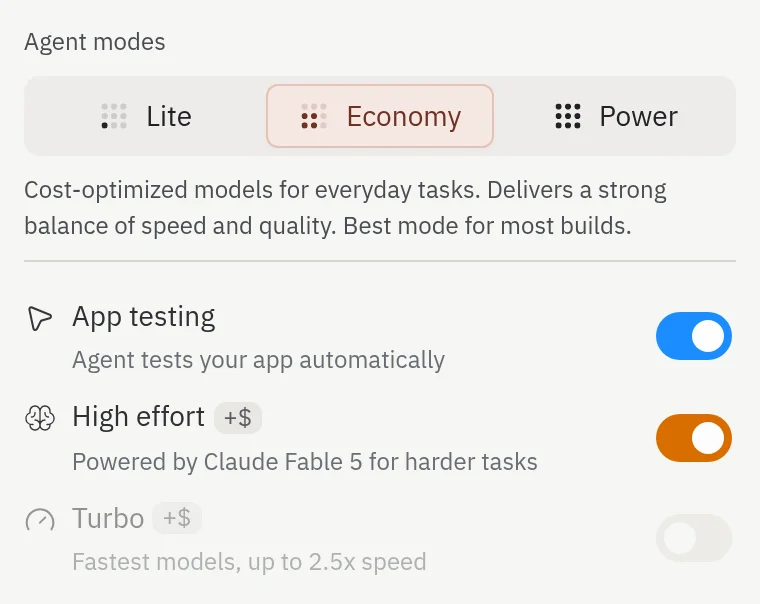
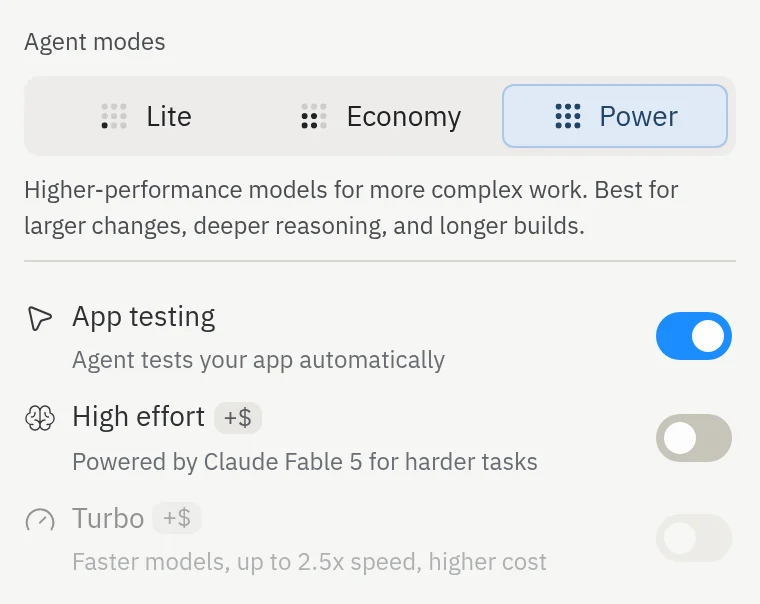
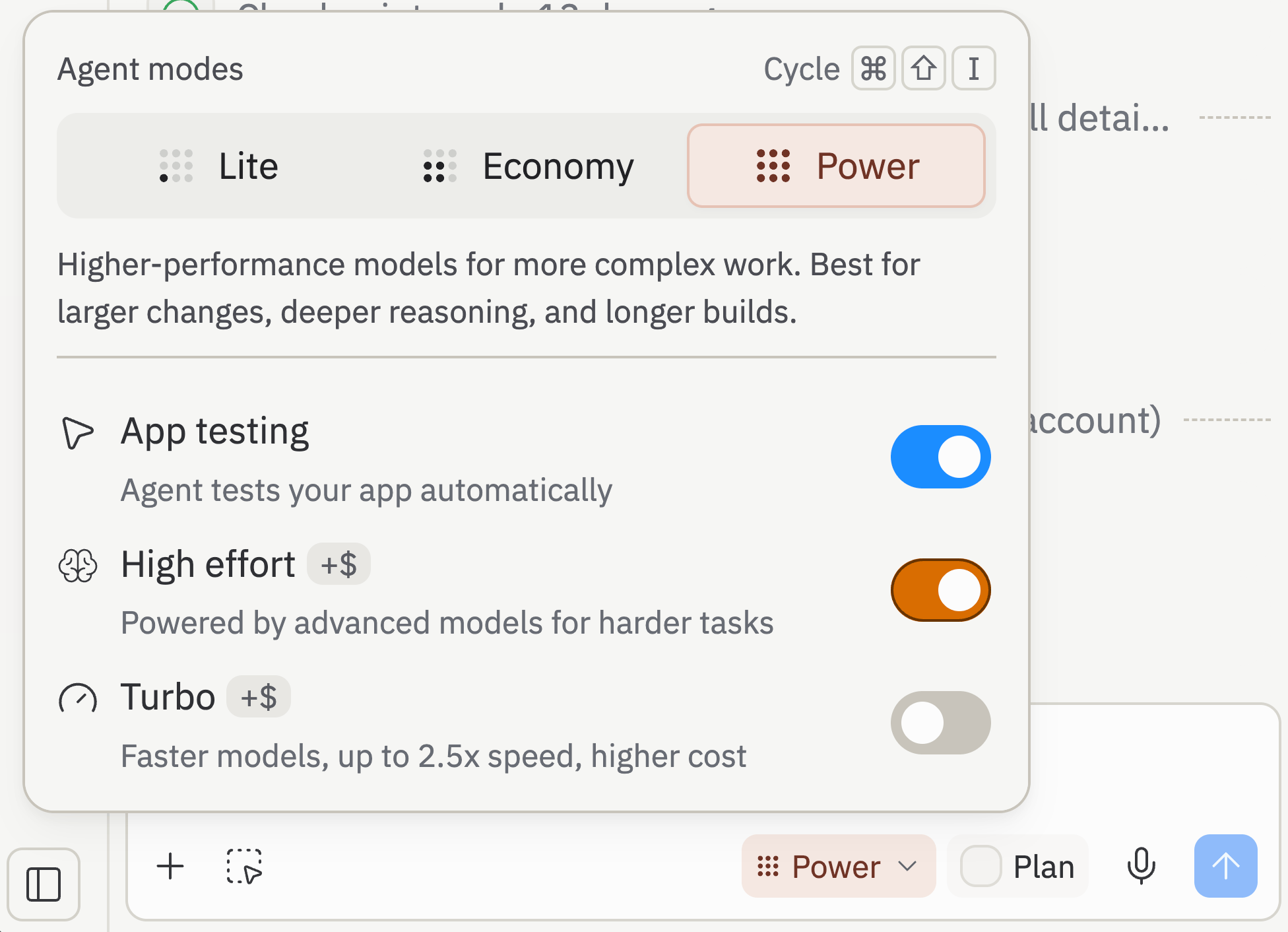
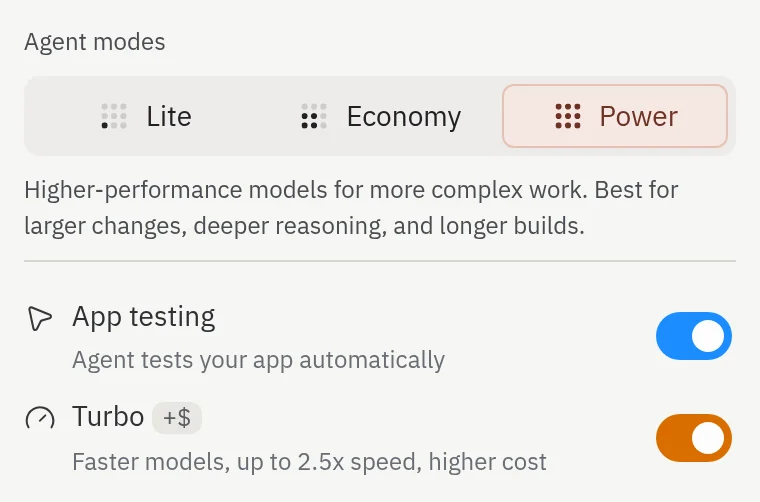
Agent modes let you control the balance between speed, cost, and capability when using Agent. Use the top-level mode selector in the Agent settings dropdown to switch between Lite, Economy, and Power, then use the toggles below it for more control over testing, High effort, and Turbo.
Keyboard shortcut: Press ⌘+Shift+I (Ctrl+Shift+I on Windows) to cycle through Agent modes without leaving the chat input.
Max mode is no longer available. Use Power for the most capable standard builds, and turn on Turbo when you need the fastest runs.
Lite mode
Optimized for quick edits. Lite uses fast, lightweight models for visual tweaks, bug fixes, and other small, scoped changes.
Best for: Quick fixes, UI polish, and short iteration loops while you stay at your keyboard.
Keep in mind: Lite works best in existing apps when you already know what you want to change. If you’re starting from scratch, making large architectural changes, adding a new integration, or changing a database schema, switch to Economy or Power.
Cost: Lite uses the same effort-based pricing model as the other build modes, but focused requests often cost less than Economy or Power for the same targeted edit.
Economy mode
Optimized for cost. Economy uses fewer credits per task and is the best default when you want strong results without paying for the most capable models.
Best for: Everyday builds, learning, and cost-conscious work across an existing project.
Power mode
Optimized for capability. Power uses more capable models for complex tasks, larger codebases, and harder problems.
Best for: Production-grade projects, complex features, and when you want the best results from Agent.
Power mode suggestions
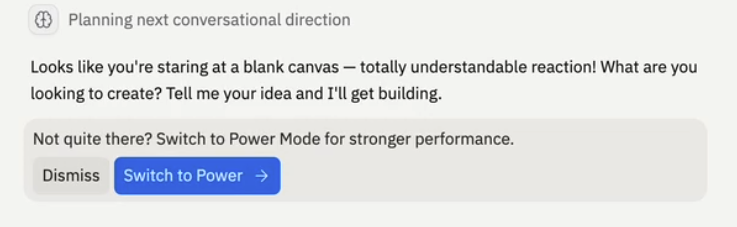
When you are in Economy mode and Agent notices you are hitting the same problem repeatedly, it suggests switching to Power mode for your next message.
You will see the suggestion at most once per project. Once you dismiss it or act on it, Agent will not nudge you again in that project, even if you stay in Economy.
Build controls
Below the mode selector, the Agent settings dropdown shows the rest of Agent’s build controls:
- App Testing lets Agent test your app automatically in a browser.
- High effort lets Agent reach for its most capable models on the hardest parts of a task. Available in Economy and Power.
- Turbo gives you the fastest available models when you’re in Power mode.
Lite keeps App Testing off, High effort is available in Economy and Power, and Turbo is only available while Power is selected.
Code review
Agent reviews and improves its own code as it builds, catching mistakes before it hands work back to you. This review is built into Agent and runs automatically—it is no longer a setting you turn on or off.
The Code Optimizations on/off toggle (formerly Autonomy Level) has been removed from the Agent settings dropdown. You no longer choose whether Agent reviews its own code—Agent handles it for you, so there’s nothing to configure.
High effort mode
High effort is an opt-in toggle, not a separate mode. It’s available in both Economy and Power, so you can keep your usual mode and switch it on only when a task calls for it.
When High effort is enabled, Agent performs deeper, more deliberate reasoning and invokes its most capable frontier models, improving outcomes on the most complex tasks. Agent applies that extra power selectively — it routes to the more capable models only when a request is genuinely hard, not on every run.
Because Agent only reaches for the most capable model on the hardest work, High effort adds cost up to ~2x on the toughest tasks — and often little to nothing on the simpler ones. Leave it on when you’re tackling complex problems, and turn it off for routine changes.
Turbo mode
Turbo is a separate toggle in the Agent settings dropdown. Turn it on in Power mode when you want 2.5x faster responses using the fastest models. Requests cost about 2x more than Power, so Turbo is best when speed matters more than efficiency.
Turbo is highlighted in orange in the Agent modes dropdown as a visual reminder that it costs significantly more than Power. Keep an eye on the highlight when you’re iterating quickly — it’s there to keep the cost tradeoff visible.
Which mode should I use?
Use the following as a guide:
| Goal | Recommended mode |
|---|
| Small, scoped edits and quick iterations | Lite |
| Maximize number of prompts per credit | Economy |
| Balance cost and quality for most projects | Power |
| Best possible result on the most complex tasks | Economy or Power + High effort |
| Fastest response on bigger tasks | Power + Turbo (Pro and Enterprise) |
Settings in shared projects
Your Agent settings are tied to you, not to the project. When you invite a teammate into a project, each of you keeps your own choices for:
- Mode (Lite, Economy, or Power)
- Plan Mode
- Auto-merge for background tasks
- Auto-approve for plans
- High effort
- Turbo
A teammate switching to Power on their next task does not flip your settings to Power. The mode and toggles you see in the Agent settings dropdown are the ones Agent uses when you send the next message, regardless of how many collaborators are in the project.