Create a team Workspace in Replit Enterprise, then open its overview to review your new shared space and personalize its name and logo.
When you first sign in to Replit, you start in your personal Workspace. To build with your team, create a team Workspace where you can invite collaborators and manage their shared work.
A Workspace is where your projects live. It brings together your projects, people, settings, integrations, and shared resources in one place.
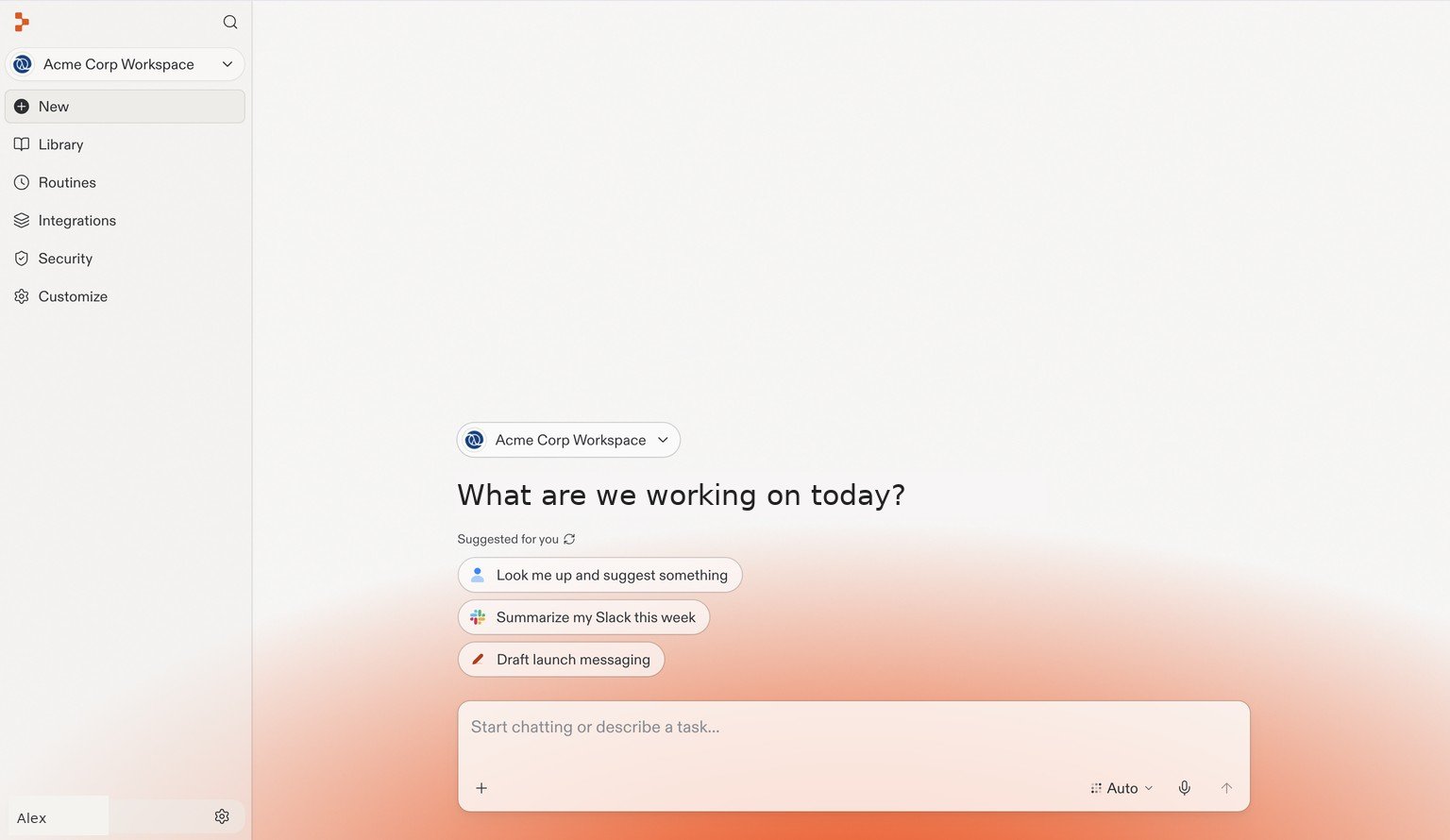
The Replit home page in a team Workspace. Account details have been replaced with examples.
Your current Workspace appears in the top-left corner. Start a conversation in the center of the page, or use the left navigation to find your Library, Routines, and Integrations.Your personal Workspace is for your own projects. A team Workspace gives your collaborators a shared space to build together. As an admin, you can invite people to the Workspace and manage access centrally instead of inviting them to each project separately.For more detail, see Workspaces.
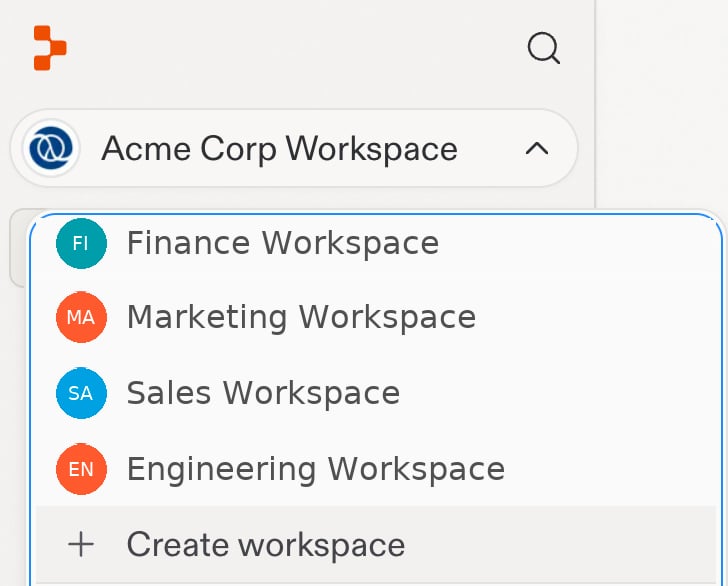
Open the Workspace menu and select Create workspace
Select your Workspace name in the top-left corner to open the Workspace menu. Select + Create workspace at the bottom of the menu.
The Workspace menu with example names. Select + Create workspace to add a team Workspace.
2
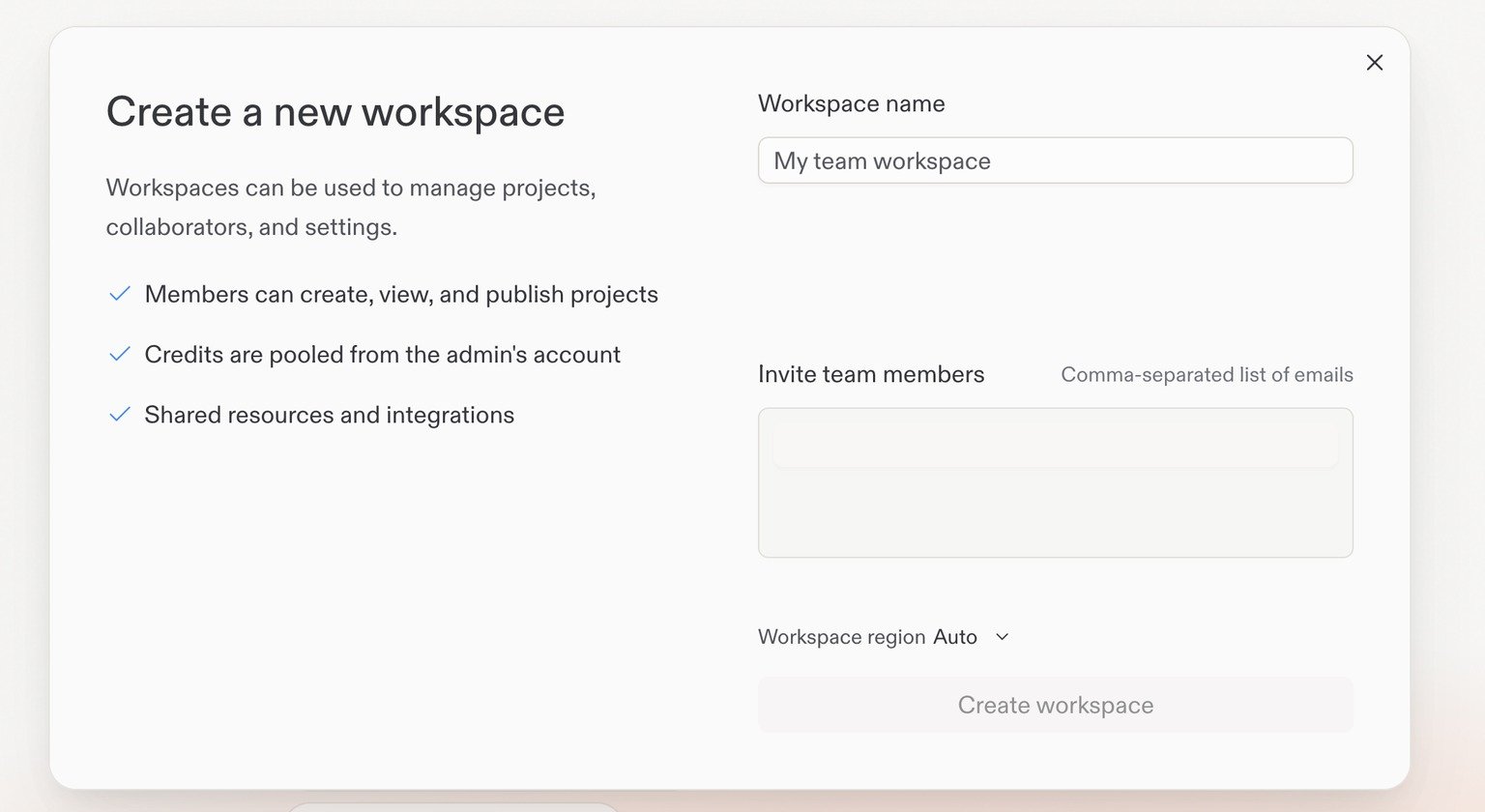
Create and name your Workspace
Enter a name for your team Workspace, then select Create workspace.
Create a new Workspace. Staff-only controls are omitted from this screenshot.
3
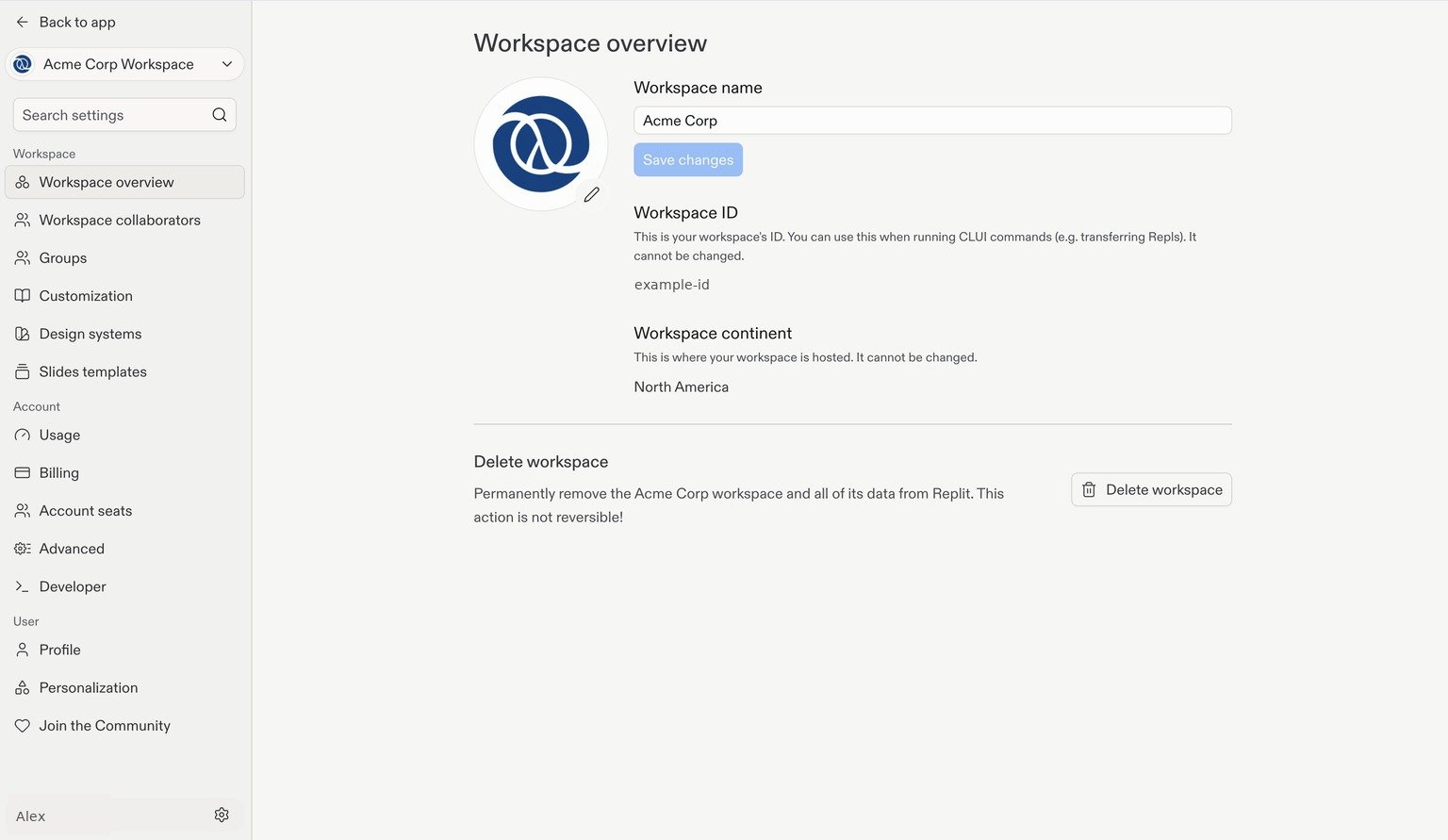
View your Workspace overview
In your new Workspace, go to Workspace overview in Settings.You can change your Workspace’s name and logo here. Edit Workspace name and select Save changes to rename it, or select the pencil icon beside the current logo to change the image.
Workspace overview, with the Settings cogwheel in the bottom-left corner. Account details and the Workspace ID are examples.