

- Share apps with team members instantly
- Centralize project management within your organization
- Manage published apps from your team workspace
Transfer a personal app to a team workspace
App transfer moves ownership of a Replit App from your personal workspace to a team workspace. Once transferred, the app becomes accessible to team members according to workspace permissions and is managed under the team’s resources and billing. For this personal-to-team workflow, the transfer is irreversible and runs in the background. The confirmation tells you that it has started, not that it has finished.Getting started
You must be a member of the target team workspace before transferring apps. Use the workspace selector to check which workspaces you can access.For a personal-to-team transfer:
- Transferring a Replit App to a team workspace is irreversible
- Check your published app after the transfer completes
- You must be a member of the team you want to transfer the app to before initiating transfer
How it works
1
Open Projects
Select Library in the sidebar, then open Projects in your personal workspace.
2
Select the project
Locate the project you want to transfer in your Projects list.
3
Open transfer options
Hover over the project card and select its three-dot menu.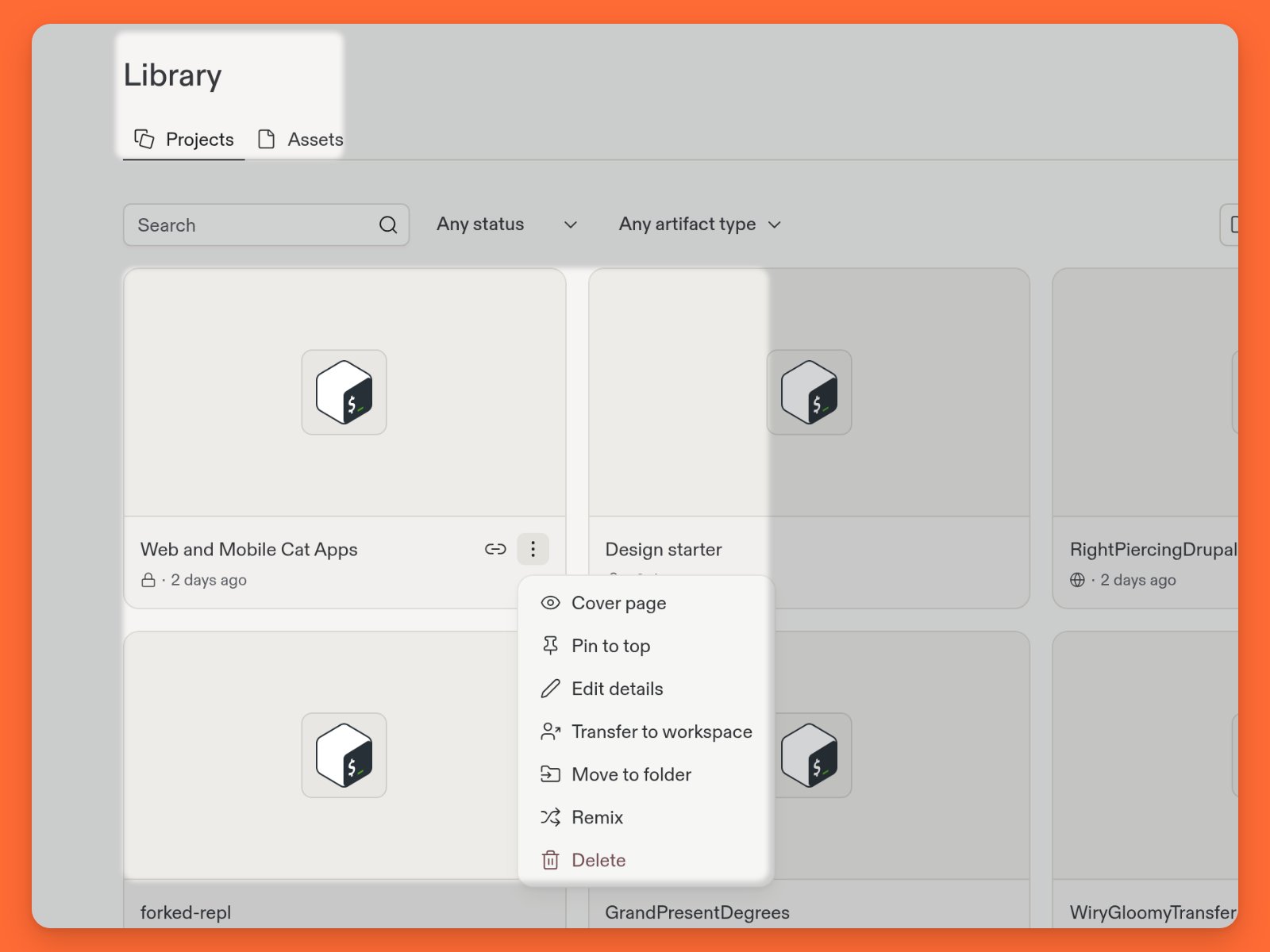
4
Choose transfer option
Select Transfer to workspace from the menu.
5
Select destination
Open Destination Organization and choose the target team workspace. Review the warning that linked Account Secrets do not transfer.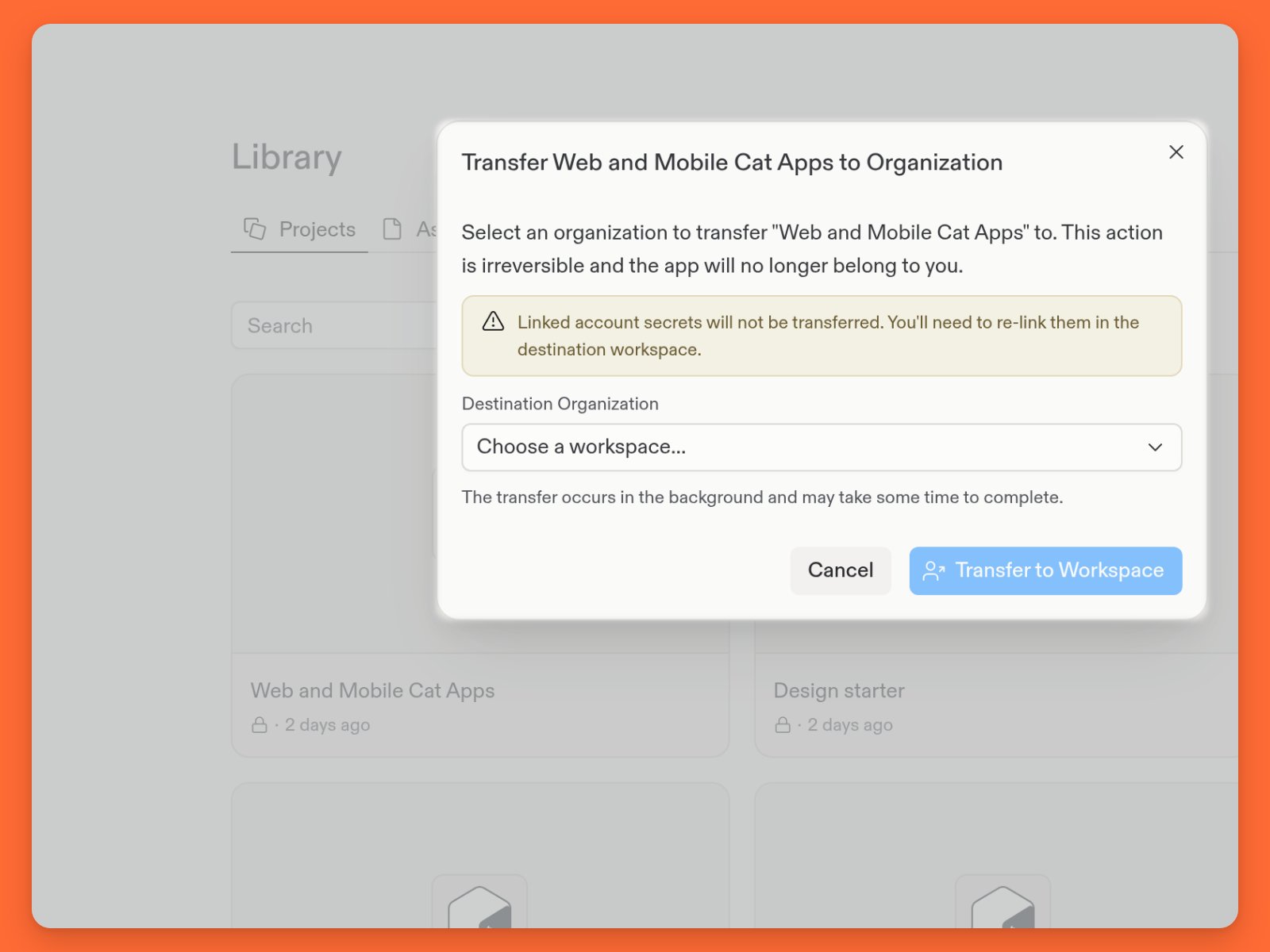
6
Confirm transfer
Select Transfer to Workspace to start the background transfer.
7
Verify completion
The confirmation means the transfer has started. Wait for it to finish, then refresh your project list. Switch to the destination workspace and check that the project appears there.
Transfer between team workspaces
You can move a project from one team workspace to another in the Projects list. This action is irreversible. The transfer runs in the background, so the confirmation only tells you that it has started.Before you start
This workflow requires all of the following:- Both the source and destination must be team workspaces in the same billing account. You can’t use this workflow with a personal project or personal workspace.
- You must have the Owner access level on the project.
- You must have the Admin or Member role in the destination workspace.
1
Open the project actions
In the source workspace, open Projects, find the project, then select the
three-dot menu on the project card and choose Transfer to workspace.
2
In the transfer dialog, open Destination workspace and choose the destination workspace.
3
Review the warning about linked Account Secrets. Then select Transfer to workspace. The project leaves its current workspace when the transfer completes.
4
Verify the transfer
Wait for the background transfer to finish. Switch to the destination
workspace. Then check Projects. Replit renames the project if the
destination workspace already contains a project with the same name.
What transfers and what to check
- Linked Account Secrets: These don’t transfer. Re-link them in the destination workspace. See Account Secrets.
- Custom domains: Domains connected to the project move to the destination workspace.
- Deployments: Replit redeploys the current build after the transfer, and the deployment keeps its public or private visibility. If the destination workspace enforces private deployments, transferring a public deployment fails. Make the deployment private or unpublish the project before you transfer it.
- Individual collaborator access: Replit restores individual project access only for active Admins and Members of the destination workspace. Viewers and other collaborators lose individual project access.
Bulk transfer options
For transferring multiple applications, use CLUI commands:- Core to team workspace: Use
org transfer-repls - Team to team workspace: Use
org transfer-repls-org-to-org
Next steps
To learn more about team collaboration and workspace management, see the following resources:- Manually copy a project to another workspace - Copy a project by hand when transfer isn’t available or when you need to copy across accounts
- Workspaces - Understand Personal and Team Workspaces
- Replit Pro and Enterprise overview - Learn about team workspace features
- CLUI commands reference - Explore bulk transfer options