Build and publish data apps on Microsoft Fabric with Replit Agent.
Build AI-powered apps in Replit and publish them directly into Microsoft Fabric, with enterprise-grade governance and security built in. The Microsoft Fabric integration turns governed enterprise data into internal tools such as dashboards, workflows, and AI applications. Teams go from prompt to production faster, while authentication and access policies stay inside the Fabric environment they already trust.
Power BI semantic models are the data source. Charts are driven by DAX queries against the semantic models (datasets) you connect.
Read-only by design. The app reads data with DAX EVALUATE; it does not write back to Power BI. If you need writable state, use a separate application database alongside the dashboard.
Rendered through the Fabric portal. The data layer runs inside the Microsoft Fabric portal, which executes your queries against the semantic model and returns results to the app. Your data stays within your Fabric environment.
Hosted on Microsoft infrastructure. You can publish a finished data app to Microsoft’s hosting so it runs alongside the rest of your Fabric environment.
Microsoft Fabric data apps require access to a Microsoft Fabric tenant with Power BI semantic models, and—during preview—membership in the approved tester program.
Behind the scenes, Rayfin (an open-source SDK and CLI for building application backends) lets Agent define and publish production-ready apps on top of your Fabric data.You stay in a single workflow: describe the app, let Agent scaffold it, connect to governed Fabric data, and publish to run within your organization’s Fabric tenant.This guide covers the builder flow, how the app connects to Fabric data, and the options for teams and automation. For general data dashboards backed by other warehouses, see Data Visualization.
For organizations already invested in the Microsoft data ecosystem, this is a much faster path to internal software. Instead of spending weeks wiring together authentication, APIs, deployment tooling, and governance policies, teams describe what they want and let Agent build it.Common use cases include:
Department-specific productivity tools
Operational dashboards
Data exploration tools
Workflow automation apps
Reporting interfaces
For enterprise IT, governance, authentication, and security stay inside the Fabric environment your organization already manages, so rapid app creation does not come at the cost of centralized control.
The builder flow is conversational. You stay in Replit the whole time; authentication and data access happen through Microsoft when prompted.
1
Start from the Fabric template
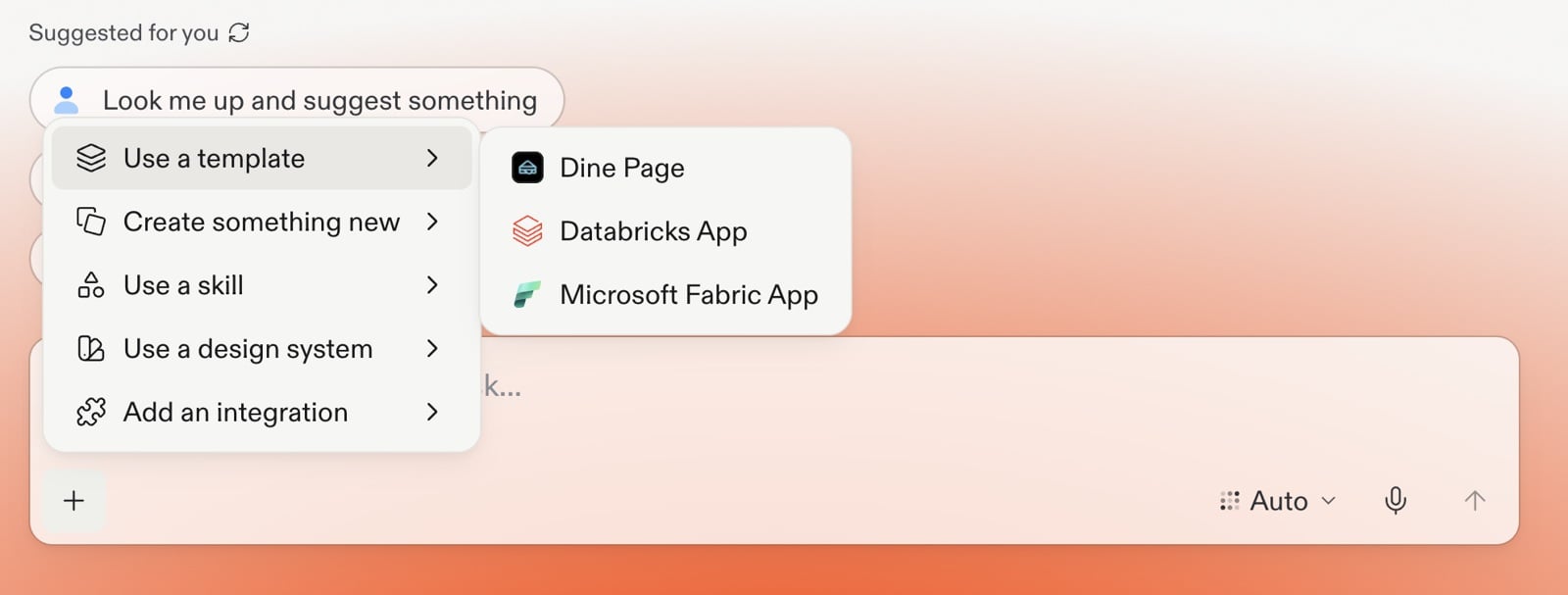
On the Replit home page, select + in the prompt box, open Use a template, and choose Microsoft Fabric App. This puts Replit into the data-app workflow with the Fabric tooling preloaded.
Open Use a template from the plus menu and choose Microsoft Fabric App.
2
Describe the dashboard you want
Type a prompt describing the dashboard or reporting tool to build. For example: “Build a month-over-month sales growth dashboard from our Fabric sales model.” You do not need to write DAX—Agent generates the queries.
3
Sign in with Microsoft
When prompted, sign in with Microsoft OAuth against the tenant that holds your Fabric data. This authorizes Agent to read the semantic models you have access to. The identity you sign in with must have access to the Fabric workspace you want to use.
4
Add your data sources
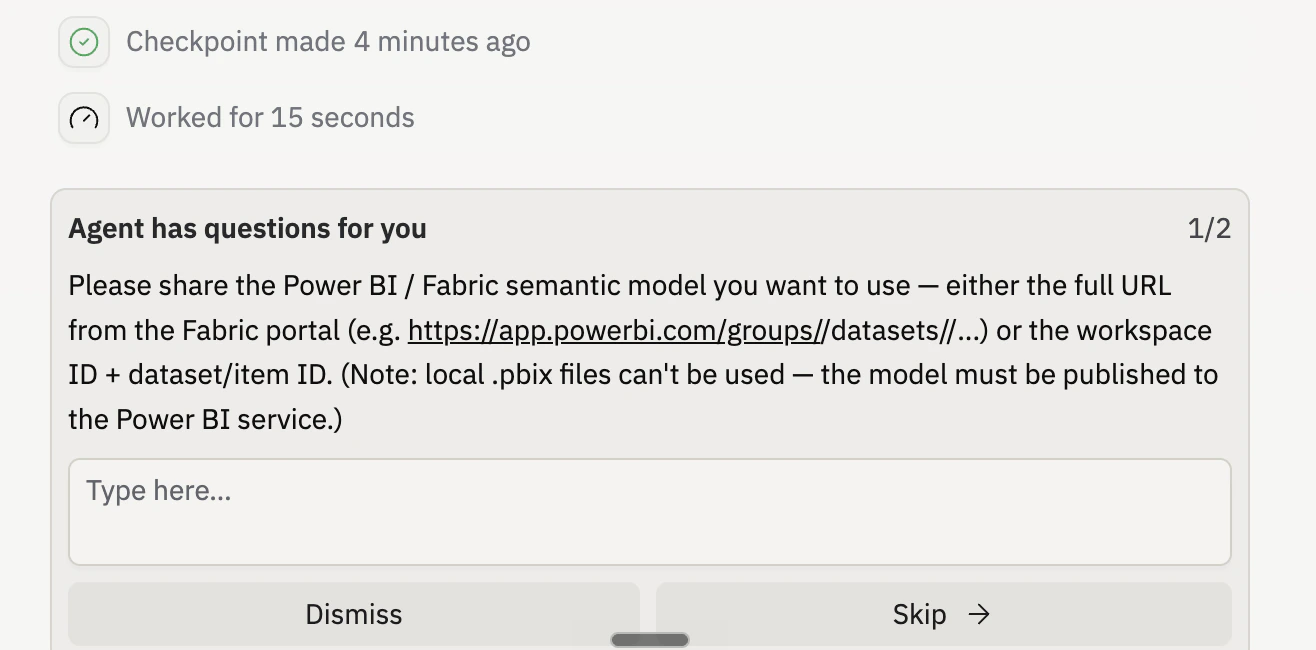
When Agent asks, share the Power BI / Fabric semantic model you want to use. You can provide either the full dataset URL from the Fabric portal (for example, https://app.powerbi.com/groups/<workspaceId>/datasets/<datasetId>/...) or the workspace ID plus the dataset/item ID. Agent uses these to identify the workspace and semantic model to query.The model must be published to the Power BI service—local .pbix files can’t be used.
Agent asking for the Power BI / Fabric semantic model link (private-preview UI).
5
Let Agent build and iterate
Agent explores the semantic model’s schema, writes DAX queries, and assembles the dashboard with appropriate charts. Review the result and ask for changes in natural language—add a filter, change a chart type, or add another metric.
6
Publish (optional)
When the dashboard is ready, you can publish it to Microsoft’s hosting so it runs within your Fabric environment. The publishing story is covered separately; this guide focuses on connecting to data and building the app.
Viewers of a published data app never configure a connector. They authenticate through the app’s embedded Microsoft Fabric single sign-on, and the app reads data as their identity through the Fabric portal. This keeps access governed by your existing Fabric permissions.
The Microsoft Fabric connector (the easy path for builders)
For builders, the Microsoft Fabric connector is the convenient way to authorize data access during development. It is optional—an easy path, not a requirement.
The first builder to set it up completes a one-time OAuth with Microsoft.
Other collaborators in the same project inherit that connection.
A different workspace must enable the connector and complete its own OAuth.
The OAuth’d identity must have access to the target Fabric workspace.
The connector uses Microsoft Entra OAuth and is scoped to your tenant. Manage it from your project’s Integrations page like any other Replit connector. For broader connector concepts, see Managing your connectors.
During private preview, there are no shared Replit-managed credentials for the Microsoft Fabric connector. Builders authorize against their own Microsoft Entra tenant.
For shared team usage or non-interactive environments (such as CI), interactive OAuth is not always practical. In those cases, supply a service principal token through your project Secrets instead of signing in interactively. The app uses the service principal’s identity to read Fabric data.This is the closest analog to a machine-to-machine setup: a non-human identity, provisioned in Microsoft Entra and granted Fabric workspace access, authenticates the app without a person in the loop. Confirm the service principal has access to the workspaces and semantic models the app queries.
The Fabric data layer runs through the Microsoft Fabric portal. If charts render empty or the app preview fails to load data, confirm you completed the Microsoft sign-in and that the signed-in identity has access to the workspace and semantic model you linked.
Agent cannot find your semantic model
Make sure you pasted the Power BI dataset link from the Fabric portal and that your identity (or service principal) has at least read access to that workspace. Re-share the dataset link if Agent reports it cannot resolve the workspace or model.
The connector is stuck or repeatedly prompts to connect
Re-authorize the Microsoft Fabric connector from the project Integrations page. Confirm the OAuth’d identity has Fabric workspace access. For team or CI use, prefer a service principal token supplied through Secrets.